Loading manual…
Gigabyte X570S AORUS ELITE AX user manual
- Type
- User manual
- Language
- English
- Pages
- 16
- Category
- Motherboards
- Models
- X570S AORUS ELITE AX
Open PDFOpens the file on objects.icecat.biz.
Contents
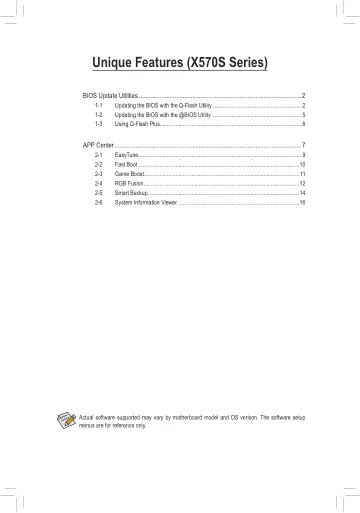
- BIOS Update Utilitiesp. 2
GIGABYTE motherboards provide two unique BIOS update tools, Q-Flash™ and @BIOS™. GIGABYTE Q-Flash and @BIOS are easy-to-use and allow you to update the BIOS…
- 1-1 Updating the BIOS with the Q-Flash Utilityp. 2
A. Before You Begin 1. From GIGABYTE's website, download the latest compressed BIOS update file that matches your motherboard model. 2. Extract the file and…
- 1-2 Updating the BIOS with the @BIOS Utilityp. 5
A. Before You Begin 1. In Windows, close all applications and TSR (Terminate and Stay Resident) programs. This helps prevent unexpected failures when…
- 1-3 Using Q-Flash Plusp. 6
- APP Centerp. 7
GIGABYTE App Center gives you easy access to a wealth of GIGABYTE apps that help you get the most from your GIGABYTE motherboard (Note). Using a simple…
- 2-1 EasyTunep. 9
GIGABYTE's EasyTune is a simple and easy-to-use interface that allows users to fine-tune their system settings or do overclock/overvoltage in Windows…
- 2-2 Fast Bootp. 10
Through the simple GIGABYTE Fast Boot interface, you can enable or change the Fast Boot setting right in the operating system. The Fast Boot Interface Using…
- 2-3 Game Boostp. 11
This app allows you to flexibly manage your applications to optimize your gaming performance by freeing up system resources and memory usage. The Game Boost…
- 2-4 RGB Fusionp. 12
This application allows you to enable or specify the lighting mode of the select device (Note 1) while in the Windows environment. The RGB Fusion Interface…
- 2-5 Smart Backupp. 14
Smart Backup allows you to back up a partition as an image file every hour. You can use these images to restore your system or files when needed. • Smart…
- 2-6 System Information Viewerp. 16
GIGABYTE System Information Viewer allows you to monitor and adjust the fan speed in the operating system. You can also display the hardware monitor…