Loading manuals…
Loading manuals…
Security cameras
2 documents in 6 languages
From D-Link DCS-5020L user manual · 49 pages · English. Tap a section to open the PDF at its page.
Package Contents • DCS-5020L Wireless N Day & Night Pan/Tilt Cloud Camera • CAT5 Ethernet Cable • Power Adapter • Manual and Software on CD • Quick Install…
Computer with Microsoft Windows® 8/7/Vista/XP, or Mac with OS X 10.6 or higher • PC with 1.3 GHz or above and at least 128 MB RAM • Internet Explorer 7…
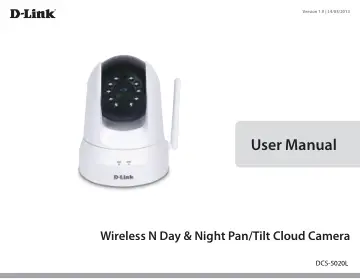
Congratulations on your purchase of the DCS-5020L Wireless N Day & Night Pan/Tilt Cloud Camera. The DCS-5020L is a versatile and unique solution for your home…
Front View Camera Lens Microphone IR LED Light Sensor Power and Link LED WPS LED Manual Focus Bezel
Camera Lens Microphone IR LED Light Sensor Power and Link LED WPS LED Manual Focus Bezel
Power Connector Ethernet Port Reset Button WPS Button
There are three ways to set up your camera: Zero Configuration Setup: If you have a mydlink-enabled router (D-Link cloud router), this is the easiest way to…
Zero Configuration automatically configures your camera's settings for you, and adds the camera to your mydlink account automatically. This type of setup…
Insert the Installation CD-ROM into your computer’s optical drive. On the desktop, open your CD drive and double-click on the SetupWizard file. After about…
If you wish to set up your camera without using the Camera Setup Wizard, please follow these steps. Note: In order to use the mydlink features of this product…
Your D-Link Wireless Network Camera lets you access your network using a wireless connection from anywhere within the operating range of your wireless network.…
WPS Button If your router supports Wi-Fi Protected Setup (WPS), you can create a secure wireless connection using the WPS Button on the back of the camera.…
After registering your DCS-5020L camera with a mydlink account in the Camera Installation Wizard, you will be able to remotely access your camera from the…
Using the Web Configuration Interface After completing the Camera Installation Wizard, your camera is ready to use. The camera’s built-in web configuration…
After completing the Camera Installation Wizard, your camera is ready to use. The camera’s built-in web configuration interface is designed to allow you to…
Video Compression Format: Pan/Tilt Wheel: Go To: Pan Step: Tilt Step: Language: Zoom: Audio: Night Mode: Click the H.264 or MJPEG radio button to choose which…
Wizard You may choose to configure your Internet connection by using the Internet Connection Setup Wizard that includes step-by-step instructions. Otherwise…
You may choose to configure your Internet connection by using the Internet Connection Setup Wizard that includes step-by-step instructions. Otherwise, you may…
This wizard will guide you through a step-by-step process to configure your new D-Link Camera and connect the camera to the Internet. Click Next to continue.…
Select this connection if you have a DHCP server running on your network and would like a dynamic IP address to be assigned to your camera automatically.…
Check this box to allow your camera to connect to your network wirelessly. Enter the network name (SSID) of the wireless network you want to connect to. You…
Check this box to enable Extender Mode. This shows the name of the Host wireless network that the camera is connected to and will extend. Select an option: •…
This section allows you to configure the DDNS setting for your camera. DDNS will allow all users to access your camera using a domain name instead of an IP…
If you have lights flickering in your camera video, try enabling antiflicker. Otherwise, you should leave this disabled. Select this box to vertically flip the…
Profile: Encode Type: Resolution: Bit Rate FPS: JPEG Quality: Default View Mode: Light Frequency: This section allows you to configure the video settings for…
This section allows you to adjust the audio settings for your camera. Note: Please wait a few seconds for the camera to adjust the audio after making changes.…
allows you to mark areas of your camera’s video to monitor for motion, which can be used to trigger snapshots or recordings. Refer to “Mail” on page 33 and…
allows you to detect when there is a loud sound in the area, which can be used to trigger snapshots or recordings. Refer to “Mail” on page 33 and “FTP” on page…