Loading manuals…
Oppo A78 5G manual
Phones
Also sold as 6054386
1 document
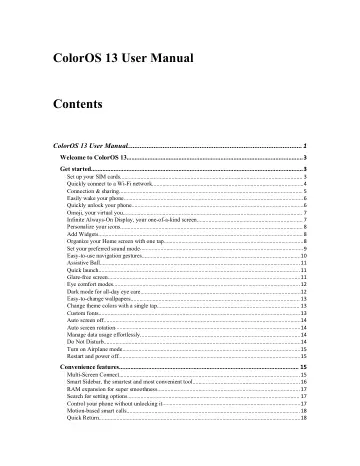
What's in the Oppo A78 5G user manual
From OPPO A78 (110010345683) user manual · 58 pages · English. Tap a section to open the PDF at its page.
- Welcome to ColorOS 13p. 3
This user manual provides you with everything you need to know about ColorOS 13. ColorOS 13 uses smart technology to deliver a smooth and comfortable…
- Quickly connect to a Wi-Fi networkp. 4
Set up Wi-Fi network connections • Connect to a Wi-Fi network without a password: Simply tap the Wi-Fi network. • Connect to a Wi-Fi network with a password…
- Connection & sharingp. 5
Personal hotspot Go to "Settings - Connection & sharing - Personal hotspot", and turn on "Personal hotspot". Nearby devices can then discover your personal…
- Easily wake your phonep. 6
Multiple methods are available for you to wake your phone. Press the Power button Simply press the Power button to wake your phone. Raise to wake With "Raise…
- Omoji, your virtual youp. 7
Omoji lets you create your own personal avatars on ColorOS. Omoji automatically recognizes your facial features and expressions and captures them in an image.…
- Personalize your iconsp. 8
Choose a style for your icons from a variety of styles: Material Style, Pebble, ART+ icons, or third-party icon packages, and resize the icons as you like. You…
- Add Widgetsp. 8
Touch and hold a blank area on the Home screen and tap "Widgets" at the bottom of the screen. Then you can add the widgets you like. Tap the add button in…
- Set your preferred sound modep. 9
ColorOS offers more user-friendly sound adjustment options for more scenarios. You won't get disturbed by notifications during meetings, and music can now be…
- Easy-to-use navigation gesturesp. 10
As phone screens get bigger and bigger, to make the phone easier to use, ColorOS offers a threebutton navigation method and navigation gestures for you to…
- Assistive Ballp. 11
lets you complete different tasks quickly using gestures or through the menu options. Path: Settings - Additional settings - Assistive Ball. Gesture controls •…
- Quick launchp. 11
Unlock your phone, and touch and hold or quickly swipe on the fingerprint sensor to open a quick function. • Touch and hold the fingerprint sensor until app…
- Eye comfort modesp. 12
ColorOS offers two eye comfort modes to make it easier for you to use your phone during nighttime or in dim environments and to relieve your eye discomfort due…
- Dark mode for all-day eye carep. 12
ColorOS Dark mode is auto backlit so you can always comfortably look at the screen, no matter the time of day. In addition, with an upgraded color scheme and…
- Easy-to-change wallpapersp. 13
Your wallpaper, your choice. ColorOS provides a wide range of beautifully designed static and live wallpapers, including interactive live wallpapers. You can…
- Change theme colors with a single tapp. 13
ColorOS offers 6 to 12 different theme colors. Change your desired theme colors with a single tap to make the UI more in tune with your personality and…
- Auto screen offp. 14
When your phone is not used, the screen will automatically turn off to save power and protect your privacy and security. Set the auto screen-off time based on…
- Auto screen rotationp. 14
rotates the screen automatically when you rotate your phone between portrait and landscape, for example, to send messages and watch videos. Paths: Swipe down…
- Manage data usage effortlesslyp. 14
Mobile data usage Check your mobile data usage in "Settings - Mobile network - Data usage", and set a time to start monitoring your mobile data usage as…
- Turn on Airplane modep. 15
You can turn Airplane mode on and off. In Airplane mode, your phone's Bluetooth, Wi-Fi, and mobile data connections will be disconnected. Paths: • Go to…
- Restart and power offp. 15
To restart your phone: • Press and hold the power button and volume up button, and then drag the white circle slider up. • Press and hold the power button and…
- Convenience featuresp. 15
Multi-Screen Connect Multi-Screen Connect is a cross-device solution provided by ColorOS, with which you can connect your phone to a PC to mirror the phone…
- Multi-Screen Connectp. 15
is a cross-device solution provided by ColorOS, with which you can connect your phone to a PC to mirror the phone screen to the PC, control the phone from the…
- RAM expansion for super smoothnessp. 17
RAM expansion uses some idle storage space as virtual RAM to increase the amount of RAM, so that the system runs more smoothly, apps open faster, and more apps…
- Search for setting optionsp. 17
Open Settings and enter keywords in the top search box to search for relevant feature settings. Tap a search result to open the corresponding settings page.…
- Control your phone without unlocking itp. 17
About screen-off gestures You can use screen-off gestures to control your phone while the screen is off. The system's screen-off gestures work even when the…
- Motion-based smart callsp. 18
You can turn on "Lift to ear to answer calls", "Auto switch to receiver", or "Flip to mute incoming calls" based on your usage habits. Path: Settings -…
- Quick Returnp. 18
When you are waiting in a long queue for a taxi after work, waiting to be respawned in a game, or using a navigation app on a familiar route, you may want to…
- Quick screenshotsp. 18
You can use the system's screenshot tool to take screenshots, save the screenshots to Photos, and share them to social media. Use the following methods to take…
- Split screen for doubled efficiencyp. 19
Split screen lets you use two apps easily at the same time. For example, you can chat with your friends while watching videos. Path: Settings - Special…
- Use App cloner to balance your work and lifep. 20
App cloner enables you to effortlessly clone apps for different accounts on your phone. The cloned apps run independently from their original apps and will not…