Loading manual…
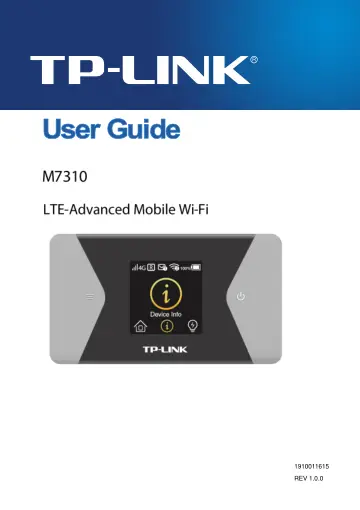
TP-Link M7310 user manual
- Type
- User manual
- Language
- English
- Pages
- 58
- Category
- Other network devices
- Models
- M7310
Open PDFOpens the file on objects.icecat.biz.
Contents
- DECLARATION OF CONFORMITYp. 5
For the following equipment: Product Name: LTE-Advanced Mobile Wi-Fi Model Number: M7310
- Trademark: TP-LINKp. 5
We declare under our own responsibility that the above product satisfies all the technical regulations applicable to the product within the scope of Council…
- Chapter 1. Introductionp. 9
1.1 Product Overview TP-LINK’s M7310 is at the forefront of wireless 4G sharing. Just insert a 4G SIM card into the Mobile Wi-Fi to instantly establish a Wi-Fi…
- 1.1 Product Overviewp. 9
TP-LINK’s M7310 is at the forefront of wireless 4G sharing. Just insert a 4G SIM card into the Mobile Wi-Fi to instantly establish a Wi-Fi hotspot. With up to…
- 1.2 Main Featuresp. 9
Full coverage of 4G/3G/2G network FDD-LTE (800/900/1800/2100/2600MHz) TDD-LTE(2300/2500/2600MHz) DC-HSPA+/HSPA/UMTS (900/1800/2100MHz) EDGE/GPRS/GSM…
- 1.3 Physical Descriptionp. 10
The details about the Exterior are explained as below. Menu button: Press this button to enter the Menu Screen from the Home Screen. Press this button to…
- Chapter 2. Hardware Installationp. 13
2.1 Environment Requirements Place the Mobile Wi-Fi in a well-ventilated place far from any heater or heating vent Avoid direct irradiation of any strong…
- 2.1 Environment Requirementsp. 13
Place the Mobile Wi-Fi in a well-ventilated place far from any heater or heating vent Avoid direct irradiation of any strong light (such as sunlight) …
- 2.2 Installationp. 13
1) Remove the cover. 2) Slide and lift up the SIM card slot cover. 3) Insert the SIM card and slide the cover back to lock.
- 2.3 Power onp. 15
Press and hold the power button until the following screen appears. Note: To power off, press and hold the power button until the Power off appears on the…
- 2.4 Charging the Mobile Wi-Fip. 15
Via the wall outlet (Recommend)
- Chapter 3. Quick Installation Guidep. 17
This chapter will guide you to quickly set up the basic functions for your M7310
- 3.1 System Requirementsp. 17
SIM card with Internet access enabled. Computer supports the 2.4GHz/5GHz wireless band. Web browser, such as Mozilla Firefox, Internet Explorer, Google…
- 3.2 TCP/IP Configurationp. 17
The default IP address of the M7310 is 192.168.0.1, and the default Subnet Mask is 255.255.255.0, which values can be changed as you desire. In this guide, we…
- 3.3 Connect to the Internetp. 17
Note: To log in the Mobile Wi-Fi’s web-management page, you need to first connect to the wireless network of the Mobile Wi-Fi. 1. Click the icon at the…
- 3.4 Quick Setupp. 19
3.4.1 Quick Setup via your phone 1. Open a web-browser on your phone or Pads, enter the default address http://tplinkmifi.net or http://192.168.0.1 in the…
- Chapter 4. Configurationp. 24
After the successful login to the web-based management page of Mobile Wi-Fi, you will see the main menu listing Wizard, Status, SMS and Advanced on the top. In…
- 4.1 Wizardp. 24
Please refer to Quick Setup
- 4.2 Statusp. 24
The Status page displays the current status information about the Mobile Wi-Fi. All information is read-only. Connection Status: Displays the Mobile Wi-Fi's…
- 4.3 SMSp. 25
There are three submenus under the SMS tab: Inbox, New Message and Outbox. Click any of them, and you will be able to configure the corresponding functions.…
- 4.4 Advancedp. 27
There are seven submenus under the Advanced tab: Dial-up, Wireless, DHCP Server, Data Usage Settings, Storage Sharing, Power Saving and Device. Click any of…
- Appendix A: FAQp. 48
FAQ1. What should I do if I cannot log into the web-management page? 1) Verify that your device is connecting to the Mobile Wi-Fi. 2) Verify that you entered…
- Appendix B: Configuring the PCp. 52
In this section, we’ll introduce how to install and configure the TCP/IP correctly in Windows 7. First make sure your Ethernet Adapter is working, refer to the…
- Appendix C: Specificationsp. 57
- Appendix D: Glossaryp. 58
802.11n - 802.11n builds upon previous 802.11 standards by adding MIMO (multiple-input multiple-output). MIMO uses multiple transmitter and receiver antennas…