Loading manual…
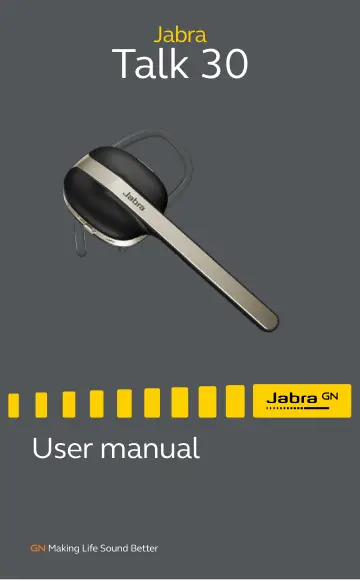
Jabra Talk 30 (100-99600900-60) user manual
- Type
- User manual
- Language
- English
- Pages
- 17
- Category
- Headphones & headsets
- Models
- 100-99600900-60OTE14
Open PDFOpens the file on objects.icecat.biz.
Contents
- 1. Welcomep. 3
Thank you for using the Jabra Talk 30. We hope you will enjoy it! Jabra Talk 30 features • Voice guidance • Long talk time - up to 5 hours (smartphone…
- 2. Jabra Talk 30 overviewp. 4
2.1 Included accessories USB cable Looped EarGel Bluetooth LED Battery LED Off/On/Pairing switch Micro-USB charging port Answer/End call NFC zone
- 2.1 Included accessoriesp. 4
USB cable Looped EarGel Bluetooth LED Battery LED Off/On/Pairing switch Micro-USB charging port Answer/End call NFC zone
- 3. How to wearp. 5
The Jabra Talk 30 can be worn on either the left or the right ear. To switch ear: 1. Remove the attached EarHook. 2. Flip the headset and re-insert the…
- 3.1 Attaching the EarGelsp. 6
For the optimal audio experience, it is recommended to try each of the EarGel shapes. The fit should feel secure in your ear. Ensure the EarGel is firmly…
- 4. How to chargep. 7
It is recommended to charge the headset using the supplied USB charging cable. It takes approx. 2 hours to fully charge the battery. Note: Always clean and dry…
- 4.1 What the LEDs meanp. 7
BATTERY LED Power on/off High battery/Charging Low battery BLUETOOTH LED Pairing Connected
- 4.2 Power Napp. 8
To extend standby time the headset will automatically enter Power Nap mode when the headset is out of range of your connected mobile device for more than 1…
- 5. How to pairp. 9
5.1 Pairing with a smartphone 1. Press and hold (3 sec.) the Off/On/Pairing switch in the pairing position. The Bluetooth LED will flash blue. 2. Turn on…
- 5.1 Pairing with a smartphonep. 9
1. Press and hold (3 sec.) the Off/On/Pairing switch in the pairing position. The Bluetooth LED will flash blue. 2. Turn on Bluetooth on your smartphone and…
- 5.2 Pairing with a smartphone using NFCp. 10
1. Power on the headset. 2. Ensure NFC is enabled on your smartphone. 3. Touch the NFC zone on the headset against the NFC zone on your smartphone until a…
- 6. How to usep. 11
Bluetooth LED Battery LED Off/On/Pairing switch Micro-USB charging port Answer/End call NFC zone
- 6.1 Callsp. 11
Calls Answer/end call Press the Answer/End call button Activate Siri or Google Assistant or Cortana (phone dependent) Press and hold (1 sec.) the Answer/End…
- 6.2 Automatic volume controlp. 12
The headset intelligently adjusts the volume of your calls for the optimal sound quality, depending on your surrounding background noise. To manually adjust…
- 6.3 Voice assistantp. 12
To activate your smartphone’s voice assistant (e.g. Siri, Google Assistant, Cortana) press and hold the Answer/End call button (1 sec.) when not on a call.…
- 6.4 Multiple call handlingp. 13
The headset can answer or reject calls when you are already on a call. Multiple call handling End current call and answer incoming call Press the Answer/End…
- 6.5 How to resetp. 14
Resetting the headset clears the list of paired devices and resets all settings. 1. Power on the headset. 2. Press and hold (5 secs) the Answer/End call button…
- 7. Jabra Assist appp. 15
Jabra Assist app Find my headset Help at your fingertips Message readout
- 8. Supportp. 16
8.1 FAQ View the FAQs on Jabra.com/talk30
- 8.1 FAQp. 16
View the FAQs on Jabra.com/talk30
- 8.2 How to care for your headsetp. 16
Always store the headset with the power off and safely protected. • Avoid storage at extreme temperatures (above 35°C/95°F or below -20°C/-4°F). This can…