Loading manual…
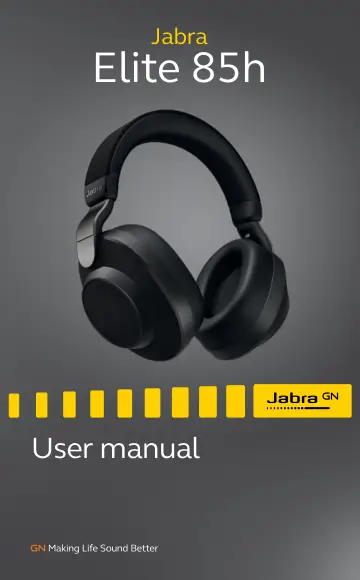
Jabra Elite 85h, Titanium Black (100-99030000-60) user manual
- Type
- User manual
- Language
- English
- Pages
- 25
- Category
- Headphones & headsets
- Models
- 100-99030000-60100-99030001-60OTE100
Open PDFOpens the file on objects.icecat.biz.
Contents
- 1. Welcomep. 5
Thank you for using the Jabra Elite 85h. We hope you will enjoy it! Jabra Elite 85h features • SmartSound: audio that automatically adapts to your…
- 2. Jabra Elite 85h overviewp. 6
Volume up button Volume up Next track (hold) Multi-function button Answer/end call Play/pause music Bluetooth pair (hold) Volume down button Volume down…
- 2.1 Included accessoriesp. 6
USB cable Audio jack cable Pouch
- 3. How to wearp. 7
Adjust the headband so that the headphones fit your head comfortably.
- 4. How to chargep. 8
To charge the headphones, connect the USB charging cable to the USB charging port on the right earcup. It is recommended to charge the headphones using the…
- 4.1 Sleep modep. 9
When the headphones are powered on, but not being worn, they will automatically enter sleep mode after 1 hour to conserve battery. To exit sleep mode, simply…
- 4.2 What the LED meansp. 10
Right earcup LED Power on Battery full Battery medium Battery low Battery critically low Pairing mode Resetting/Firmware updating
- 5. How to connectp. 11
5.1 Pair with a smartphone 1. Wear the headphones. 2. Press and hold the Multi-function button on the right earcup for 3 seconds until the LED flashes blue and…
- 5.1 Pair with a smartphonep. 11
1. Wear the headphones. 2. Press and hold the Multi-function button on the right earcup for 3 seconds until the LED flashes blue and you hear an announcement…
- 5.2 Connect to 3.5mm jack portp. 12
Plug the supplied audio jack cable into the 3.5mm audio jack port on the headphones. When connected to a device using the audio jack cable, the headset…
- 6. How to usep. 13
6.1 Power on/off ON The headphones automatically power on when the earcups are rotated into the wearing position. OFF The headphones automatically power off…
- 6.1 Power on/offp. 13
ON The headphones automatically power on when the earcups are rotated into the wearing position. OFF The headphones automatically power off when the earcups…
- 6.2 Calls & musicp. 14
Right Calls & music Play/pause music Press the Multifunction button Answer call Press the Multifunction button, or say ‘Answer’ End call Press the…
- 6.3 Voice Assistantp. 16
The Jabra Elite 85h enables you to speak to Siri, Google Assistant, Amazon Alexa on your smartphone using the Voice button. Right Voice Assistant Activate…
- 6.4 Active Noise Cancellation (ANC)p. 17
Active Noise Cancellation (ANC) counters noise. It detects and analyzes the pattern of incoming sound, and then generates an antinoise signal to cancel it out.…
- 6.5 HearThroughp. 18
TM HearThrough utilizes the built-in microphones to enable you to pay attention to your surroundings and engage in conversation without needing to remove the…
- 6.6 Jabra Sound+ Momentsp. 19
Moments are predefined audio configurations in the Jabra Sound+ app that are designed to suit the different moments of your day. Left Moments Cycle through…
- 6.7 Auto-pause musicp. 20
ENGLISH 6.8 On ear detection The headphones have built-in sensors that can detect when the headphones are being worn. AUTO-PAUSE MUSIC When listening to music…
- 6.8 Multiple call handlingp. 21
ENGLISH AUTO-ANSWER INCOMING CALL When the headphones are not being worn and you have an incoming call, wearing the headphones will automatically answer the…
- 6.10 Voice guidancep. 22
Voice guidance are announcements intended to guide you through set up, or to give you headphone status updates (e.g. connection and battery status). Voice…
- 6.11 Update firmwarep. 23
Firmware updates improve performance, or add new functionality to Jabra devices. Download the Jabra Sound+ app for firmware updates
- 6.12 How to resetp. 23
Resetting the headphones clears the list of paired devices and resets all settings. Right Reset headphones 5 Reset pairing list and settings Ensure the…
- 7. Jabra Sound+ appp. 24
Jabra Sound+ app Customize your music Register your 2-year warranty Manage HearThrough and Active Noise Cancellation
- 8. Supportp. 25
8.1 FAQ View the FAQs on Jabra.com/help/elite85h. 8.2 How to care for your headphones • Always store the headphones in the supplied case. • To prevent the…
- 8.1 FAQp. 25
View the FAQs on Jabra.com/help/elite85h. 8.2 How to care for your headphones • Always store the headphones in the supplied case. • To prevent the depletion of…
- 8.2 How to care for your earbudsp. 25