Loading manual…
Lenovo moto e4 (PA750014ES) user manual
- Type
- User manual
- Language
- English
- Pages
- 56
- Category
- Phones
- Models
- PA750014ES
Open PDFOpens the file on objects.icecat.biz.
Contents
- Menup. 1
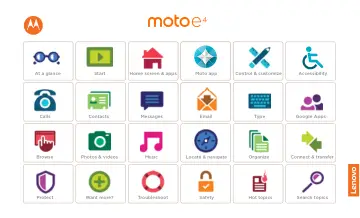
Calls Contacts ontrol & customize Start Home screen & app At a glance Google Apps™ Browse Photos & videos Type Messages Locate & navigate Protect Organize…
- Morep. 55
Want more? Get help & more Get answers, updates, and info: • Help is here: Swipe up > Device Help to get walkthrough tutorials, how-to’s, FAQs, videos and…
- At a Glancep. 2
First look - Moto E4 Let’s get started. We’ll guide you through startup and tell you a bit about your phone’s features. Note: Software updates happen…
- Startp. 4
Moto E4 Remove the back cover and battery Put in the cards Put on the cover & power on Start: Moto E4 1. SIM Put in the SIM card and optional microSD card. 2.…
- Home Screenp. 8
& apps Quick start: Home screen & apps The home screen is what you see when you turn on your phone. From here you can explore apps and more. Note: Software…
- Moto appp. 14
Discover your Moto app Explore special features designed to save you time and make your day easier. Find it: Moto • Moto Actions: Use gestures as phone…
- Control customizep. 15
Back Next Menu More Control & customize Quick start: Control & customize Take control of your phone. • Touch, press, and speak: Learn phone gestures and…
- Acessibilityp. 20
Back Next Menu More Accessibility Quick start: Accessibility See, hear, speak, feel, and use. Accessibility features are there for everyone, helping to make…
- Callsp. 23
Quick start: Calls Dial contacts, speed dial numbers, recent calls, or numbers, and search, all from one app. Find it: Phone • To call a contact or recent…
- Contactsp. 26
Quick start: Contacts Combine information from your Google™ contacts and social networks for quick access to everyone you know. Find it: Swipe up > Contacts •…
- Messagesp. 29
, touch and hold the thread, then tap to delete. • Screen search: To access information based on your current screen, touch and hold Home . For more…
- Typep. 32
Quick start: Type When you tap a text box, like in a message or search, you have keyboard options. • Type or gesture: Enter letters by touching them one at a…
- Organizep. 34
Clock Find it: Swipe up > Clock Options Alarm Tap . Tap an alarm to edit it, or tap to add a new alarm. Tip: Pressing the volume button up or down while you’re…
- Google Appsp. 36
™ Google Play™ Google Play is a digital content experience from Google where you can find and enjoy your favorite music, movies, TV shows, books, magazines…
- Play Moviesp. 37
& TV Play Movies & TV Find and rent movies and TV shows to watch on your phone, tablet, or computer: Find it: Swipe up > Play Movies & TV To shop, rent, or…
- Browsep. 38
Quick start: Chrome™ Find it: Chrome • Go to a web page: Tap the address bar at the top of a page and enter an address. • Add a bookmark: Open the address bar…
- Photosp. 40
& videos Quick start: Photos & videos Take crisp, clear photos with the rear or front camera. • Launch it: Tap Camera. • Take a photo: Tap to take a photo. •…
- Play Musicp. 43
Quick start: Music Music everywhere—stream it, buy it, save it, play it. Listen and create playlists anytime. Find it: Swipe up > Play Music To upload your…
- Locatep. 44
& navigate Quick start: Locate & navigate Find a nearby cafe, get directions or step-by-step GPS voice navigation using the Google Maps™ you know and trust.…
- Connectp. 45
& transfer Quick start: Connect & transfer Connect accessories, computers, networks, and more. Find it: Swipe up > Settings Wireless & networks Device Wi-Fi…
- Protectp. 53
Quick start: Protect your phone Make sure your information is protected in case your phone is lost or stolen. Find it: Swipe up > Settings > Security The…
- Emailp. 30
Send and receive email from all of your personal accounts (even if they’re not Gmail accounts). You can manage your accounts in Gmail and easily switch between…
- Hot topicsp. 3
Check out what your phone can do. Topic Location Find these fast: Wi-Fi, airplane mode, flashlight, and more. See "Quick settings". Pinch, zoom, swipe, and…