Loading manual…
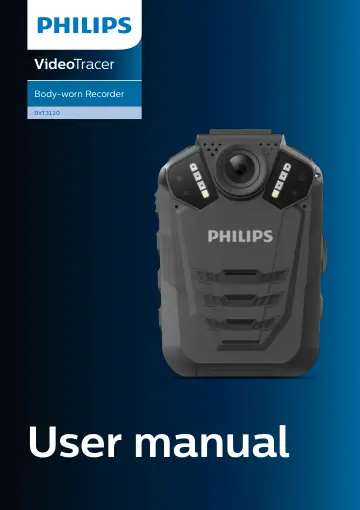
Philips DVT3120 (DVT3120/00) user manual
- Type
- User manual
- Language
- English
- Pages
- 26
- Category
- Cameras & lenses
- Models
- DVT3120DVT3120/00
Open PDFOpens the file on objects.icecat.biz.
Contents
- Safety instructionsp. 3
to ensure proper operation of the device. The manufacturer assumes no liability for damages resulting from non-compliance with the safety instructions. Safety…
- Cleaning and disinfectionp. 3
Before cleaning, disconnect all cables from the device. • To clean the device, use a soft dry cloth. • To disinfect the device, use products for disinfection…
- Disposal of your old productp. 3
Europe A crossed-out wheeled bin symbol attached to a product indicates that the product is covered by the European Directive 2011/65/EU. Please get informed…
- About this user manualp. 4
Find a quick overview of your device on the next pages. For detailed description, see the following chapters of this user manual. Read the instructions…
- 2 Your body-worn recorderp. 5
We are delighted that you have chosen a Philips device. Visit our website for comprehensive support, such as user manuals, software downloads, warranty…
- Product highlightsp. 5
HD video and audio recording • Quality night recordings • Motion detection • Pre-recording and post-recording • Built-in GPS • Water mark with a unique user…
- What’s in the boxp. 5
Quick start guide 2 Your body-worn recorder We are delighted that you have chosen a Philips device. Visit our website for comprehensive support, such as user…
- Overview of the recorderp. 6
- 3 Getting startedp. 8
Caution • Before you connect and install your recorder, first read the safety instructions (see Safety instructions)
- Charging the batteryp. 8
Charge the built-in battery before you use the device for the first time or if you haven’t used it for an extended time period. If the battery is completely…
- Turn the device on and offp. 9
To turn the device on or off: • Press and hold the Power button for two seconds until the device gently vibrates. Note • When the battery indicator is…
- Set the date and timep. 9
You can always change the date and time as well as the time format on your device. 1 On the start screen, press the Menu button to open the settings screen. 2…
- Set the device languagep. 9
You can always change the language of your device. 1 On the start screen, press the Menu button to open the settings screen. 2 Press the Menu button to scroll…
- 4 Video recordingp. 10
- Recording screenp. 10
- Record a videop. 10
Before you start recording: • Make sure your device has enough battery power left. When the battery is almost discharged, the battery icon on your display will…
- 5 Audio recordingp. 12
Recording screen 2 4 3 5 1 1 Recording mode 2 Recording quality 3 Current memory card capacity 4 Battery status 5 Audio time
- Recording screenp. 12
4 3 5 1 1 Recording mode 2 Recording quality 3 Current memory card capacity 4 Battery status 5 Audio time
- Record an audio filep. 12
- 6 Playbackp. 13
Playback screen video recordings 4 3 5 6 7 2 1 1 Passed playback time 2 Playback status 3 Total time of recording 4 File name 5 File number of current file 6…
- Playback screen video recordingsp. 13
3 5 6 7 2 1 1 Passed playback time 2 Playback status 3 Total time of recording 4 File name 5 File number of current file 6 Total number of files in folder 7…
- Playback screen audio recordingsp. 13
3 4 5 1 1 Passed playback time 2 Repeat mode 3 File name 4 File number of current file 5 Total number of files in folder 6 Playback status
- Playback screen photosp. 13
2 3 1 File name 2 File number of current file 3 Total number of files in folder 6
- Play back filesp. 14
Note • If you have connected headphones to your VideoTracer, the built-in speakers are disabled. Select a file 1 On the start screen, press the Play/Pause…
- Mark important filesp. 15
You can mark important recordings and images in order to prevent them from being deleted by loop recording. 1 Select and open your desired file as described in…
- Delete filesp. 15
You can only delete files from your VideoTracer in the file manager on your computer. It is not possible to delete files directly on the device. 1 Turn your…
- 7 Settingsp. 16
Settings mode In the settings mode, you can change and adjust various settings according to your own preferences. 1 Audio recording settings 2 Video recording…
- Settings modep. 16
In the settings mode, you can change and adjust various settings according to your own preferences. 1 Audio recording settings 2 Video recording settings 3…
- 8 Using the camera clipp. 19
Use the supplied camera clip to attach your VideoTracer to your clothes
- Attach camera clipp. 19
Detach camera clip How to wear the clip 1 2