Loading manual…
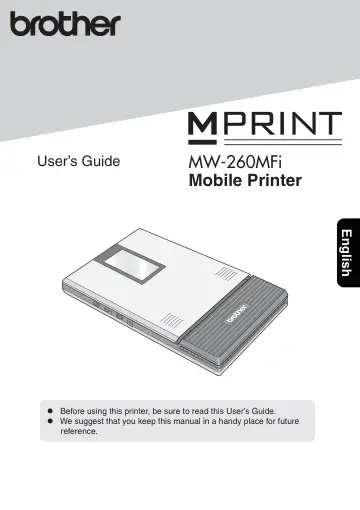
Brother MW-260MFI user manual
- Type
- User manual
- Language
- English
- Pages
- 40
- Category
- Printers
- Models
- MW-260MFI
Open PDFOpens the file on objects.icecat.biz.
Contents
- Introductionp. 3
I Thank you for purchasing the MPrint MW-260MFi (hereinafter referred to as "the printer"). This is a slim, lightweight thermal black-and-white mobile printer…
- Composition of Instruction Manualsp. 6
The Safety Instructions, User's Guide, and Software User's Guide are provided for this printer. Download the Software User's Guide from Brother Solutions…
- Part Namesp. 7
Right side Left side 3 Part Names Paper cassette cover Paper check window Paper output slot IrDA infrared port Status indicator light AC adapter connector…
- Operating Proceduresp. 9
Removing the protective film When the printer is shipped from the manufacturer, a protective film is affixed to the paper check window. Before using the…
- Removing the protective filmp. 9
When the printer is shipped from the manufacturer, a protective film is affixed to the paper check window. Before using the printer, remove the protective film
- Inserting/removing the rechargeable batteryp. 9
Inserting the rechargeable battery 1 Slide the rechargeable battery cover (at the back of the printer) in the direction indicated by (1). 2 Remove the cover…
- Chargingp. 10
This printer is equipped with a Li-ion battery. Use the AC adapter designed specifically for the printer to charge the battery. After purchasing this printer…
- Indicator lightsp. 13
Status indicator light A blue or green status indicator light indicates the printer is operating correctly, while a red light indicates an error has…
- Turning on/off the printerp. 16
Press and hold the power switch for a short while until the green or blue status indicator light is lit. When the printer is turned on, the status indicator…
- Using IrDA (infrared)p. 17
Select IrDA (infrared) using the interface switch. When the power is turned on, the status indicator light lights up in green. 2 Position the printer and the…
- Using Bluetoothp. 18
About Bluetooth Precautions for using Bluetooth Wireless connections are used in a wide range of fields. To prevent malfunctions, therefore, turn off…
- Preparing the paperp. 21
Use only the paper cassette designed exclusively for this printer. Use of any other paper may cause paper misfeeds or damage the printer. Preparing the paper…
- Loading the paper cassettep. 23
Slide the paper cassette cover (on the top of the printer) in the direction indicated by (1). The paper cassette cover opens in the direction indicated by…
- Using the printerp. 25
Before using the printer, install software, such as the printer driver and P-touch Editor label creation software. Installable software and documents: ·…
- Feeding paperp. 26
If a paper misfeed occurs, remove the paper by the following procedure: If the paper has been fed out of the paper output slot: 1 Pull the paper out of the…
- Using the paper guidep. 27
Installing the paper guide* * The paper guide (PG-200) is sold separately. 1 Position the paper guide so that the paper check window is visible. 2 Align the…
- Maintenancep. 28
Cleaning the printer Clean the printer's surface. 1 Clean off any dust or other dirt from the printer by wiping it using a soft, dry cloth. If the printer is…
- Appendixp. 30
Troubleshooting Symptoms and remedies 5 Appendix Problem Solution The printer cannot be turned on. Press and hold the power switch for a short while ( see…
- Troubleshootingp. 30
Symptoms and remedies 5 Appendix Problem Solution The printer cannot be turned on. Press and hold the power switch for a short while ( see page 12). The…
- Product specificationsp. 33
Printer specifications *1 Continuous printing of the Brother standard pattern (7% coverage) on A6 thermal paper C-211 with a new fully charged battery, using…
- Frequently Asked Questionsp. 34
I often wound the cord of the charging AC adapter around the adapter or bent the cord to move the adapter. This often causes the cord to break and the adapter…
- brother US ENGp. 40
Printed in Japan LBF086001