Loading manual…
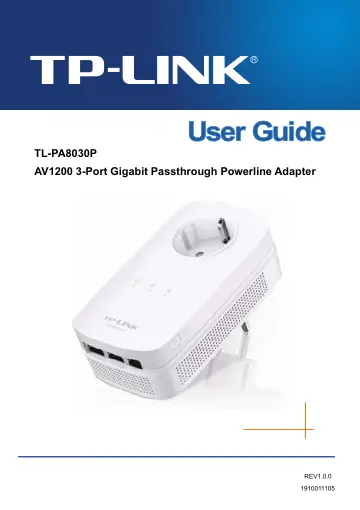
TP-Link TL-PA8030P KIT (TL-PA8030P KIT (UK)) user manual
- Type
- User manual
- Language
- English
- Pages
- 27
- Category
- Routers & Wi-Fi
- Models
- PA8030PTL-PA8030P KIT (UK)
Open PDFOpens the file on objects.icecat.biz.
Contents
- Chapter 1 Introductionp. 7
This device is an AV1200 3-Port Gigabit Passthrough Powerline Adapter which transforms your house’s existing electrical wiring into a ubiquitous networking…
- 1.1 System Requirementp. 7
a) At least two AC power outlets (100–240V~, 50/60Hz) with standard home power wiring b) A computer with the following: Operating System with TCP/IP…
- 1.2 Important Safety Instructionsp. 7
1. Do not open this product or attempt to service it; it may expose you to dangerous high voltage or other risks. 2. Do not operate this product near water. 3.…
- 1.3 Conventionsp. 8
The powerline adapter or AV1200 3-Port Gigabit Passthrough Powerline Adapter mentioned in this guide stands for TL-PA8030P AV1200 3-Port Gigabit Passthrough…
- 1.4 LED Indicatorp. 8
The LED indicator displays information about the device’s status. Item Status Indication On/Off The powerline adapter is on or off. Blinking every second…
- 1.5 Physical Interfacep. 9
There are four types of physical interfaces on this powerline adapter. Interface Description Ethernet Port Three 10/100/1000 Mbps Ethernet ports for connecting…
- Chapter 2 Connecting Mechanismp. 11
2.1 Introduction The powerline adapter supports up to 1200Mbps data rate. With this high speed connection rate, this powerline adapter allows you to set up a…
- 2.1 Introductionp. 11
The powerline adapter supports up to 1200Mbps data rate. With this high speed connection rate, this powerline adapter allows you to set up a high speed home…
- 2.2 Connection Instructionp. 11
To ensure the optimum performance of the powerline adapter and significantly improve the transmission capacity of the network, we recommend that you comply…
- 2.3 Hardware Connection – Computerp. 12
For those computers you wish to be networked by powerline adapter, each of the computers must be properly connected with a powerline adapter through an…
- 2.4 Hardware Connection – Internetp. 12
This section describes how to connect the powerline adapter into your existing ADSL broadband connection via ADSL Ethernet port. Follow the procedures…
- Chapter 3 Installing Management Utilityp. 14
Please verify that no other powerline adapter or any Encryption Management Utilities are installed before installing the provided software. If other Powerline…
- Chapter 4 Using the Management Utilityp. 18
After you’d successfully installed the powerline adapter hardware and Management Utility software, you can set up or configure the devices according to your…
- 4.1 Statusp. 18
The Status tab shows information of the powerline adapter connected to the current computer where the Management Utility is running. On this page, you can also…
- 4.2 Networkp. 20
The Network tab window shows information of all the powerline devices found on the current logical network. Furthermore, here you can change the device name of…
- 4.3 Advancedp. 22
The third tab window labeled “Advanced” is for Quality of Service. With the proper configuration, the limit bandwidth can be took full advantage. QoS…
- 4.4 Systemp. 23
The System tab window is for some basic settings of the adapter. On this tab window, you can upgrade the firmware to the latest version, reset the adapter’s…
- Chapter 5 Advanced Feature: How to Use the Pair Buttonp. 26
5.1 Set Up a Secure Powerline Network The Homeplug AV standard uses 128-bit AES (Advanced Encryption Standard) to safely transmit data between powerline…
- 5.1 Set Up a Secure Powerline Networkp. 26
The Homeplug AV standard uses 128-bit AES (Advanced Encryption Standard) to safely transmit data between powerline adapters. For the powerline adapters to…
- 5.2 Resetp. 26
To reset the powerline adapter: Press and hold the Pair button for more than 15 seconds, and then release the button. You will see all LEDs go off momentarily…
- Appendix A: Troubleshootingp. 27
The Troubleshooting provides answers to common problems regarding the powerline adapter. 1. The Power LED does not light up. Ans. Check the following: a) Make…