Loading manual…
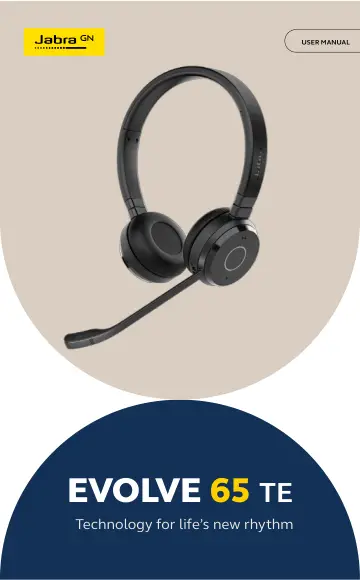
Jabra Evolve 65 TE - Link390a MS Stereo (6699-833-309) user manual
- Type
- User manual
- Language
- English
- Pages
- 22
- Category
- Headphones & headsets
- Models
- 6699-833-309
Open PDFOpens the file on objects.icecat.biz.
Contents
- 1. Welcomep. 5
Thank you for using the Jabra Evolve 65 TE. We hope you will enjoy it! Jabra Evolve 65 TE features Connects to PC via Jabra Link 390 bluetooth adapter or USB…
- 2. Jabra Evolve 65 overviewp. 6
- 2.1 Stereo variantp. 6
USB connect & charging port Microphone boom-arm Volume down Status & busylight LED Adjustable headband Volume up On/off/connect switch Multi-function button…
- 2.2 Mono variantp. 7
- 2.3 Included accessories (stereo and mono)p. 7
USB cable Travel pouch Jabra Link 390 USB-A Bluetooth adapter
- 3. How to wearp. 8
3.1 Left or right wearing style The Jabra Evolve 65 TE can be worn on the left or right by flipping the microphone to the other side (270° limit). To prevent…
- 3.1 Left or right wearing stylep. 8
The Jabra Evolve 65 TE can be worn on the left or right by flipping the microphone to the other side (270° limit). To prevent damaging or breaking the…
- 3.2 Adjust the headbandp. 9
Adjust the headband to find the most comfortable fit.
- 3.3 Position the microphonep. 10
It is recommended to position the microphone close to your mouth (0.5 inches). The microphone is bendable for personal preference.
- 4. How to charge the batteryp. 11
The headset battery will charge when connected to a PC using a USB cable, or when using any USB charger supplied with your mobile device. The headset can still…
- 4.1 Sleep modep. 12
When the headset is powered on, but not being used, it will automatically enter sleep mode after 15 minutes to conserve battery. To manually exit sleep mode…
- 5. How to connectp. 13
5.1 Connect to PC (using Jabra Link 390) 1. Ensure the headset is switched on. 2. Plug the Jabra Link 390 dongle into a USB port on your PC. The headset and…
- 5.1 Connect to PC (using Jabra Link 390)p. 13
1. Ensure the headset is switched on. 2. Plug the Jabra Link 390 dongle into a USB port on your PC. The headset and Jabra Link 390 are already pre-connected.
- 5.2 Connect to mobile device (using Bluetooth)p. 14
1. Wear the headset. 2. Hold (3 secs) the On/off/connect switch in the connect position until you hear the voice guided instructions. The Bluetooth indicator…
- 5.3 Connect to PC (using USB cable)p. 15
1. Ensure the headset is switched on. 2. Plug the headset into a USB port on your PC using the supplied USB cable.
- 6. How to usep. 16
- 6.1 Everyday usep. 17
Function Action Headset on/off Slide the On/off/connect switch Answer/end call Tap the Multi-function button Reject call Double-tap the Multifunction button…
- 6.2 Multiple call handlingp. 18
The headset can accept and handle multiple calls at the same time. Function Action End current call and answer incoming call Tap the Multi-function button…
- 6.3 Busylightp. 19
The busylight indicator on the headset can be turned on to let others know that you are busy. MANUALLY TURN BUSYLIGHT ON/OFF To manually turn the busylight…
- 6.4 Using the travel pouchp. 20
When transporting the headset from location to location, it is recommended to use the travel pouch to prevent damaging the headset. 1 2 The earcups can only be…
- 7. Software and firmwarep. 21
7.1 Jabra Direct Jabra Direct is computer software designed to support, manage and enable optimal functionality for Jabra devices. Download the latest free…
- 7.1 Jabra Directp. 21
Jabra Direct is computer software designed to support, manage and enable optimal functionality for Jabra devices. Download the latest free version from…
- 7.2 Update firmwarep. 21
Firmware updates improve performance or add new functionality to Jabra devices. 1. Connect the Jabra Evolve 65 TE to a computer. 2. Use Jabra Direct to check…
- 8. Supportp. 22
8.1 FAQ View the FAQs on jabra.com/support
- 8.1 faqp. 22
View the FAQs on jabra.com/support
- 8.2 How to care for your headsetp. 22
Always store the headset with the power off and safely protected. Avoid storage at extreme temperatures (above 50°C/122°F or below -10°C/14°F). This can…