Loading manual…
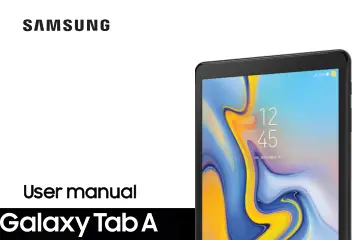
Samsung SM-T590NZKAXAR user manual
- Type
- User manual
- Language
- English
- Pages
- 145
- Category
- Tablets
- Models
- SM-T590NZKAXAR
Open PDFOpens the file on objects.icecat.biz.
Contents
- Special featuresp. 8
Meet Bixby Bixby can help you understand your settings and set up your Samsung device. See Bixby on page 22. Face recognition Configure facial recognition…
- Getting startedp. 9
Front and back views 3 Assemble your device 4 Start using your device 7
- Front and back viewsp. 10
microSD card tray Camera Flash USB charger/Accessory port Headset jack Proximity/ Light sensor Power Camera Volume Charging dock port Devices and software are…
- Assemble your devicep. 11
Learn about your mobile device hardware, assembly procedures, and how to get started using your new device. Devices and software are constan tly evolving — the…
- Start using your devicep. 14
The instructions below explain how to turn your device on or off. To turn the device on: Bullet Press and hold the Power key until the device turns on. To turn…
- Appsp. 36
Using apps 30 Samsung apps 35 Google apps 73 Microsoft apps 76
- Using appsp. 37
The Apps list displays all preloaded and downloaded apps. You can uninstall, disable, or hide apps from view. Access apps Access and launch all apps from the…
- Samsung appsp. 42
The following apps come pre-installed or downloaded over-the-air to your device. Calculator The Calculator provides basic and advanced arithmetic functions.…
- Google appsp. 80
Enjoy these apps from Google. Certain apps require a Google Account. Visit google.com to learn more. Chrome Browse the Internet with Chrome™ a nd b ring your…
- Microsoft appsp. 83
Enjoy these Microsoft ® apps. Excel View, create, and edit spreadsheet on your device. You can unlock the full Excel ® experience with an Office 365…
- Settingsp. 84
Access Settings 78 Connections 79 Sound 91 Notifications 95 Display 96 Device maintenance 98 Lock screen and security 112 Accounts 120 Accessibility 124 Other…
- Access Settingsp. 85
There are a couple of ways to access your device settings. Bullet From a Home screen, swipe up to access Apps, and then tap Settings. – or – Drag down from the…
- Connectionsp. 86
Manage connections between your device and a variety of networks and other devices. Wi-Fi Connect your device to a Wi-Fi network. 1. From Settings, tap…
- Soundp. 98
Configure the sounds used to indicate notifications, screen touches, and other interactions. Sound mode Switch between sound modes, while preserving the…
- Notificationsp. 102
Select which apps you want to receive alerts from. Alerts include notifications, sounds, and vibrations. Manage notifications Allow or block notifications from…
- Displayp. 103
Configure your display’s brightness, screen timeout delay, and other settings. Screen off settings Customize when the screen turns off. 1. From Settings, tap…
- Device maintenancep. 105
View the status of your device’s battery, storage, and memory. You can also automatically optimize your device’s system resources. Quick optimization The quick…
- Lock screen and securityp. 119
Secure your device and protect your data with Lock screen and security settings. Screen lock types The various Screen lock types offer high, medium, or no…
- Accountsp. 127
Set up and manage accounts, including your Google Account, Samsung account, email, and social networking accounts. Samsung Cloud Keep your data safe by backing…
- Accessibilityp. 131
services are special features that make using the device easier for those with certain physical disabilities. For more information about Accessibility for…
- Other settingsp. 135
Configure features on your device that make it easier to use. User manual View the user manual on your device. Bullet From Settings, tap User manual. Automatic…
- Getting helpp. 138
Videos samsung.com/spsn
- Videosp. 138
- Smart Simulatorp. 138
samsungsimulator.com
- Tipsp. 138
samsung.com/us/support/videos
- Samsung Carep. 138
samsung.com/us/support Getting help 131
- Legalp. 139
View legal information for your device.
- Legal informationp. 140
READ THIS INFORMATION BEFORE USING YOUR MOBILE DEVICE. Arbitration Agreement - This Product is subject to a binding arbitration agreement between you and…