Loading manual…
Gigabyte X670 AORUS ELITE AX Motherboard - Supports AMD Ryzen 9000 Series CPUs, 16+2+2 Phases Digital VRM, up to 8000MHz DDR5 (OC), 1xPCIe 5.0 + 3xPCIe 4.0 M.2, Wi-Fi 6E, 2.5GbE LAN, USB 3.2 Gen 2x2 user manual
- Type
- User manual
- Language
- English
- Pages
- 12
- Category
- Motherboards
- Models
- X670 AORUS ELITE AXX670E AORUS MASTERX670E AORUS XTREME
Open PDFOpens the file on objects.icecat.biz.
Contents
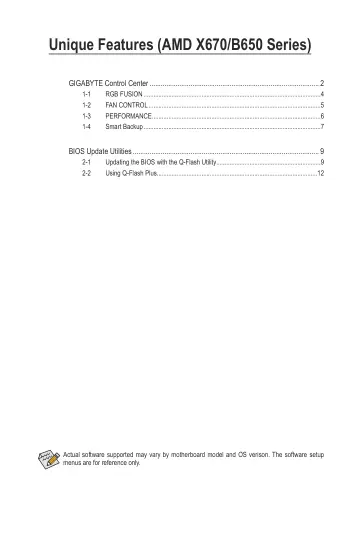
- GIGABYTE Control Centerp. 2
(GCC) gives you easy access to a wealth of GIGABYTE apps that help you get the most from your GIGABYTE motherboard (Note). Using a simple, unified user…
- 1-1 RGB FUSIONp. 4
This application allows you to enable or specify the lighting mode of the onboard LEDs while in the Windows environment. (Note 1) The RGB FUSION Interface…
- 1-2 FAN CONTROLp. 5
This application allows you to monitor and adjust the fan speed in the operating system. The FAN CONTROL Interface • The speed control function requires the…
- 1-3 PERFORMANCEp. 6
This application is a simple and easy-to-use interface that allows users to fine-tune their system settings or do overclock/overvoltage in Windows environment.…
- 1-4 Smart Backupp. 7
Smart Backup allows you to back up a partition as an image file every hour. You can use these images to restore your system or files when needed. • Smart…
- BIOS Update Utilitiesp. 9
GIGABYTE motherboards provide two unique BIOS update tools, Q-Flash™ and Q-Flash Plus. Either one allows you to update the BIOS without the need to enter…
- 2-1 Updating the BIOS with the Q-Flash Utilityp. 9
A. Before You Begin 1. From GIGABYTE's website, download the latest compressed BIOS update file that matches your motherboard model. 2. Extract the file and…
- 2-2 Using Q-Flash Plusp. 12
A. Before You Begin: 1. From GIGABYTE's website, download the latest compressed BIOS update file that matches your motherboard model. 2. Uncompress the…