Loading manual…
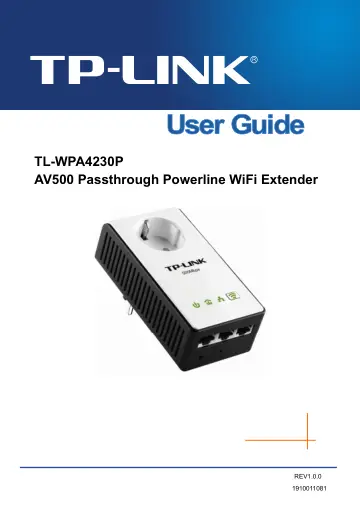
TP-Link TL-WPA4230P (TL-WPA4230P (UK)) user manual
- Type
- User manual
- Language
- English
- Pages
- 47
- Category
- Routers & Wi-Fi
- Models
- TL-WPA4230P (UK)WPA4230P
Open PDFOpens the file on objects.icecat.biz.
Contents
- Chapter 1 Introductionp. 10
Congratulations on your purchase of this outstanding AV500 Passthrough Powerline WiFi Extender. This device is not only a powerline Ethernet extender which…
- 1.1 System Requirementp. 10
a) At least two power outlets (100-240V~, 50/60Hz) with standard home power wiring b) A computer with the following: Operating System of Windows…
- 1.2 Conventionsp. 10
The extender, or TL-WPA4230P, or device mentioned in this User Guide stands for TL-WPA4230P AV500 Passthrough Powerline WiFi Extender without any explanations.…
- Chapter 2 Hardware Connectionp. 11
2.1 Before You Begin Please read this User Guide carefully before installing and using the equipment. The operating distance or range of your wireless…
- 2.1 Before You Beginp. 11
Please read this User Guide carefully before installing and using the equipment. The operating distance or range of your wireless connection varies…
- 2.2 LED Indicatorp. 12
The LED indicator displays information about the device’s status. LEDs Name Status Indication On The device is on. Off The device is off. Power LED Blinking…
- 2.3 Physical Interfacep. 13
Here displays the physical items on this device. Integrated Electrical Socket Wi-Fi/Wi-Fi Clone Button Power Plug Ethernet Ports Reset Button Pair Button Item…
- 2.4 Hardware Connectionp. 14
Please first make sure that your PC can successfully access the Internet via the router. Then connect the powerline devices by following the instructions…
- 2.5 Wi-Fi Clone Button for Super Range Extensionp. 16
Wi-Fi Clone button is used for copying the wireless settings (including SSID and wireless password) from the front wireless router. Wi-Fi Clone Steps: Before…
- Chapter 3 Configure the Devicep. 18
This chapter describes how to configure your extender via the web-based management page. The AV500 Passthrough Powerline WiFi Extender is easy to configure and…
- 3.1 Loginp. 18
3.1.1 For Wired Connection If your computer is connected to the extender via Ethernet cable, you can log in to the extender by following the steps below: 1.…
- 3.2 Statusp. 21
The Status page displays the powerline extender’s current status and configuration. All information is read-only. Figure 3-6 Status Firmware Version - This…
- 3.3 Networkp. 22
You can configure the IP parameters of the powerline extender on this page. Figure 3-7 Network MAC Address - The physical address of the powerline extender's…
- 3.4 Wirelessp. 22
The Wireless option, improving functionality and performance for wireless network, can help you make the powerline extender an ideal solution for your wireless…
- 3.5 Powerlinep. 31
There are two submenus under the Powerline menu: Network Settings and Station Settings. Click any of them, and you will be able to configure the corresponding…
- 3.6 System Toolsp. 33
System Tools option helps you to optimize the configuration of your device. You can upgrade the powerline extender to the latest version of firmware as well as…
- Chapter 4 Connecting to Wireless Networkp. 38
The default SSID is TP-LINK_××××××. (×××××× stand for the last six unique numbers of the WLAN MAC which can be found on the label at the bottom of the device.)…
- 4.1 In Windows 8p. 38
If you are using Windows 8, please follow the steps below to connect to the wireless network of the powerline extender. 1. Click the icon at the bottom of your…
- 4.2 In Windows 7p. 39
Windows 7 users may use the built-in wireless utility. Follow the steps below. 1. Click the icon at the bottom of your desktop, select the SSID of TL-WPA4230P…
- 4.3 In Windows Vistap. 41
Windows Vista users may use the built-in wireless utility. Follow the steps below. 1. Right-click the icon at the bottom of your screen, then click Connect to…
- 4.4 In Windows XPp. 43
Windows XP users may use the built-in wireless utility. Follow the steps below. 1. Click the icon at the bottom of your desktop, select the SSID of TL-WPA4230P…
- Chapter 5 Pair Button & Reset Buttonp. 45
5.1 Pair (Secure with 128 bits-AES) The Homeplug AV standard uses 128-bit AES (Advanced Encryption Standard) to safely transmit data between powerline dvices.…
- 5.1 Pair (Secure with 128 bits-AES)p. 45
The Homeplug AV standard uses 128-bit AES (Advanced Encryption Standard) to safely transmit data between powerline dvices. For the powerline devices to…
- 5.2 Setting Up a Powerline Network with the Pair Buttonp. 45
You can connect a number of devices on a powerline network, but you can use the Pair button on only two devices at a time. Create a Powerline network using the…
- 5.3 Resetp. 46
To reset the powerline device: Press and hold the Reset button more than 5 seconds, and then release the button. You will see all LEDs begin to flash. At this…
- Appendix A: Troubleshooting Guidep. 47
1. The Power LED does not light up. Ans. Check the following: 1) Make sure that the powerline extender is properly plugged into a power outlet. 2) Make sure…