Loading manual…
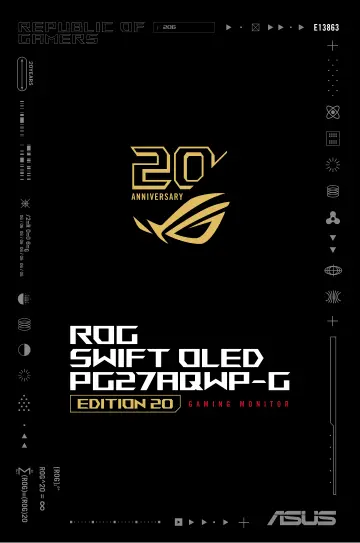
ASUS ROG Swift OLED PG27AQWP-G EDITION 20 (90LM0CF0-B02971) user manual
- Type
- User manual
- Language
- English
- Pages
- 51
- Category
- Monitors
- Models
- 90LM0CF0-B02971
Open PDFOpens the file on objects.icecat.biz.
Contents
- Noticesp. 4
Federal Communications Commission Statement This device complies with Part 15 of the FCC Rules. Operation is subject to the following two conditions: • This…
- Safety Informationp. 5
This equipment is not suitable for use in locations where children are likely to be present. • Before setting up the monitor, carefully read all the…
- Screen Cleaning Instructions (Including Sensors)p. 7
When cleaning displays (including sensors), special care and proper methods are required to avoid damaging the screen. Please follow the recommendations below…
- Takeback Servicesp. 10
ASUS recycling and takeback programs come from our commitment to the highest standards for protecting our environment. We believe in providing solutions for…
- 1.1 Welcome!p. 11
Thank you for purchasing the ASUS ® OLED Gaming monitor! The latest widescreen OLED monitor from ASUS provides a crisper, broader, and brighter display, plus a…
- 1.2 Package Contentsp. 11
Check your package for the following items: OLED Monitor Quick Start Guide Warranty Card Power Cord ROG Pouch ROG Sticker Monitor Base Wall Mount Kit
- 1.3 Monitor Introductionp. 12
1.3.1 Front View 1 2 3 4 1. Close button: • When the OSD menu is OFF, press the button to activate the Frame Rate Boost hotkey. • When the OSD menu is ON…
- 1.3.1 Front Viewp. 12
2 3 4 1. Close button: • When the OSD menu is OFF, press the button to activate the Frame Rate Boost hotkey. • When the OSD menu is ON, press to exit the OSD…
- 1.3.2 Back Viewp. 14
3 4 6 7 5 2 1. AC-IN port: This port connects the power cord. 2. USB3.2 Gen 1 downstream ports: When the upstream port is connected. The connection enables the…
- 1.3.3 GamePlus Functionp. 15
The GamePlus function provides a toolkit and creates a better gaming environment for users when playing different types of games. The crosshair overlay with…
- 1.3.4 GameVisual Functionp. 18
The GameVisual function helps you select among different picture modes in a convenient way. To activate GameVisual: 1. Press the GameVisual shortcut button. 2.…
- 2.1 Monitor Introductionp. 19
Monitor Handling / Disassembly SOP 1. Hold the monitor by both sides of the rear cover when carrying it. 2. Do not press on the front surface of the panel to…
- 2.2 Attaching the Standp. 20
1. Align and install the stand to its compartment on the rear of the monitor. 2. Align and install the base to the stand. Then fix the base to the stand by…
- 2.3 Cable Managementp. 21
You can organize the cables by arranging them as shown in the illustration below:
- 2.4 Detaching the Stand (for VESA wall mount)p. 22
The detachable stand of this monitor is specially designed for VESA wall mount. 1. Press the release button to detach the stand from the monitor. Then remove…
- 2.5 Connecting the Cablesp. 23
Connect the cables as the following instructions: • To connect the power cord: Connect one end of the power cord to the monitor’s AC IN input and the other end…
- 2.6 Turning On the Monitorp. 24
Press the button on the monitor to turn on the monitor. If the Power Indicator function is enabled and an input source is detected, the power LED will light up…
- 2.7 Adjusting the Monitorp. 24
For optimal viewing, we recommend that you look at the full face of the monitor, then adjust the monitor to the angle that is most comfortable for you. • Hold…
- 3.1 OSD (On-Screen Display) Menup. 25
3.1.1 How to Reconfigure Use the control buttons on the monitor to navigate through the menu and make adjustments. Gaming Image Color OLED Care Input Select…
- 3.1.1 How to Reconfigurep. 25
Use the control buttons on the monitor to navigate through the menu and make adjustments. Gaming Image Color OLED Care Input Select Racing Mode GameVisual…
- 3.1.2 OSD Function Introductionp. 26
1. Gaming Configure your gaming preferences. Gaming Image Color OLED Care Input Select Racing Mode GameVisual DisplayPort Input Select OFF HDR Back Enter Exit…
- 3.2 Aurap. 38
Aura is the RGB lighting system controlled by the Armoury Crate software, supported on compatible devices such as monitors, motherboards, graphics cards, and…
- 3.3 Specificationsp. 39
Panel type OLED Panel size 26.5" Max. resolution 2560 x 1440 Brightness 335nits (typ.) Contrast ratio 1.5M:1 Viewing angle (H/V) 178°(H) / 178°(V) Display…
- 3.4 Outline Dimensip. 41
- 3.5 Enabled & Unavailable OSD Feauture Functionsp. 42
Enabled Function Unavailable Functions Variable Refresh Rate ELMB ELMB Variable Refresh Rate, Uniform Brightness, Aspect Control, Blue Light Filter, Auto Logo…
- 3.6 Troubleshooting (FAQ)p. 43
Problem Possible Solution Power LED is not ON • Press any button to check if the monitor is in the ON mode. • Check if the power cord is properly connected to…
- 3.7 Supported Timing Listp. 45
Normal HDMI DP 640x480@60Hz 640x480@60Hz 640x480@75Hz 640x480@75Hz 800x600@60Hz 800x600@60Hz 800x600@75Hz 800x600@75Hz 1024x768@60Hz 1024x768@60Hz…