Loading manual…
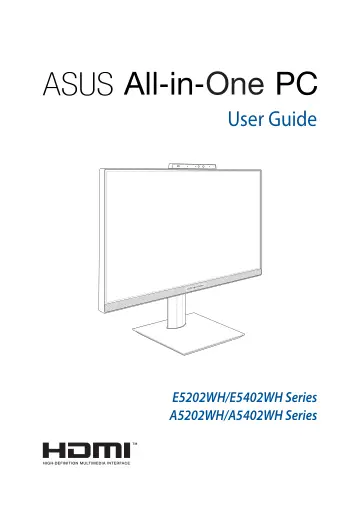
ASUS E5202WHAK-BA203M (90PT0382-M00D50) user manual
- Type
- User manual
- Language
- English
- Pages
- 70
- Category
- Desktops & servers
- Models
- E5202WHAK-BA143WE5202WHAK-BA203M
Open PDFOpens the file on objects.icecat.biz.
Contents
- About this manualp. 6
This manual provides information about the hardware and software features of your ASUS All-in-One PC, organized through the following chapters: Chapter 1…
- Conventions used in this manualp. 7
To highlight key information in this manual, some texts are presented as follows: IMPORTANT! This message contains vital information that must be followed to…
- Safety informationp. 9
Your All-in-One ASUS All-in-One PC is designed and tested to meet the latest standards of safety for information technology equipment. However, to ensure your…
- Chapter 1: Hardware Setupp. 15
NOTE: The illustrations in this section are for reference only. The appearance of your
- ASUS All-in-One PCp. 15
ASUS All-in-One PC Front view Chapter 1: Hardware Setup NOTE: The illustrations in this section are for reference only. The appearance of your ASUS All-in-One…
- Chapter 2: Using your ASUS All-in-One PCp. 27
Setting up your ASUS All-in-One PC NOTE: The illustrations in this section are for reference only. The appearance of your ASUS All-in-One PC may vary depending…
- Setting up your ASUS All-in-One PCp. 27
- Positioning your ASUS All-in-One PCp. 32
1. Place your ASUS All-in-One PC on a flat surface such as a table or desk. 2. Tilt the display to an angle between -5° to 20°. IMPORTANT! • Use both hands…
- Installing the Height Adjustable Stand (on selected models)p. 33
1. In the orientation shown, align and attach the base plate to the Height Adjustable Stand. 2. Secure the Height Adjustable Stand using the screw(s).…
- Using the touch screen (on selected models only)p. 34
The touch screen panel of your ASUS All-in-One PC provides excellent viewing features for photos, videos, and other multimedia files on your ASUS All-in-One…
- Gestures for the touch screen panelp. 35
Gestures allow you to launch programs and access the settings of your ASUS All-in-One PC. Refer to the following illustrations when using hand gestures on your…
- Using the keyboardp. 37
Function keys The function keys on the keyboard can trigger the following commands: Turns the speaker on or off Turns the speaker volume down Turns the speaker…
- Chapter 3: Working with Windowsp. 41
Starting for the first time When you start your ASUS All-in-One PC for the first time, a series of screens appear to guide you in configuring your Windows…
- Starting for the first timep. 41
When you start your ASUS All-in-One PC for the first time, a series of screens appear to guide you in configuring your Windows operating system. Follow the…
- Start menup. 42
The Start menu is the main gateway to your ASUS All-in-One PC’s programs, Windows apps, folders, and settings. You can use the Start menu to do these common…
- Windows appsp. 44
NOTE: Some Windows apps require signing in to your Microsoft account before they are fully launched. Launching Windows apps from the Start menu Tap the app to…
- MyASUS Splendidp. 45
ensures that all ASUS display panels show identical and accurate colors. You may select Vivid, Eye Care, or Manual Mode beside Normal Mode to adjust the…
- Connecting to wireless networksp. 47
Wi-Fi Access emails, surf the Internet, and share applications via social networking sites using your ASUS All-in-One PC’s Wi-Fi connection. Connecting Wi-Fi…
- Connecting to wired networksp. 49
You can also connect to wired networks, such as local area networks and broadband Internet connection, using your ASUS All-in-One PC’s LAN port. NOTE: Contact…
- Turning your ASUS All-in-One PC offp. 50
You can turn off your ASUS All-in-One PC by doing either of the following procedures: or • Launch the Start menu, select the power icon then select Shut down…
- Putting your ASUS All-in-One PC to sleepp. 51
To put your ASUS All-in-One PC to Sleep mode: or • Launch the Start menu, select the power icon then select Sleep to put your ASUS All-in-One PC to sleep. •…
- Chapter 4: Recovering your systemp. 53
Entering the BIOS Setup BIOS (Basic Input and Output System) stores system hardware settings that are needed for system startup in the ASUS All-in-One PC. In…
- Entering the BIOS Setupp. 53
BIOS (Basic Input and Output System) stores system hardware settings that are needed for system startup in the ASUS All-in-One PC. In normal circumstances, the…
- Recovering your systemp. 54
Using recovery options on your ASUS All-in-One PC allows you to restore the system to its original state or simply refresh its settings to help improve…
- Appendicesp. 57
Federal Communication Commission Interference Statement This equipment has been tested and found to comply with the limits for a Class B digital device…
- Noticesp. 57