Loading manual…
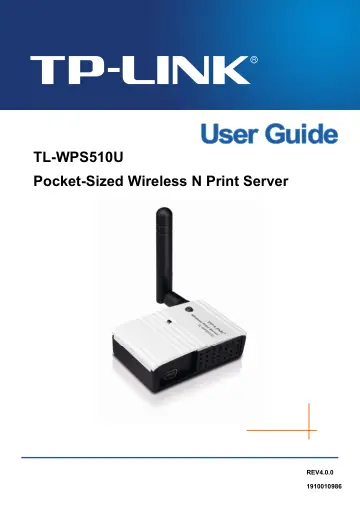
TP-Link TL-WPS510U user manual
- Type
- User manual
- Language
- English
- Pages
- 73
- Category
- Desktops & servers
- Models
- TL-WPS510UWPS510U
Open PDFOpens the file on objects.icecat.biz.
Contents
- Chapter 1. Introductionp. 10
1.1 Product Overview The external print servers enhance capability by letting you place your printers at convenient locations directly on the Ethernet network…
- 1.1 Product Overviewp. 10
The external print servers enhance capability by letting you place your printers at convenient locations directly on the Ethernet network, and by increasing…
- 1.2 Featuresp. 10
Travel size design, small enough to take on the road Compatible with IEEE 802.11n/g/b Wireless N speed up to 150Mbps One USB 2.0 High Speed port(PID1)…
- 1.3 LED Indicatorp. 10
LED Status Indication On (Red) The Print Server’s power is on. Power Off The Print Server’s power is off. Blinking (Green) The Print Server is transmitting…
- 1.4 Factory Default Settingsp. 11
- Chapter 2. Hardware Installationp. 12
2.1 Preparation Before you start, you should prepare the following items: One USB Printer (non-GDI/CAPT) One 802.11n Access Point/Router One Computer…
- 2.1 Preparationp. 12
Before you start, you should prepare the following items: One USB Printer (non-GDI/CAPT) One 802.11n Access Point/Router One Computer with Wireless…
- 2.2 Typologyp. 12
In this topology, the wireless router is the center of the wireless network. Every host and TL-WPS510U will communicate with the wireless router. The hosts…
- 2.3 Connectionp. 12
Follow the instructions below to install the print server. 1. Power off the printer. 2. Connect the print server to your printer with the provided USB cable.…
- Chapter 3. How to Configure the Print Serverp. 14
3.1 Using Utility in Windows XP/Vista/7/8 3.1.1 Setting up a Print Server Network To connect to the print server using PSWizard, the configurations for Windows…
- 3.1 Using Utility in Windows XP/Vista/7/8p. 14
3.1.1 Setting up a Print Server Network To connect to the print server using PSWizard, the configurations for Windows XP, Windows Vista, Windows 7 and Windows…
- 3.2 Using Web Management Page in Windows XP/Vista/7/8p. 24
3.2.1 Setting up a Print Server Network To connect to the print server using the web management page, the configurations for Windows XP, Windows Vista, Windows…
- 3.3 Using Web Management Page in MAC OSp. 35
3.3.1 Setting up a Print Server Network 1. Click the Apple Icon on the left side of the top-bar, and then choose System Preferences…. Figure 3-36 2. On the new…
- Chapter 4. More Configuration for the Print Serverp. 47
The Print Server contains an embedded web server that can be accessed through a supported web browser on a WLAN, for example, IE6, Firefox or above is…
- 4.1 Loginp. 47
Open a web-browser and type in the IP address of the print server (the default is 192.168.0.10) in the address field of the browser to login to the web…
- 4.2 Statusp. 49
The Status page shows the current information about the print server as shown in Figure 4-3. By clicking the corresponding tab, you can view the following…
- 4.3 Setupp. 52
The Setup page allows you to configure general system settings of he print server. By clicking the corresponding tab, you can configure the following items…
- 4.4 Miscp. 56
4.4.1 Factory Default Click OK to restore the print server to its Factory Default settings. Figure 4-11 48
- 4.5 Restartp. 58
Click OK to reboot the print server. Figure 4-13 50
- Appendix A: How to Reset the Print Serverp. 59
If you lose the connection with TL-WPS510U because of wrong configuration, you need to reset it to factory default settings and configure it again. Follow the…
- Appendix B: Frequently Asked Questionsp. 60
1. Print jobs are sent to the print queue successfully, but fail to be sent to the printer. 1) Check all the information of the print server by running…
- Appendix C: Printer Installation in Windows OSp. 62
Other computers in the same local network that need to share the printing should add the Standard TCP/IP port on their system. There’re two conditions. Please…
- C-1 If You Have Installed a Printer Beforep. 62
1. Click Start > Control Panel > Classic View > Printers. Figure C-1 54
- C-2 If You Never Install a Printer Beforep. 67
1. Click Star > Control Panel, and select Devices and Printers. Figure C-11 59
- Appendix D: Additional Installation Instructionsp. 73
Panasonic KX-P6100/6300/6500 If you are using a Panasonic KX-P6100/6300/6500 laser printer with the print server through the Network Print Port under Windows…