Loading manual…
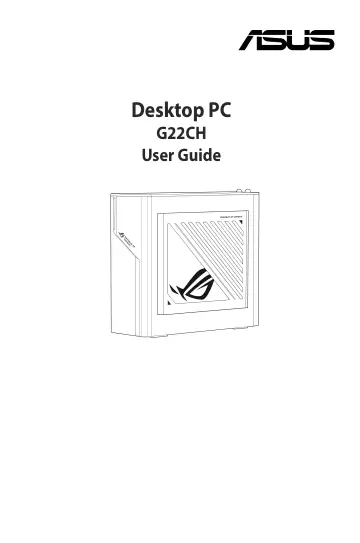
ASUS G22CH-1370KF065W (90PF03T2-M008L0) user manual
- Type
- User manual
- Language
- English
- Pages
- 45
- Category
- Desktops & servers
- Models
- G22CH-1370KF065W
Open PDFOpens the file on objects.icecat.biz.
Contents
- Noticesp. 4
ASUS Recycling/Takeback Services ASUS recycling and takeback programs come from our commitment to the highest standards for protecting our environment. We…
- Safety informationp. 10
Disconnect the AC power and peripherals before cleaning. Wipe the Desktop PC using a clean cellulose sponge or chamois cloth dampened with solution of…
- Chapter 1p. 13
- Getting startedp. 13
- Welcome!p. 13
Thank you for purchasing the ASUS Desktop PC! The ASUS Desktop PC provides cutting-edge performance, uncompromised reliability, and usercentric utilities. All…
- Chapter 2p. 21
Connecting devices to your computer
- Connecting devices to your computerp. 21
- Connecting a USB storage devicep. 21
This desktop PC provides USB 3.2 Gen 2 Type-C®, USB 3.2 Gen 2, USB 3.2 Gen 1 and USB2.0 ports on the top and rear panels. The USB ports allow you to connect…
- Chapter 3p. 27
- Using your computerp. 27
Proper posture when using your Desktop PC When using your Desktop PC, maintaining the proper posture is necessary to prevent strain to your wrists, hands, and…
- Proper posture when using your Desktop PCp. 27
When using your Desktop PC, maintaining the proper posture is necessary to prevent strain to your wrists, hands, and other joints or muscles. This section…
- Chapter 4p. 29
Connecting to the Internet
- Connecting to the Internetp. 29
- Wired connectionp. 29
Use an RJ-45 cable to connect your computer to a DSL/cable modem or a local area network (LAN). Connecting via a DSL/cable modem To connect via a DSL/cable…
- Chapter 5p. 35
Troubleshooting Troubleshooting This chapter presents some problems you might encounter and the possible solutions. ? My computer cannot be powered on and the…
- Troubleshootingp. 35
This chapter presents some problems you might encounter and the possible solutions. ? My computer cannot be powered on and the power LED on the front panel…
- Appendixp. 43
Working with Windows®
- Working with Windows®p. 43
Starting for the first time When you start your computer for the first time, a series of screens appear to guide you in configuring your Windows® operating…
- Starting for the first timep. 43
When you start your computer for the first time, a series of screens appear to guide you in configuring your Windows® operating system. Follow the onscreen…