Loading manual…
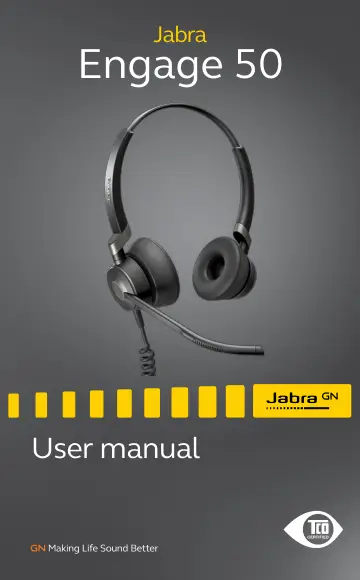
Jabra Engage 50 Stereo (5099-610-189) user manual
- Type
- User manual
- Language
- English
- Pages
- 20
- Category
- Headphones & headsets
- Models
- 5093-610-1895099-610-189ENC080
Open PDFOpens the file on objects.icecat.biz.
Contents
- 1. Welcomep. 5
Thank you for using the Jabra Engage 50. We hope you will enjoy it! Jabra Engage 50 features • 3-microphone system • Stereo Sound • Superwideband • Status…
- 2. Jabra Engage 50 overviewp. 6
- 2.1 Stereo variantp. 6
- 2.2 Mono variantp. 6
- 2.3 Included accessoriesp. 7
- 2.4 Optional accessoriesp. 7
Optional accessories and replacement parts (ear cushions, etc.) can be purchased online at jabra.com/accessories. 120cm USB-C to USB-A extension cable 120cm…
- 3. How to wearp. 9
Wear the Jabra Engage 50 and adjust the headband for a more comfortable fit. jabra For optimal comfort, the mono headset should be worn with the T-bar high on…
- 3.1 Adjust the microphonep. 10
The microphone boom arm can be rotated and shaped to sit close to your mouth. The notches on the boom arm indicate where to bend. Do not bend the tip of the…
- 3.2 Position the microphonep. 11
For optimal call quality, position the microphone close to the mouth (approx. 1/2” or 12mm). 1/2” or 12mm jabra
- 4. How to connectp. 12
4.1 Connect to computer Plug the Jabra Engage 50 into a USB-C port on your computer. Ensure the headset is set as the default audio device for the speaker and…
- 4.1 Connect to computerp. 12
Plug the Jabra Engage 50 into a USB-C port on your computer. Ensure the headset is set as the default audio device for the speaker and microphone in your…
- 4.2 Connect to computer using Jabra Engage Link (optional accessory)p. 13
Plug the Jabra Engage 50 into a Jabra Engage Link controller (optional accessory). The Jabra Engage link controller plugs into a USB port on the computer, and…
- 4.3 Connect to mobile devicesp. 14
Plug the Jabra Engage 50 into a USB-C port on your mobile device. Not all USB-C devices or apps support an audio connection to the Jabra Engage 50.
- 4.4 Connect using the extension cable (optional accessory)p. 15
Plug the Jabra Engage 50 into the USB-C port on the extension cable, and then plug the extension cable into a USB-A or USB-C port on your computer, depending…
- 5. How to usep. 16
The headset itself does not have call controls. When plugged into a computer, calls and music can be controlled using the computer (or by connecting to a Jabra…
- 5.1 Status lightp. 16
The Status light on the headset indicates to colleagues when you are on a call or busy. jabra
- 5.2 Sidetonep. 17
Sidetone enables you to hear your own voice when you are on a call. Sidetone settings can be configured using Jabra Direct
- 5.3 Reverse stereop. 17
Reverse stereo enables the left and right audio channels to be switched in the stereo headset. Reverse stereo settings can be configured using Jabra Direct.
- 6. Jabra Directp. 18
Jabra Direct is computer software designed to support, manage, and enable optimal functionality for your Jabra devices. Download via jabra.com/direct
- 6.1 Firmware updatep. 19
Jabra Direct will notify you when there is a firmware update available for the headset. During the firmware update process, the LEDs on the Jabra Engage 50…
- 7. Supportp. 20
7.1 FAQ View the FAQs on Jabra.com/engage50.
- 7.1 FAQp. 20
View the FAQs on Jabra.com/engage50.