Loading manual…
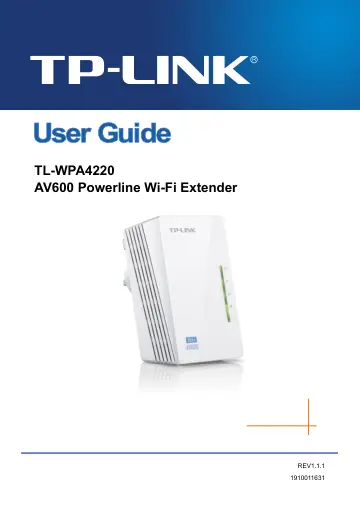
TP-Link TL-WPA4220 KIT V1.20 user manual
- Type
- User manual
- Language
- English
- Pages
- 46
- Category
- Routers & Wi-Fi
- Models
- TL-WPA4220 KIT V1.2WPA4220
Open PDFOpens the file on objects.icecat.biz.
Contents
- Chapter 1 Introductionp. 8
Congratulations on your purchase of this outstanding AV600 Powerline Wi-Fi Extender. This device is not only a 600Mbps powerline Ethernet adapter which…
- 1.1 System Requirementp. 8
a) At least two power outlets (100-240V~, 50/60Hz) with standard home power wiring b) A computer with the following: Operating System of Windows…
- 1.2 Conventionsp. 8
The extender, or TL-WPA4220, or device mentioned in this User Guide stands for TL-WPA4220 AV600 Powerline Wi-Fi Extender without any explanations. Parameters…
- 1.3 Physical Interfacep. 9
There are four physical items on this device. Wi-Fi/Wi-Fi Clone Button Ethernet Port Reset Button Pair Button Item Description Wi-Fi/Wi-Fi Clone Button Press…
- 1.4 LED Indicatorp. 9
The LED indicator displays information about the device’s status.
- Chapter 2 Hardware Connectionp. 11
2.1 Before You Begin Please read this User Guide carefully before installing and using the equipment. The operating distance or range of your wireless…
- 2.1 Before You Beginp. 11
Please read this User Guide carefully before installing and using the equipment. The operating distance or range of your wireless connection varies…
- 2.2 Plug and Playp. 11
Please first make sure that your PC can successfully access the Internet via the router. Then connect the powerline devices by following the instructions below.
- 2.3 Wi-Fi Clone Button for Super Range Extensionp. 14
Wi-Fi Clone button is used for copying the wireless settings (including SSID and wireless password) from the front wireless router. Wi-Fi Clone Steps: Before…
- Chapter 3 Configure the Devicep. 16
This Chapter describes how to configure your powerline extender via the web-based management page. The AV600 Powerline Wi-Fi Extender is easy to configure and…
- 3.1 Loginp. 16
3.1.1 For Wired Connection If your computer is connected to the extender via Ethernet cable, you can log in the extender by following the steps below: 1.…
- 3.2 Statusp. 19
The Status page displays the powerline extender’s current status and configuration. All information is read-only. Figure 3-5 Status Firmware Version - This…
- 3.3 Networkp. 20
You can configure the IP parameters of the powerline extender on this page. Figure 3-6 Network MAC Address - The physical address of the powerline extender's…
- 3.4 Wirelessp. 20
The Wireless option, improving functionality and performance for wireless network, can help you make
- 3.5 Powerlinep. 29
There are two submenus under the Powerline menu (shown in Figure 3-17 Wireless menu): Network Settings and Station Settings. Click any of them, and you will be…
- 3.6 System Toolsp. 31
System Tools option helps you to optimize the configuration of your device. You can upgrade the powerline extender to the latest version of firmware as well as…
- Chapter 4 Connecting to Wireless Networkp. 36
The default SSID is TP-LINK_××××××. (×××××× stand for the last six unique numbers of the WLAN MAC which can be found on the label at the bottom of the device.)…
- 4.1 In Windows 7p. 36
Windows 7 users may use the built-in wireless utility. Follow the steps below. 1. Click the icon in the notification area, select the SSID of TL-WPA4220 and…
- 4.2 In Windows Vistap. 38
Windows Vista users may use the built-in wireless utility. Follow the steps below. 1. Right-click the icon in the notification area, then click Connect to a…
- 4.3 In Windows XPp. 40
Windows XP users may use the built-in wireless utility. Follow the steps below. 1. Click the icon in the notification area, select the SSID of TL-WPA4220 and…
- 4.4 In Windows 8 or Windows 10p. 40
If you are using Windows 8, please follow the steps below to connect to the wireless network of the powerline extender.
- Chapter 5 Pair Button and Reset Buttonp. 43
5.1 Pair (Secure with 128 bits-AES) The Homeplug AV standard uses 128-bit AES (Advanced Encryption Standard) to safely transmit data between powerline dvices.…
- 5.1 Pair (Secure with 128 bits-AES)p. 43
The Homeplug AV standard uses 128-bit AES (Advanced Encryption Standard) to safely transmit data between powerline dvices. For the powerline devices to…
- 5.2 Setting Up a Powerline Network with the Pair Buttonp. 43
You can connect a number of devices on a powerline network, but you can use the Pair button on only two devices at a time. Create a Powerline network using the…
- 5.3 Resetp. 44
To reset the powerline device: With the extender powered on, use a pin to press and hold the Reset button for about 5 seconds until all LEDs go off. When the…
- Appendix A: Troubleshooting Guidep. 45
The Troubleshooting Guide provides answers to common problems regarding the powerline Ethernet adapter. 1. The Power LED does not light up. Ans. Check the…
- Appendix B: Specificationsp. 46
HARDWARE FEATURES Standards and Protocols HomePlug AV, IEEE802.3, IEEE802.3u, IEEE802.11b/g/n Interface 2*10/100Mbps Ethernet Port Plug Type UK Button Pair…