Loading manual…
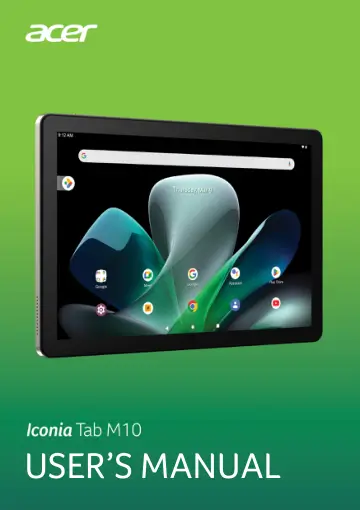
Acer Iconia M10-11 Tablet (NT.LFUEE.001) user manual
- Type
- User manual
- Language
- English
- Pages
- 50
- Category
- Tablets
- Models
- NT.LFUEE.001
Open PDFOpens the file on objects.icecat.biz.
Contents
- Getting started with your tabletp. 4
Unpacking your tablet Your new tablet comes packed in a protective box. Carefully unpack the box and remove the contents. If any of the following items are…
- Charging your tabletp. 9
CHARGING YOUR TABLET Connecting power Connect the power connector to your tablet and plug the AC adapter into any AC outlet. Warning Only use an Acer-approved…
- Using your tabletp. 10
Using the touchscreen Your tablet uses a touchscreen for selecting items and entering information. Use your finger to tap the screen. Tap: Touch the screen…
- Connecting devices to your tabletp. 23
CONNECTING DEVICES TO YOUR TABLET Connecting to AC power See Charging your tablet on page 9 Accessories For a complete list of accessories, visit…
- Going onlinep. 26
Managing Wi-Fi connections If you did not connect to a Wi-Fi network when you first started your tablet, or want to connect to a new network, tap Settings >…
- Using the camera and video recorderp. 32
Your tablet features two cameras (frontand rear-facing). This section will take you through all the steps in taking photos and videos with your tablet. To…
- Advanced settingsp. 36
To access Settings, go to the Home screen and tap Settings. Network & internet Wi-Fi Displays all available wireless networks. Turn the Wi-Fi function on or…
- FAQ and troubleshootingp. 42
This section lists frequently asked questions that may arise during the use of your tablet, and gives easy answers and solutions to these questions. Aspect…
- Specificationsp. 44
- Guidelines for safe battery usagep. 46
Battery information Do not use this product in a humid, wet and/or corrosive environment. Do not put, store or leave your product in or near a heat source, in…
- End user license agreementp. 48