Loading manual…
Xerox C230/DNI user manual
- Type
- User manual
- Language
- English
- Pages
- 10
- Category
- Printers
- Models
- C230/DNI
Open PDFOpens the file on objects.icecat.biz.
Contents
- Xerox® C230 Color Printer Quick Reference Guidep. 1
- Printp. 1
er Quick Reference Guide Print
- Printing from a Computerp. 1
Note: For labels, card stock, and envelopes, set the paper size and type in the printer before printing the document. 1. From the document that you are trying…
- Printing From a Mobile Devicep. 1
using Mopria™Print Service Note: This feature is available only in some printer models. Mopria Print Service is a mobile printing solution for mobile devices…
- Maintain the Printerp. 1
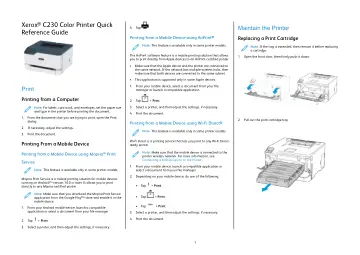
Replacing a Print Cartridge Note: If the tray is extended, then remove it before replacing a cartridge. 1. Open the front door, then firmly push it down. 2.…
- Replacing a Print Cartridgep. 1
Note: If the tray is extended, then remove it before replacing a cartridge. 1. Open the front door, then firmly push it down. 2. Pull out the print cartridge…
- Replacing the Waste Toner Bottlep. 2
1. Remove the used waste toner bottle. Note: To avoid spilling the toner, place the bottle in an upright position. 2. Unpack the new waste toner bottle. 3.…
- Loading the Trayp. 2
CAUTION—TIPPING HAZARD: To reduce the risk of equipment instability, keep the tray closed until needed. 1. Remove the tray. Note: To avoid paper jams, do not…
- Loading the Manual Feederp. 3
1. Adjust the guide to match the size of the paper that you are loading. 2. Load a sheet of paper with the printable side face-up. • Load letterhead with the…
- Setting the Paper Size and Typep. 4
1. From the control panel, navigate to Settings > PaperTray > Configuration > Paper Size/Type, then select a paper source. For non-touch-screen printer models…
- Updating Firmwarep. 4
Some applications require a minimum device firmware level to operate correctly. For more information on updating the device firmware, contact your…
- Configuring Wi-Fi Directp. 4
Wi-Fi Direct is a Wi-Fi-based peer-to-peer technology that allows wireless devices to connect directly to a Wi-Fi Direct-enabled printer without using an…
- Connecting a Mobile Device to the Printerp. 4
Before connecting your mobile device, make sure that Wi-Fi Direct has been configured. For more information, see Configuring Wi-Fi Direct. Connecting Using…
- Connecting the Printer to a Wi-Fi Networkp. 5
Note: This feature is available only in some printer models. Before you begin, make sure that: • Active Adapter is set to Auto. From the control panel…
- Clearing Jamsp. 5
Avoiding Jams Load Paper Properly • Make sure that the paper lies flat in the tray. Correct loading of paper Incorrect loading of paper • Do not load or remove…
- Avoiding Jamsp. 5
Load Paper Properly • Make sure that the paper lies flat in the tray. Correct loading of paper Incorrect loading of paper • Do not load or remove a tray while…
- Identifying Jam Locationsp. 5
When Jam Assist is set to On, the printer might attempt to flush blank pages or pages with partial prints after a jammed page has been cleared. Check your…
- Paper Jam in the Standard Trayp. 6
1. Open door B. CAUTION—HOT SURFACE: The inside of the printer might be hot. To reduce the risk of injury from a hot component, allow the surface to cool…
- Paper Jam in the Optional Trayp. 7
- Paper Jam in the Standard Output Trayp. 7
Remove the jammed paper. Note: Make sure that all paper fragments are removed. 7
- Paper Jam in the Manual Feederp. 8
1. Remove the tray and the manual feeder. 2. Remove the jammed paper. Note: Make sure that all paper fragments are removed. 3. Insert the manual feeder and the…
- Paper Jam in Door Bp. 8