Loading manual…
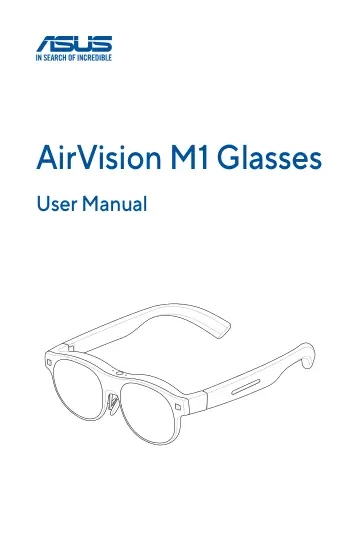
ASUS AirVision M1 (90LJ00L5-B01370) user manual
- Type
- User manual
- Language
- English
- Pages
- 66
- Category
- Phones
- Models
- AirVision M1
Open PDFOpens the file on objects.icecat.biz.
Contents
- Safety precautionsp. 7
Refer to the user manual and take note of the safety instructions before using this product. • This product does not contain a battery and must be connected to…
- Operating environmentp. 8
Assess the safety of the environment before use. Stay away from stairs, balconies, open doors and windows, and open flames. • We advise against using this…
- Chapter 1: Getting to know your glassesp. 11
- Chapter 2: Setting upp. 15
your glasses Chapter 2: Setting up
- Customizing your fitp. 16
Before getting started with your glasses, it is important to understand how to adjust and customize them to achieve the best fit and optimal viewing…
- Connecting a host devicep. 21
You can connect your glasses to various host devices, such as laptop computers, smartphones, and gaming handhelds. For laptop computers, you will need a…
- Chapter 3: Using your glassesp. 31
- Understanding viewing modesp. 32
Positioning (multi-screen) mode In positioning mode, the virtual screens are fixed or pinned to a specific point within your workspace and will not move when…
- Switching viewing modesp. 34
While in a multi-screen layout, you can quickly and easily switch to a single screen layout with a one-finger double tap of the touchpad on the left temple of…
- Using the touchpad with gesturesp. 35
Using the touchpad, which is located on the left temple of your glasses, you can modify settings and seamlessly interact with the AirVision app, if it is…
- Using the ASUS AirVision appp. 38
With the ASUS AirVision app installed on your computer, you can set up multiple virtual screens and place content on them just like you would with multiple…
- Appendixp. 61
- Regulatory Noticesp. 62
Federal Communications Commission Statement This device complies with part 15 of the FCC Rules. Operation is subject to the following two conditions: (1) This…
- M1 Glasses Specificationsp. 64
Display Display Technology Micro OLED Lens Type Freeform Resolution 1080p per eye Refresh Rate 72 Hz Aspect Ratio 16:9 Brightness 1,100 nits (typical) Panel…
- Trademarksp. 65
USB Type-C ® and USB-C ® are registered trademarks of USB Implementers Forum.
- Service and Supportp. 65