Loading manual…
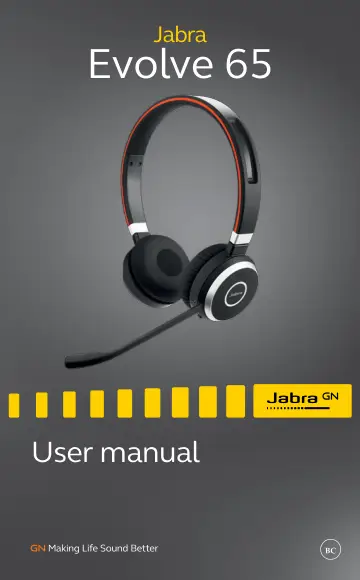
Jabra Evolve 65 SE - UC Stereo with Charging Stand (6599-833-499) user manual
- Type
- User manual
- Language
- English
- Pages
- 24
- Category
- Headphones & headsets
- Models
- 6593-833-3996593-833-4996593-839-4096599-833-3096599-833-3996599-833-4996599-839-409
Open PDFOpens the file on objects.icecat.biz.
Contents
- 1. Welcomep. 5
Thank you for using the Jabra Evolve 65. We hope you will enjoy it! Jabra Evolve 65 features Connects to PC via Jabra Link 380 bluetooth adapter or USB cable…
- 2. Jabra Evolve 65 overviewp. 6
2.1 Stereo variant Adjustable headband Magnetic microphone groove Busylight indicator Battery indicator USB connect & charging port On/off/connect switch…
- 2.1 Stereo variantp. 6
Adjustable headband Magnetic microphone groove Busylight indicator Battery indicator USB connect & charging port On/off/connect switch Microphone boom-arm…
- 2.2 Mono variantp. 7
Busylight indicator USB connect & charging port On/off/connect switch Microphone boom-arm Volume up Volume down
- 2.3 Included accessories (stereo and mono)p. 7
USB cable Carry pouch Adjustable headband Magnetic microphone groove Multi-function button Battery indicator Bluetooth indicator Jabra Link 380 USB-A Bluetooth…
- 3. How to wearp. 8
3.1 Left or right wearing style The Jabra Evolve 65 can be worn on the left or right by flipping the microphone to the other side (270° limit). 270°
- 3.1 Left or right wearing stylep. 8
The Jabra Evolve 65 can be worn on the left or right by flipping the microphone to the other side (270° limit). 270°
- 3.2 Adjust the headbandp. 9
Adjust the headband to find the most comfortable fit
- 3.3 Position the microphonep. 9
It is recommended to position the microphone close to your mouth (0.5 inches).
- 3.4 Storing the microphonep. 10
When listening to music or outdoors, the microphone can be magnetically stored in the headband groove.
- 4. How to charge the batteryp. 11
The headset battery will charge when connected to a PC using a USB cable, or when using any USB charger supplied with your mobile device. The headset can still…
- 4.1 Sleep modep. 12
When the headset is powered on, but not being used, it will automatically enter sleep mode after 15 minutes to conserve battery. To manually exit sleep mode…
- 5. How to connectp. 13
5.1 Connect to PC (using Jabra Link 380) 1. Ensure the headset is switched on. 2. Plug the Jabra Link 380 dongle into a USB port on your PC. The headset and…
- 5.1 Connect to PC (using jabra Link 370)p. 13
- 5.2 Connect to mobile device (using Bluetooth)p. 14
1. Wear the headset. 2. Hold (3 secs) the On/off/connect switch in the connect position until you hear the voice guided instructions. The Bluetooth indicator…
- 5.3 Connect to PC (using USB cable)p. 15
1. Ensure the headset is switched on. 2. Plug the headset into a USB port on your PC using the supplied USB cable.
- 6. How to usep. 16
- 6.1 Everyday usep. 17
Function Action Headset on/off Slide the On/off/connect switch Answer/end call Tap the Multi-function button Reject call Double-tap the Multifunction button…
- 6.2 Multiple call handlingp. 18
The headset can accept and handle multiple calls at the same time. Function Action End current call and answer incoming call Tap the Multi-function button…
- 6.3 Busylightp. 19
The busylight indicator on the headset can be turned on to let others know that you are busy. MANUALLY TURN BUSYLIGHT ON/OFF To manually turn the busylight…
- 7. Software and firmwarep. 20
7.1 Jabra Direct Jabra Direct is computer software designed to support, manage and enable optimal functionality for Jabra devices. Download the latest free…
- 7.1 Jabra Directp. 20
Jabra Direct is computer software designed to support, manage and enable optimal functionality for Jabra devices. Download the latest free version from…
- 7.2 Update firmwarep. 20
Firmware updates improve performance or add new functionality to Jabra devices. 1. Connect the Jabra Evolve 65 to a computer. 2. Use Jabra Direct to check for…
- 8. Supportp. 21
8.1 FAQ View the FAQs on Jabra.com/evolve65
- 8.1 faqp. 21
View the FAQs on Jabra.com/evolve65
- 8.2 How to care for your headsetp. 21
Always store the headset with the power off and safely protected. Avoid storage at extreme temperatures (above 55°C/131°F or below -10°C/14°F). This can…
- 9. Technical specificationsp. 22
Jabra Evolve 65 headset Specification Headset weight: Mono headset: 79 g Stereo headset: 111 g Headset dimensions: Mono headset: L 154.4 mm x W 58.6 mm x H…