Loading manual…
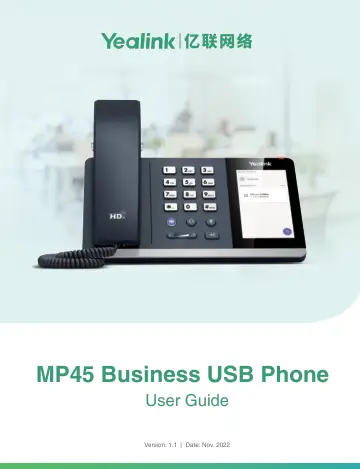
Yealink MP45 (1301118) user manual
- Type
- User manual
- Language
- English
- Pages
- 18
- Category
- Other network devices
- Models
- MP45
Open PDFOpens the file on objects.icecat.biz.
Contents
- About This Guidep. 3
| 3 About This Guide This guide contains instructions for connecting and using your MP45 USB phone
- How to Connectp. 3
Connect to PC via USB Cable Connect to PC via USB Cable Procedure Connect the phone to PC using the attached USB cable. Note: For more information on…
- Connect to PC via USB Cablep. 3
Procedure Connect the phone to PC using the attached USB cable. Note: For more information on compatible PC, refer to the specific FAQ. Related information Is…
- How to Usep. 4
- Hardware Overviewp. 4
Icons and Status Indicators • Adjust the Playback Volume • Reset Configuration Hardware Overview Name Description 1 Power LED Indicator Indicates phone status.…
- Icons and Status Indicatorsp. 5
- Adjust the Playback Volumep. 5
Procedure Do one of the following: • Press the Volume key. • Tap or the user account avatar. Go to Settings > Basic Settings > Speaker Volume. Tap the desired…
- Reset Configurationp. 5
Procedure 1. Do one of the following: • Tap or the user account avatar. Go to Settings > Advanced Settings > Reset Configuration. • Long press the pound key…
- How to Manage Callsp. 5
| 5 Name Description 8 Teams Key • Hold for 2 seconds to activate Cortana integrated in Teams (this requires Microsoft's support). • Press once to invoke the…
- Basic Call Usagep. 6
Multiple Calls Handling Basic Call Usage Function Action Place a new call 1. Tap the connected device CARD or . 2. Enter the desired number. 3. Select the…
- Multiple Calls Handlingp. 6
Basic Call Usage Function Action Place a new call 1. Tap the connected device CARD or . 2. Enter the desired number. 3. Select the desired outgoing dialing…
- Yealink USB Connectp. 6
| 6 • Basic Call Usage • Multiple Calls Handling Basic Call Usage Function Action Place a new call 1. Tap the connected device CARD or . 2. Enter the desired…
- Download and Installp. 7
Update Firmware Download and Install Before you begin Connect the phone to your PC. Procedure 1. If it is the first time to connect the phone to your PC, the…
- Update Firmwarep. 8
- How to Change Settingsp. 9
| 9 Procedure 1. Connect the phone to the USB port of PC. 2. Update the phone firmware via the Yealink USB Connect. • Check for updates • Update manually For…
- Change the Default Outgoing Dialer Devicep. 9
Change the Default Media Playback Device • Basic Settings • Advanced Settings • Change Settings via YUC Related information Yealink USB Connect Change the…
- Change the Default Media Playback Devicep. 10
When there are multiple devices connected to the phone, you can change the default music playback device. Procedure 1. Tap on the idle screen. 2. Tap the…
- Basic Settingsp. 10
Tap or the user account avatar, and go to Settings > Basic Settings to access the basic settings menu. General Settings Language Select the screen text…
- Advanced Settingsp. 11
Tap or the user account avatar, and go to Settings > Advanced Settings to access the advanced settings menu. General Settings USB Computer Audio This setting…
- Change Settings via YUCp. 12
Procedure 1. Connect the phone to the USB port of PC. 2. Change settings via Yealink USB Connect. • Basic Settings • Advanced Settings
- Optional Accessoriesp. 12
| 12 Change Settings via YUC Procedure 1. Connect the phone to the USB port of PC. 2. Change settings via Yealink USB Connect. • Basic Settings • Advanced…
- Busylight BLT60p. 12
When the phone is connected to PC, busylight can alert you to the status of the Microsoft Teams/Skype for Business client. About this task LED States…
- FAQp. 13
- How to set up my device to work with Microsoft Teams?p. 13
How to set up my device to work with Skype for Business? • Why can't I hear the other party's voice? • Why is the time on my device not synchronized with the…
- How to set up my device to work with Skype for Business?p. 14
Procedure 1. Click the Settings icon in the top-right corner of the Skype for Business window. 2. In the left side options, click Audio Device. 3. In Audio…
- Why can't I hear the other party's voice?p. 15
The device is not set as the default audio device for PC. Use the audio settings in the sound control panel/ preferences to select the headset as the default…
- Why is the time on my device not synchronized with the PC?p. 15
Check if the Yealink USB Connect/Microsoft Teams/Skype for Business is running on the PC, the device time will automatically synchronize with the PC time when…
- Why does the phone display “PC Device” or “PC softphone” instead of the name and number of the other party for a Skype fp. 16
The MP45 driver for Windows may be abnormal. You need to reinstall the driver in the Windows Device Manager, and then disconnect and reconnect the MP45 to PC.…
- Is my PC compatible?p. 17
The tested PC list compatible with Yealink MP45: PC Model OS Connectivity Softphone Microsoft Teams HP ELITEBOOK 840G5 win10 1903 Skype for Business Microsoft…