Loading manual…
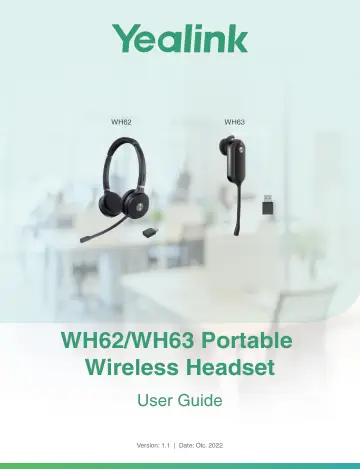
Yealink WH62 Mono Portable UC-DECT Wireless headset (1208642) user manual
- Type
- User manual
- Language
- English
- Pages
- 23
- Category
- Headphones & headsets
- Models
- 1208642
Open PDFOpens the file on objects.icecat.biz.
Contents
- About This Guidep. 4
| 4 About This Guide This guide contains instructions for connecting and using your WH62/WH63 Portable headset. • Summary of Changes Summary of Changes •…
- Power on/offp. 4
WH62 Portable • Power on/off WH63 Portable
- Charge the Headsetp. 6
| 6 Power on/off Action LED indicator Voice prompt Power on Solid red for 3s Power off Flash red for 3 times Note: The headset will automatically power off…
- Pair Headsetp. 9
| 9 LED WDD60 Status Solid blue Pair successfully Call Fast flashing purple Ringing Solid purple In the call Solid red Mute Solid orange for 5s and off Paired…
- Connect Headsetp. 11
| 11 Note: One WDD60 can only connect to one device at a time. Connect Headset • Connect WH62 Portable to PC/IP Phone • Connect WH63 Portable to PC/IP Phone…
- Wear the Headsetp. 12
| 12 Connect WH63 Portable to PC/IP Phone The headset and the WDD60 are pre-paired and ready for use. • Connect to PC • Connect to IP Phone Wear the Headset •…
- WH62 Portable Headset Usagep. 14
| 14 2. Earhook & Eartip wearing style: to enhance stability WH62 Portable Headset Usage • Basic Call Usage • Multiple Calls Handling
- WH63 Portable Headset Usagep. 16
| 16 WH63 Portable Headset Usage • Basic Call Usage • Multiple Calls Handling Basic Call Usage No. Feature Action Answer or end a call Press the Call Control…
- Auto-Switchp. 17
| 17 No. Feature Action Hold the current call and answer the incoming call Hold the Call Control Button for 2s Reject incoming call, while on a current call…
- Yealink USB Connectp. 17
is a computer software designed to manage Yealink USB devices. With Yealink USB Connect, you can: • Get an overview of connected Yealink USB devices • Update…
- Basic Settingsp. 21
| 21 Basic Settings Sound Keypad Tone Enable/disable the paired headset to produce a sound when pressing the keypad keys. Headset Volume Adjust the playback…
- Advanced Settingsp. 21
General Audio Bandwidth Wideband provides batter audio, and narrowband provides better battery life. • Narrowband • Wideband Wireless Range Select the wireless…
- Supportp. 23
| 23 Calling PC Call Device Select which device to use for outgoing call. Auto Answer when Undocked Enable/disable incoming calls to be answered by undocking…