Loading manual…
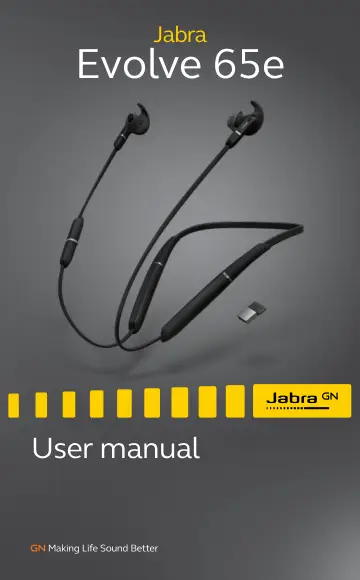
Jabra Evolve 65e MS & Link 370 (6599-623-109) user manual
- Type
- User manual
- Language
- English
- Pages
- 30
- Category
- Headphones & headsets
- Models
- 6599-623-1096599-629-109HSC090W
Open PDFOpens the file on objects.icecat.biz.
Contents
- 1. Welcomep. 5
Thank you for using the Jabra Evolve 65e. We hope you will enjoy it! Jabra Evolve 65e features • UC certified microphone technology • Integrated Busylight to…
- 2. Jabra Evolve 65e overviewp. 6
Volume up Next track (hold) Power on/off (hold) Answer/end call Play/pause music Open Microsoft Teams notification* Mute Voice Assistant Magnetic zone Volume…
- 2.1 Included accessoriesp. 6
EarGel EarWing L R L R L R Jabra Link 370 USB charging cable *Requires Microsoft Teams Variant
- 3. How to wearp. 7
Jabra Evolve 65e is designed to be worn around the neck. For the optimal call experience, position the microphone as close to your mouth as possible.
- 3.1 Getting the correct fitp. 8
The earbuds are supplied with three EarGel and EarWing sizes: small, medium and large. L R L R L R Small Small Medium Medium Large Large It is highly…
- 3.2 Attaching the EarWingsp. 9
To properly attach the EarWing, align the indent on the EarWing (as illustrated) with the ridge on the earbud, and stretch the EarWing over the earbud. It will…
- 3.3 Using the magnetic earbudsp. 10
The earbuds are magnetic and connect together for convenient cable and power management. When the earbuds are connected, your music will be paused or your call…
- 4. How to chargep. 11
To charge the earbuds, connect a USB charging cable to the USB charging port on the neckband. It is recommended to charge the earbuds using the supplied Jabra…
- 5. What the LEDs meanp. 12
Battery LED Full Medium Low Very low Pairing mode Resetting Busylight LED Busy Incoming call
- 6. How to connectp. 13
6.1 Power on/off On: Hold (1 sec) the Multi-function button. The LED will flash green, and the neckband will vibrate. Off: Hold (3 sec) the Multi-function…
- 6.1 Power on/offp. 13
On: Hold (1 sec) the Multi-function button. The LED will flash green, and the neckband will vibrate. Off: Hold (3 sec) the Multi-function button. The LED will…
- 6.2 Connecting to a computer (Bluetooth adapter)p. 14
1. Insert the Bluetooth adapter (Jabra Link 370) into your computer. jabra 2. Hold (1 sec) the Multi-function button on the earbuds to power them on. The…
- 6.3 Pairing with a smartphonep. 15
1. Ensure the earbuds are powered off, and then hold (3 sec) the Multi-function button until the LED flashes blue and you hear an announcement in the earbuds.…
- 7. How to usep. 16
Volume up button Multi-function button Magnetic zone Volume down button Mute Voice Assistant
- 7.1 Calls & musicp. 16
Calls & music Power on Hold (1 sec) the Multi-function button Power off Hold (3 sec) the Multi-function button Play/pause music Hold (1 sec) the Multi-function…
- 7.2 HearThroughp. 18
HearThrough enables you to hear your surroundings without needing to remove the earbuds. Your music will not be muted. Use the Sound+ app (smartphone) or Jabra…
- 7.3 Siri or Google Assistantp. 19
Phone voice commands enable you to speak to Siri or Google Assistant on your smartphone using your earbuds. For more information on using Siri or Google…
- 7.4 Multiple call handlingp. 20
The earbuds can answer or reject calls when you are already on a call. Multiple call handling End current call and answer incoming call Press the…
- 7.5 Busylightp. 21
The Busylight lets others know when you are busy and will automatically light up when you are on a call. Busylight Turn Busylight LED on/off Press both the…
- 7.6 Vibrate alertp. 22
The earbuds will vibrate whenever they are powered on/off, connected to your smartphone or computer, or whenever there is an incoming call. Use the Jabra…
- 7.7 Voice guidancep. 23
Voice guidance are announcements intended to guide you or give earbud status updates (e.g. connection and battery status). How to turn voice guidance on/off…
- 7.8 How to resetp. 24
Resetting the earbuds clears the list of paired devices and all earbud settings. After resetting, it is necessary to re-pair the earbuds to your smartphone…
- 7.9 Firmware updatep. 25
Firmware updates improve performance, or add new functionality to Jabra devices. 1. Connect the Jabra Evolve 65e to a computer using the USB cable or Jabra…
- 8. Jabra Sound+ appp. 26
Jabra Sound+ app Music Equalizer Voice Assistant Personalize your experience
- 9. Jabra Directp. 27
Jabra Direct is computer software designed to support, manage, and enable optimal functionality for your Jabra Evolve 65e. It is recommended to always download…
- 10. Supportp. 28
10.1 FAQ View the FAQs on Jabra.com/help/Evolve65e
- 10.1 FAQp. 28
View the FAQs on Jabra.com/help/Evolve65e
- 10.2 How to care for your earbudsp. 28
Always store the earbuds with the power off and safely protected. • Avoid storage at extreme temperatures (above 50°C/122°F or below -10°C/14°F). This can…
- 10.3 Replacement accessoriesp. 29
Replacement or additional accessories can be purchased online at jabra.com/accessories. EarGel EarWing L R L R L R S S M M L L Pouch Jabra Link 370
- 10.4 Using a replacement Bluetooth adapter (Jabra Link 370)p. 30
1. Download and install Jabra Direct 2.0 (build version 4.0 or later). 2. Plug the Bluetooth adapter (Jabra Link 370) into a USB port on your computer. 3.…