Loading manual…
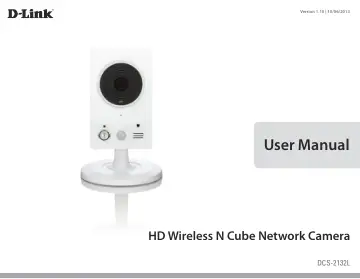
D-Link DCS-2132L user manual
- Type
- User manual
- Language
- English
- Pages
- 69
- Category
- Security cameras
- Models
- DCS-2132L
Open PDFOpens the file on objects.icecat.biz.
Contents
- Introductionp. 5
Congratulations on your purchase of the DCS-2132L HD Wireless N Cube Network Camera. The DCS-2132L is a versatile and unique solution for your small office or…
- System Requirementsp. 5
- Featuresp. 6
802.11n Wireless or Ethernet/Fast Ethernet Support The DCS-2132L offers wireless 802.11n and Ethernet/Fast Ethernet connectivity, making the DCS-2132L easy to…
- Hardware Overviewp. 7
Status LED Indicates the camera's current status 2 WPS Status LED Indicates the WPS connection status of the camera 3 Infrared LED Used to illuminate the…
- Installationp. 10
This D-Link device can connect to your wireless network from anywhere within the operating range of your wireless network. However, the number, thickness and…
- Wireless Installation Considerationsp. 10
- Zero Configuration Setupp. 11
If you have a D-Link Cloud Router, you can take advantage of Zero Configuration. Zero Configuration automatically configures your camera's settings for you…
- Camera Installation Wizardp. 15
Windows Users Note: If the autorun program does not open, go to My Computer, browse to your CD drive, and double-click on the autorun.exe file.
- Windows Usersp. 15
Note: If the autorun program does not open, go to My Computer, browse to your CD drive, and double-click on the autorun.exe file.
- Mac Usersp. 16
- Manual Hardware Installationp. 18
If you wish to set up your camera without using the Camera Setup Wizard, please follow these steps. Note: In order to use the mydlink features of this product…
- WPS - Push Button Setupp. 19
WPS Button If your router supports WPS, you can use the WPS button on the camera to easily create a secure wireless connection to your network.
- Mount the Camerap. 20
- mydlinkp. 21
After registering your DCS-2132L camera with a mydlink account in the Camera Installation Wizard. You will be able to remotely access your camera from the…
- Configurationp. 22
Using the Configuration Interface After completing the Camera Installation Wizard, you are ready to use your camera. The camera’s built-in Web configuration…
- Using the Configuration Interfacep. 22
After completing the Camera Installation Wizard, you are ready to use your camera. The camera’s built-in Web configuration utility is designed to allow you to…
- Live Videop. 23
This section shows your camera’s live video. You may select any of the available icons listed below to operate the camera. You may also select your language…
- Setupp. 25
Wizard To configure your Network Camera, click Internet Connection Setup Wizard. Alternatively, you may click Manual Internet Connection Setup to manually…
- Advancedp. 54
This screen allows you to control the behavior of digital input and digital output devices. The I/O connector provides the physical interface for digital…
- Maintenancep. 58
You may modify the name and administrator’s password of your camera, as well as add and manage the user accounts for accessing the camera. You may also use…
- Statusp. 61
This page displays detailed information about your device and network connection. Device Info
- DI/DO Specificationsp. 64
Pin 1 Pin 4 Pin 3 Pin 2 PIN FUNCTION NOTE 1 Digital Out (DO) Uses an open-drain NFET transistor with the source connected to GND in camera. If used with an…
- Technical Specificationsp. 65
Camera Camera Hardware Profile 1/4” Megapixel progressive CMOS sensor 5 meter IR illumination distance Minimum illumination: 0 lux with IR LED on …
- Safety Statementsp. 68
CE Mark Warning: This is a Class B product. In a domestic environment, this product may cause radio interference, in which case the user may be required to…