Loading manual…
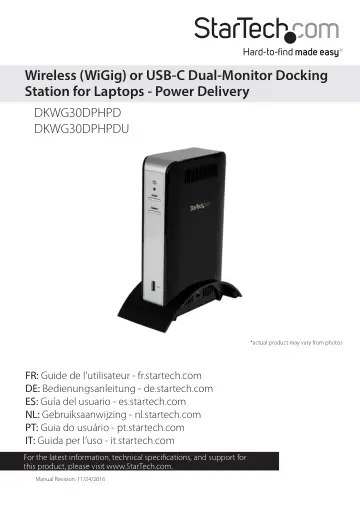
StarTech.com DKWG30DPHPD user manual
- Type
- User manual
- Language
- English
- Pages
- 15
- Category
- Docks & adapters
- Models
- DKWG30DPHPD
Open PDFOpens the file on objects.icecat.biz.
Contents
- Introductionp. 6
This laptop docking station lets you create a full-sized workstation using either wireless (WiGig®) docking technology or the included USB-C™ cable. When…
- Product diagramp. 6
Front view Rear view Power button USB 3.0 fast-charge and sync port Recovery button Gigabit RJ45 port 3.5 mm headset port (4 position) HDMI port (video 2) DC…
- Requirementsp. 7
An available AC electrical outlet • HDMI® and DisplayPort equipped display(s) with cable(s) as needed (for additional external display) • A 4K-capable display…
- About the LED indicatorsp. 8
LED Behavior Power Blue: The dock is powered and turned on Not illuminated: The dock isn’t powered and is turned off Status Amber: A WiGig connection is being…
- About the buttonsp. 8
Button Action Power Press to power the dock on or off Connect Short press (less than two seconds): • Connects to the host laptop during the initial setup •…
- About USB 3.0 and USB 3.1 Gen 1p. 9
USB 3.0 is also known as USB 3.1 Gen 1. This connectivity standard offers speeds up to 5Gbps. Any mention of USB 3.0 in this manual or on the StarTech.com…
- About USB Power Delivery 2.0p. 9
USB Power Delivery 2.0 is a specification that allows power (up to 100 watts) to be sent over a USB-C or Thunderbolt 3 cable that supports the specification.…
- About USB-Cp. 9
Not all USB-C ports support the full functionality of the USB Type-C standard. Some ports might only provide data transfers, and might not support video (DP…
- Attach the dock to the standp. 10
To attach the dock to the provided stand, do the following: 1. Place the stand flush on a desk so that the rubber feet on the bottom of the stand are resting…
- Install the dock through WiGig (wireless)p. 10
If you have a WiGig equipped host laptop with a supported WiGig card, you can wirelessly connect the dock to your laptop. When coupled with a WiGig equipped…
- Power the dockp. 10
1. Select the appropriate power cord for your region and connect it to the power adapter. 2. Connect the power adapter to an AC electrical outlet and to the…
- Run the Intel® Wireless Dock Manager softwarep. 11
To connect the dock to your laptop wirelessly, you need to use Intel Wireless Dock Manager software. The software should be pre-installed on any WiGig equipped…
- Install the dock through USB-C (wired)p. 12
If you have a USB-C equipped host laptop that supports USB Power Delivery 2.0 and DP alt mode, you can
- Connect the dockp. 12
to your laptop using the provided USB-C cable. Note: The dock can connect to a host laptop’s USB-C port even if it doesn’t support USB Power Delivery 2.0 and…
- Install the driversp. 12
The required drivers will install automatically when the dock is powered and connected to your host laptop. Charge a device You can use the dock’s front and…
- Configure a display devicep. 13
Use your Windows operating system to adjust display settings for multiple monitors. Your laptop hardware must support dual external displays. • You can set up…
- Supported video resolutionsp. 13
The dock supports the following maximum resolutions. WiGig host - maximum resolutions Video output configuration Max DisplayPort Resolution Max HDMI Resolution…
- Technical supportp. 14
StarTech.com’s lifetime technical support is an integral part of our commitment to provide industry-leading solutions. If you ever need help with your product…
- Warranty informationp. 14
This product is backed by a three-year warranty. StarTech.com warrants its products against defects in materials and workmanship for the periods noted…