Loading manual…
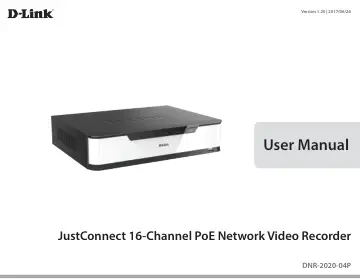
D-Link DNR-2020-04P user manual
- Type
- User manual
- Language
- English
- Pages
- 80
- Category
- Other network devices
- Models
- DNR-2020-04P
Open PDFOpens the file on objects.icecat.biz.
Contents
- Product Overviewp. 5
D-Link DNR-2020-04P JustConnect 16-Channel PoE Network Video Recorder • Hard disk screw x 8 • Rack-mount bracket x 2 • Rack-mount bracket screw x 8 • Power…
- System Requirementsp. 6
- Introductionp. 7
Congratulations on your purchase of the DNR-2020-04P JustConnect 16-Channel PoE Network Video Recorder. The DNR-2020-04P is a standalone Network Video Recorder…
- Featuresp. 8
Comprehensive IP Surveillance Solution • Total Solution: The DNR-2020-04P is a standalone network video recorder capable of 24/7 recording without a PC. The…
- Hardware Overviewp. 11
Front View 1 HD1 LED A solid green light indicates that the hard drive is installed properly. This light will blink during the read/write process. If the light…
- Installationp. 13
Hard Drive Installation 1. First, make sure the power cable is not plugged into a power outlet. Access the DNR-2020-04P’s hard drive bays by removing the…
- Hard Drive Installationp. 13
1. First, make sure the power cable is not plugged into a power outlet. Access the DNR-2020-04P’s hard drive bays by removing the screws from the sides and…
- Connect Your Network Camera(s)p. 16
You can connect PoE network cameras directly to your DNR-2020-04P. For non-PoE network cameras, you will need to locate power outlets in the on-site…
- Configuring Your DNR-2020-04Pp. 17
You can setup your NVR without using a PC by connecting a VGA or HDMI display to the respective ports on the back of the device. To control the Graphical User…
- Configurationp. 18
You can access the configuration interface for the NVR on your PC by running the NVR Search Utility or manually opening a web browser and entering the IP…
- Live Videop. 19
from your network cameras, the functions of the live video screen, and the PTZ functions. To monitor live video: Step 1: Click the button at the top of the…
- Playbackp. 23
This section shows the NVR's recorded video feeds. You may select any of the available icons listed below to playback, adjust, and export the recorded video…
- Smart Searchp. 25
lets your find specific events for review. You may select any of the available icons under playback to control, adjust, and export the recorded video streams.…
- Menu Barp. 28
The Menu bar resides on the left side of the screen. You can click the icons in this bar to access different sections, which are described in the following…
- Setup Wizardp. 29
The Setup Wizard, helps you set up and configure the basic settings of the NVR. Select the language you want to use, then click the Next button to start the…
- Setupp. 30
You can specify the IP address range and lease time that DHCP uses to provide IP addresses to clients. Enable the Bonjour service to allow users to discover…
- Camera Searchp. 53
The Camera Search function lets you automatically add cameras to the NVR. You can then view camera information and preview the camera’s feed. To add cameras…
- Albump. 54
If you have taken screenshots from the live page, you can view them in the Album. You can also export or delete screenshots from this page.
- Backupp. 55
Check the Enable option to back up your recording data according to a daily schedule. The daily scheduled time to start the backup process. Select a time…
- Helpp. 57
The NVR Help page provides a list of support topics. Click on any of the topics in the left-hand bar to access the manual for that specific feature.
- Applicationsp. 58
In Windows, you can run the D-Link NVR Search Utility from the CD to search for the NVR on the local network. When powered on, during the initial boot…
- D-Link NVR Search Utility - Windowsp. 58
Network Video Recorder: Refresh: Configuration: LAN: Receive DHCP: Apply: About: Exit: The D-Link NVR Search Utility displays any NVR devices it detects on the…
- D-Link NVR Search Utility - Macp. 60
- Playback Managerp. 61
Play Recorded Video Step 1: Click the Playback tab at the top of the window. Step 2: Click the day highlighted in red on the calendar. The View Recorded Files…
- Remote Backupp. 63
You can run the Remote Backup application to back up your files. Run the application by going to Start > Programs > D-Link > DNR-2020-04P > Remote Backup. You…
- Verification Toolp. 65
The Verification Tool verifies whether the data created by the system has been tampered with. It’s the process by which a digital watermark (a digital…
- Troubleshootingp. 66
Replacing a failed disk drive If a disk drive fails, the Disk Status LED will turn red. When replacing a failed disk drive, be sure to use a new drive of the…
- Technical Specificationsp. 67
Firmware Specifications OS • Linux CAMERAS SUPPORT • Supports D-Link network cameras. Includes support for auto-discovery and up to 3 megapixel resolution.…
- Regulatory Informationp. 70
Federal Communication Commission Interference Statement This equipment has been tested and found to comply with the limits for a Class A digital device…