Loading manual…
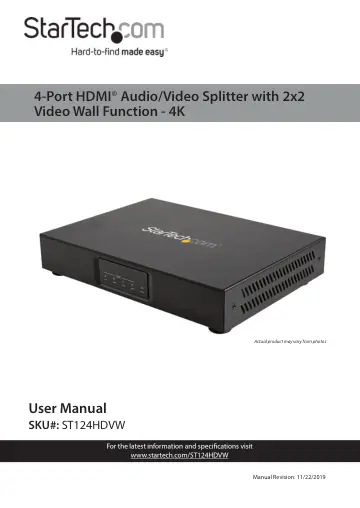
StarTech.com ST124HDVW user manual
- Type
- User manual
- Language
- English
- Pages
- 21
- Category
- Commercial displays
- Models
- ST124HDVW
Open PDFOpens the file on objects.icecat.biz.
Contents
- Product Diagramp. 6
Front View 1 HDMI Display Device LED Indicators • Solid Green when an HDMI Display Device is detected 2 HDMI Source Device LED Indicator • Solid Green when an…
- Front Viewp. 6
HDMI Display Device LED Indicators • Solid Green when an HDMI Display Device is detected 2 HDMI Source Device LED Indicator • Solid Green when an HDMI Source…
- Rear Viewp. 7
DC 24V Power Port • Connect a Power Source 2 Service Port • For manufacturer use only 3 Network Control Port • Connect to a Computer directly, or through a…
- Connection Guidep. 8
- Requirementsp. 9
For the latest requirements and to view the full User Manual, please visit www.startech.com/ST124HDVW. • HDMI Source Device x 1 • HDMI Display Device x 4 •…
- Installationp. 9
Note: Ensure the HDMI Display Devices and the HDMI Source Device are powered off before you begin the installation. All HDMI Ports on the Splitter feature port…
- Operationp. 11
VideoWallApp PC Tool 1. Connect the Splitter and the Computer to the same Network. 2. Launch the VideoWallApp application. 3. Select the Connection tab. 4. If…
- VideoWallApp PC Toolp. 11
1. Connect the Splitter and the Computer to the same Network. 2. Launch the VideoWallApp application. 3. Select the Connection tab. 4. If there are multiple…
- Serial Controlp. 12
1. Connect to the Splitter using a third party Serial Client. 2. Enter the commands found in the Serial and Telnet Commands section.
- Telnet Controlp. 13
1. Connect the Splitter and the Computer to the same network. 2. Access the Command Line Interface (CLI). See the table below to determine how to open the CLI…
- Serial and Telnet Commandsp. 14
section. Serial and Telnet Commands Command Function help • Show the full command list help N1 • Show the help details for command N1 • N1 = {Command name} get…