Loading manual…
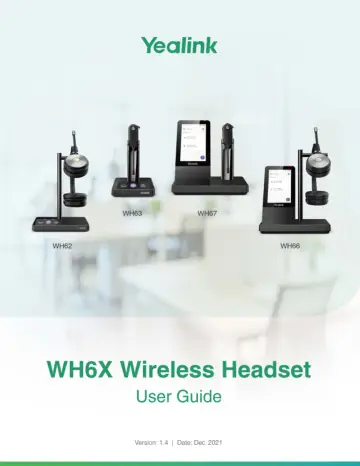
Yealink WH66 Dual UC-DECT Wireless headset (1308008) user manual
- Type
- User manual
- Language
- English
- Pages
- 62
- Category
- Headphones & headsets
- Models
- WH66 Dual UC-DECT Wireless headset
Open PDFOpens the file on objects.icecat.biz.
Contents
- About This Guidep. 5
| 5 About This Guide This guide contains instructions for connecting and using your WH6X headset. Note: This guide mainly takes the Teams version of WH62/WH66…
- How to Power on/offp. 6
| 6 Changes for Guide Version 1.1 Major updates have occurred to the following sections: Revision Updated Section The headset cannot be upgraded when the…
- Pair the Headset with Basep. 7
| 7 For WH62/WH63 base, all LEDs on the base light up and then go off. For WH66/WH67, the power LED glows red. Related information WH66 Base & Headset Hardware…
- How to Connect WH62/WH63p. 8
| 8 How to Connect WH62/WH63 You can connect one or both of the desk phone and the PC. WH62/WH63 Port Overview Connect to PC via USB Cable 1. Connect one end…
- How to Connect WH66/WH67p. 11
| 11 How to Connect WH66/WH67 WH66/WH67 Port Overview Connect to PC/Desk Phone via the Included USB Cable 1. Connect one end of the included USB cable to the…
- How to Wearp. 15
| 15 1. Do the following: • For Teams version: Tap or the user account avatar, and tap Bluetooth. • For UC version: Tap . 2. Tap My Bluetooth Information. 3.…
- How to Usep. 25
| 25 How to Use Hardware Overview WH62 Base & Headset Hardware Name Description Base
- How to Manage Callsp. 35
| 35 1. On the WH66/WH67 base, do one of the following: • Swipe down from the top of the screen. Drag the slider to adjust the volume quickly. • For UC…
- Local Directoryp. 42
| 42 • A call is answered on the headset. Do one of the following on the desk phone: • Pick up the handset. • Press the speakerphone key. The audio will…
- Call Historyp. 49
| 49 Move Blocklist Contacts to the Local Contacts 1. Do the following: • For Teams version: Tap > Contacts or tap > . • For UC version: Tap or tap > . 2.…
- Yealink USB Connectp. 51
| 51 Delete History Records 1. Do the following: • For Teams version: Tap > History or tap > . • For UC version: Tap or and select . 2. Select the desired…
- How to Change Settings on WH62/WH63p. 54
| 54 3. Update the base firmware via Yealink USB Connect. • Check for updates • Update manually For more information on Yealink USB Connect, refer to Yealink…
- How to Change Settings on WH66/WH67p. 55
| 55 How to Change Settings on WH66/WH67 Headset, base, and general settings can be changed on the WH66/WH67 base. Basic Settings For Teams version: Tap or the…
- Optional Accessoriesp. 59
| 59 Smart Noise Block Enable/disable the base to block out/eliminate the noises when in a call. When you make a call using WH66/WH67 via speaker mode, enable…
- Supportp. 61
| 61 2. Place the mobile phone on the wireless charger. Note: You can also connect the wireless charger to the USB charger adapter via a USB Type-C cable. Use…