Loading manual…
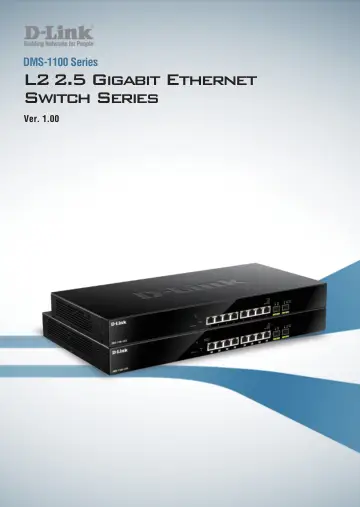
D-Link 10-Port Multi-Gigabit PoE+ Smart Managed Switch (DMS-1100-10TP) user manual
- Type
- User manual
- Language
- English
- Pages
- 115
- Category
- Network switches
- Models
- DMS-1100-10TP
Open PDFOpens the file on objects.icecat.biz.
Contents
- About This Guidep. 6
This guide provides installation and instructions for the D-Link 2.5 Gigabit Ethernet L2 Switch (DMS-1100- 10TS and DMS-1100-10TP). Note: The model you have…
- Terms/Usagep. 6
In this guide, the term “Switch” (first letter capitalized) refers to the DMS-1100 Series switch and “switch” (first letter lower case) refers to other…
- Front Panelp. 8
Figure 1.1 – DMS-1100-10TS Front Panel Power LED : The Power LED lights up when the Switch is connected to a power source. Fan Error: The Fan error LED lights…
- DMS-1100 LED Indicatorsp. 10
The Switch supports LED indicators for Power, Fan Error, PoE OK/Fail and Link/Act for each port. The following shows the LED indicators for the DMS-1100 series…
- Safety Cautionsp. 12
To reduce the risk of bodily injury, electrical shock, fire and damage to the equipment, observe the following precautions: Observe and follow service…
- Step 1: Unpackingp. 13
Open the shipping carton and carefully unpack its contents. Please consult the packing list located in the User Manual to make sure all items are present and…
- Rack Installationp. 14
The switch can be mounted in an EIA standard size 19-inch rack, which can be placed in a wiring closet with other equipment. To install, attach the mounting…
- Step 3 – Plugging in the AC Power Cord with Power Cord Clipp. 14
To prevent accidental removal of the AC power cord, it is recommended to install the power cord clip together with the power cord. A) With the rough side…
- Power Failurep. 17
As a precaution, the switch should be unplugged in case of power failure. When power is resumed, plug the switch back in
- Grounding the Switchp. 17
This section describes how to connect the DMS-1100 Series Switch to ground. You must complete this procedure before powering your switch. Required Tools and…
- Management Optionsp. 18
The D-Link DMS-1100 Series Switch can be managed through any port by using the Web-based Management. Each switch must be assigned its own IP Address, which is…
- Using Web-based Managementp. 18
After a successful physical installation, you can configure the Switch, monitor the network status, and display statistics using a web browser
- Supported Web Browsersp. 18
The embedded Web-based Management currently supports the following web browsers: Internet Explorer 7 or later version Chrome Firefox Safari Connecting to the…
- Smart Wizardp. 19
After a successful login, the Smart Wizard will guide you through essential settings of the D-Link DMS-1100 Series Switch. Please refer to the Smart Wizard…
- Smart Wizard Configurationp. 20
- IPv4 Informationp. 20
will guide you to do basic configurations on 3 steps for the IP Information, access password, and SNMP. Select Static, to manually enter a new IP Address…
- SNMP Settingsp. 21
The SNMP Settings page allows user to quickly enable/disable the SNMP function. The default SNMP Setting is Disabled. Click Enabled and then click Next, then…
- User Accounts Settingsp. 21
page. Figure 4.2 – SNMP Settings in Smart Wizard User Accounts Settings The User Accounts Settings page allows user to quickly specify the user account…
- Web-based Managementp. 22
After clicking the Exit button in the Smart Wizard you will see the screen below: Figure 4.4 – Web-based Management
- Tool Bar > Tool Menup. 24
The Tool Menu offers global functions controls such as Reset, Reboot Device, Configuration Backup and Restore, Firmware Backup and Upgrade. Figure 4.7 – Tool…
- Firmware Informationp. 24
The Firmware Information page displays the firmware image information, including the image that has been booted and the image that is selected for the next…
- Configuration Informationp. 24
The Configuration Information page displays information for the Switch configuration. This includes the configuration that has been loaded and the…
- Firmware Upgrade & Backup > Firmware Upgrade from HTTPp. 24
The Firmware upgrade from HTTP page allows user to upgrade the firmware of Switch from a firmware file.
- Firmware Upgrade & Backup > Firmware Upgrade from TFTPp. 25
This Firmware Upgrade from TFTP page allows user to upgrade firmware using TFTP. Figure 4.11 – Tool Menu > Firmware Upgrade & Backup > Firmware Upgrade from…
- Firmware Backup to HTTP & Backup > Firmware Backup to TFTPp. 26
The Firmware Backup to TFTP allows user to save a backup of the firmware using TFTP, enter the TFTP server IP address, the source URL, and the destination URL.…
- Configuration Upgrade & Backup > Configuration Restore from TFTPp. 27
The Configuration Restore from TFTP page allows user to load the Switch’s configuration from a saved configuration file using TFTP. Figure 4.15 – Tool Menu >…
- Log Backup > Log Backup to HTTPp. 28
The Log Backup to HTTP page allows user to save the log to a file. Figure 4.18 – Tool Menu > Log Backup > Log Backup to HTTP
- Log Backup > Log Backup to TFTPp. 28
The Log Backup to TFTP page allows user to save the log to a file using TFTP. Figure 4.19 – Tool Menu > Log Backup > Log Backup to TFTP The fields that can be…
- Tool Bar > Smart Wizardp. 30
By clicking the Smart Wizard button, you can re-run to the Smart Wizard if you wish to make any changes. Tool Bar > Online Help The Online Help provides two…