Loading manual…
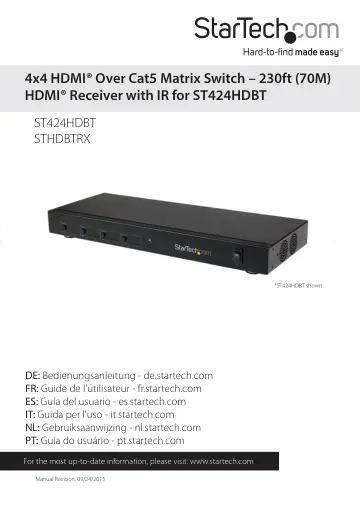
StarTech.com HDBaseT over CAT5e HDMI Receiver for ST424HDBT (STHDBTRX) user manual
Open PDFOpens the file on objects.icecat.biz.
Contents
- Product Diagramp. 4
ST424HDBT Matrix Transmitter Front View 1. Output 1 select button w/ LED indicator 2. Output 2 select button w/ LED indicator 3. Output 3 select button w/ LED…
- ST424HDBT Matrix Transmitterp. 4
Front View 1. Output 1 select button w/ LED indicator 2. Output 2 select button w/ LED indicator 3. Output 3 select button w/ LED indicator 4. Output 4 select…
- STHDBTRX Receiver Unitp. 5
Front View 1. HDCP signal indicator LED 2. Link LED 3. Mode LED 4. Power LED 5. IR Receiver port 6. IR Transmitter port Back View 1. Power jack 2. Link port…
- Introductionp. 6
Packaging Contents ST424HDBT • 1 x HDMI Matrix Switch • 1 x Remote control • 1 x Mounting brackets • 1 x Software Installation CD • 1 x Universal Power Adapter…
- System Requirementsp. 6
Up to 4 x Video source devices (i.e. computer, Blu-ray Player) • Up to 4 x HDMI enabled display device (i.e. television, projector) • Up to 4 x STHDBTRX HDMI…
- Preparing Your Sitep. 7
1. Determine where the local video sources (i.e. computers, Blu-ray Players) will be located and set up the device. 2. Determine where the remote displays will…
- Installationp. 7
Hardware Installation 1. Install Matrix Transmitter a) Position the Matrix Transmitter near the video source devices (i.e. Computers, Bluray Players). b)…
- Hardware Installationp. 7
1. Install Matrix Transmitter a) Position the Matrix Transmitter near the video source devices (i.e. Computers, Bluray Players). b) Connect up to four HDMI…
- Hardware Operationp. 9
Manual Matrix Operation 1. Press the Output select button (that corresponds with the numbered output display) you wish to select. 2. Press the output select…
- Manual Matrix Operationp. 9
1. Press the Output select button (that corresponds with the numbered output display) you wish to select. 2. Press the output select button repeatedly until…
- Remote Control Operationp. 9
1. Each output port is represented by the number above each of the button groups. Use the group of buttons that corresponds with the numbered output display…
- RS232 Serial Operationp. 10
Software Installation 1. Download latest software from the StarTech.com website. 2. Open the software folder located inside the zipped download file, run the…
- IP (Internet Protocol) Operationp. 24
1. Open a web browser on a computer connected to your local network. 2. Type the IP address of the ST424HDBT into the address bar in your web browser, and…
- IP Information Software Installationp. 27
1. Download latest software from the StarTech.com website. 2. Open the software folder located inside the zipped download file, run the file called NETCTL.exe…
- IP Information Software Operationp. 27
1. Once the software is launched it will search your network for all attached ST424HDBT Matrix switch extenders. A list of all extenders attached to your…
- EDID Emulation Configurationp. 29
What is EDID / EDID Emulation? EDID is a standardized protocol that allows a display to communicate its capabilities to a source device, and then allows the…
- What is EDID / EDID Emulation?p. 29
EDID is a standardized protocol that allows a display to communicate its capabilities to a source device, and then allows the source to configure the video…
- EDID Function Tablep. 30
EDID Emulation Setting EDID Switch 1 EDID Switch 2 EDID Switch 3 EDID Setting Details EDID Copy Off Off Off Uses the EDID settings from the display connected…
- Setting EDID Configurationp. 31
1. Using the EDID Switch, set the dip switches to your desired EDID Emulation Setting as specified in the EDID Function Table. 2. Press and hold the Output 1…
- Specificationsp. 32
Number of input Ports 4 Number of output Ports 8 (4x HDMI / 4x CAT5) Connectors 4 x HDMI female (A/V input) 4 x HDMI female (A/V output) 4 x RJ-45 female (A/V…
- Technical Supportp. 33
StarTech.com’s lifetime technical support is an integral part of our commitment to provide industry-leading solutions. If you ever need help with your product…
- Warranty Informationp. 33
This product is backed by a two year warranty. In addition, StarTech.com warrants its products against defects in materials and workmanship for the periods…