Loading manual…
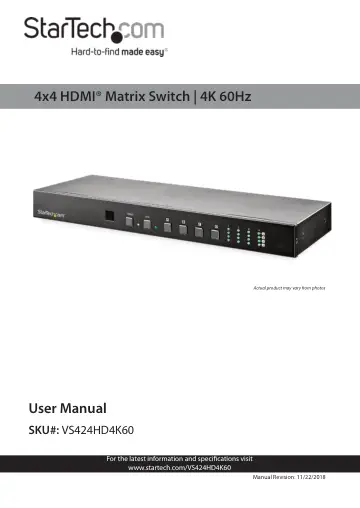
StarTech.com VS424HD4K60 user manual
- Type
- User manual
- Language
- English
- Pages
- 38
- Category
- Network switches
- Models
- VS424HD4K60
Open PDFOpens the file on objects.icecat.biz.
Contents
- Compliance Statementsp. 2
FCC Compliance Statement This equipment has been tested and found to comply with the limits for a Class B digital device, pursuant to part 15 of the FCC Rules.…
- Safety Statementsp. 3
Safety Measures • Wiring terminations should not be made with the product and/or electric lines under power. • Product installation and/or mounting should be…
- Product Diagram (VS424HD4K60)p. 8
To view manuals, videos, drivers, downloads, technical drawings, and more visit www.startech.com/support Product Diagram
- Front Viewp. 8
Rear View IR Sensor Lock Button LED Indicators Power Button Input Buttons HDMI Locking Screw Holes HDMI Output Ports (4) IR IN RS232 Serial Port Control Port…
- Rear Viewp. 8
IR Sensor Lock Button LED Indicators Power Button Input Buttons HDMI Locking Screw Holes HDMI Output Ports (4) IR IN RS232 Serial Port Control Port Service…
- Product Informationp. 9
Package Contents • 4 X 4 4K60 Matrix Switch x 1 • Remote Control x 1 • Mounting Brackets x 2 • Universal Power Adapter x 1 • IR Receiver x 1 • User Manual x 1
- Requirementsp. 9
For the latest requirements, please visit www.startech.com/ VS424HD4K60. Video Source • HDMI enabled Video Source Devices (e.g. computer, Blu-ray player) x 4…
- Installationp. 10
1. Connect an HDMI Cable (sold separately) to the HDMI Input Port on the Matrix Switch and to an HDMI Output Port on the Video Source Device. Note: If you are…
- Optional Installationp. 11
Using RS232 to Control the Matrix Switch To control your Matrix Switch through RS232: • Connect a 9-Pin Serial Cable (sold separately) to the RS232 Serial Port…
- Using RS232 to Control the Matrix Switchp. 11
To control your Matrix Switch through RS232: • Connect a 9-Pin Serial Cable (sold separately) to the RS232 Serial Port on the Matrix Switch and to an RS232…
- Serial Control Settingsp. 12
Setting Description Baud Rate 115200bps Data Bit 8 bits Parity None Flow Control None Stop Bit 1
- Using a Network to Control the Matrix Switchp. 12
To control your Matrix Switch over a network: • Connect an Ethernet Cable (sold separately) to the Control Port on the Matrix Switch and to an available LAN…
- Installing the IR Receiverp. 12
Connecting the IR Receiver will extend the IR signal range on the Matrix Switch. • Connect the IR Receiver to the IR IN Port on the Matrix Switch. Face the IR…
- Lock Button Functionp. 13
The Lock Button on the front of the Matrix Switch enables you to disable or lock the Input Buttons
- Locking Input Buttonsp. 13
Press the Lock Button to lock the Input Buttons. The Lock LED with stay solid and the Input LED will turn off, indicating that the Input Buttons are locked
- Unlocking Input Buttonsp. 13
Press and hold the Lock Button for three seconds. The Lock LED will turn off and the Input LED will turn on, indicating that the Input Buttons are unlocked
- Downloading Firmware Upgradep. 13
- Hardware Operationp. 13
Unplugging the Universal Power Adapter • To unplug the Universal Power Adapter gently slide the Connector Housing away from the Matrix Switch. Remote Control…
- Unplugging the Universal Power Adapterp. 13
To unplug the Universal Power Adapter gently slide the Connector Housing away from the Matrix Switch. Remote Control Enables you to control the Matrix Switch…
- Remote Controlp. 14
Functionality Button Functionality Power • Powers the Matrix Switch On • Places the Matrix Switch into Stand-by mode Output A (1 - 4) • When selected, displays…
- Remote Control Functionalityp. 14
Button Functionality Power • Powers the Matrix Switch On • Places the Matrix Switch into Stand-by mode Output A (1 - 4) • When selected, displays the…
- Removing/Replacing the Batteryp. 14
1. On the back of the Remote Control, slide the Lock on the Battery Housing. 2. While sliding the Lock, pull the Battery Housing, and slide it away from the…
- Mounting the Matrix Switchp. 16
- Installation Requirements:p. 16
- Web Interfacep. 17
the Switch tab will appear.
- Connecting the Matrix Switch to a Computerp. 17
- Accessing the Web Interfacep. 17
- Switchp. 19
tab, select the Mute/Blank Button on the Output Channel you want to mute/blank out. Note: When the Mute/Blank Button is selected the audio (Mute) and video…
- Setting an I/O Positionp. 19
- Changing Output/Input Namep. 19