Loading manual…
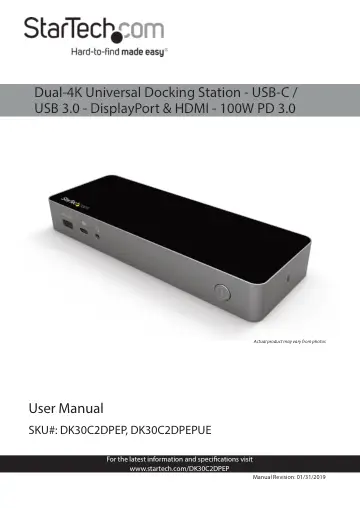
StarTech.com DK30C2DPEP user manual
- Type
- User manual
- Language
- English
- Pages
- 16
- Category
- Docks & adapters
- Models
- DK30C2DPEPDK30C2DPEPUE
Open PDFOpens the file on objects.icecat.biz.
Contents
- Product Diagramp. 7
Front View 1. USB-A Port 2. USB-C™ Port 3. Audio Input/Output Port 4. Power Button Rear View 5. DC Power Input Port 6. USB-C Host Port 7. Video 1 DisplayPort™…
- Product Informationp. 8
Package Contents • Docking Station x 1 • USB-C Cable (with Attached USB-C to USB-A Adapter) x 1 13 14 14
- Requirementsp. 9
are subject to change. For the latest requirements, please visit: www.startech.com/DK30C2DPEP. Power: • AC Electrical Outlet Laptop: • Host Laptop with an…
- Installationp. 10
Front Ports 1. Connect a USB Cable to your USB Device. Connect the other end of the USB Cable to the USB-A Port on the Docking Station. 2. Connect a USB Cable…
- Front Portsp. 10
1. Connect a USB Cable to your USB Device. Connect the other end of the USB Cable to the USB-A Port on the Docking Station. 2. Connect a USB Cable to your…
- Rear Portsp. 11
1. Connect the USB-C Cable (with Attached USB-C to USB-A Adapter) to your Host Laptop’s USB-A or USB-C Port. Connect the other end of the USB-C Cable to the…
- Side Portp. 12
1. Connect a K-Slot Style Locking Device to the Lock Slot. Note: Follow the manufacturer’s instructions when installing your Locking Device
- Powering the Docking Stationp. 12
1. Connect the Universal Power Adapter to the DC Power Input Port on the Docking Station. 2. Connect the appropriate Power Cable (DK30C2DPPD/ DK30C2DPEP -…
- Operationp. 13
Power Button The Docking Station will default to the On position when the Universal Power Supply has been connected. The Power Button will illuminate when the…
- Power Buttonp. 13
The Docking Station will default to the On position when the Universal Power Supply has been connected. The Power Button will illuminate when the Docking…
- Configure Displaysp. 13
Use your Windows operating system to adjust Display Settings. Your Host Laptop must support Dual External Displays through its USB-C Host Port.
- Supported Video Resolutionsp. 14
Resolution Refresh Rate Dual Display Extended Single Display Extended Full HD (1920x1080, 1920x1200) 60Hz Yes Yes 2K (2560x1440, 2560x1600) 60Hz Yes Yes UHD…