Loading manual…
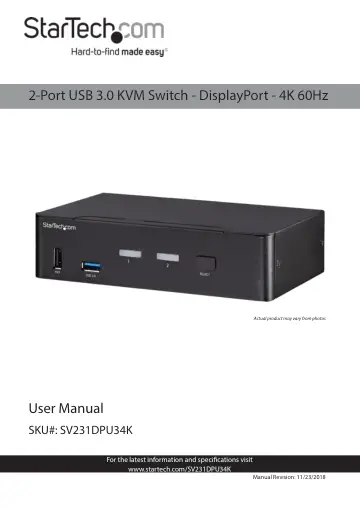
StarTech.com SV231DPU34K user manual
- Type
- User manual
- Language
- English
- Pages
- 15
- Category
- Monitors
- Models
- SV231DPU34K
Open PDFOpens the file on objects.icecat.biz.
Contents
- Product Diagramp. 6
Front View 1. Console USB HID Port 2. Console USB Hub Port 3. LED Indicators 4. Port Selection Button
- Front Viewp. 6
1. Console USB HID Port 2. Console USB Hub Port 3. LED Indicators 4. Port Selection Button
- Rear Viewp. 6
- Product Informationp. 7
Package Contents • KVM Switch x 1 • Universal Power Adapter (NA/JP, EU, UK, ANZ) x 1 • Rubber Foot Pads x 4 • Quick-Start Guide x 1
- Requirementsp. 7
Source PCs • Computer (with DisplayPort) x 2 • DisplayPort Cable x 2
- Installationp. 8
Attach the Rubber Foot Pads 1. Peel off the backing for each of the Rubber Foot Pads. 2. Stick each Rubber Foot Pad onto the bottom of the KVM Switch, on each…
- Attach the Rubber Foot Padsp. 8
1. Peel off the backing for each of the Rubber Foot Pads. 2. Stick each Rubber Foot Pad onto the bottom of the KVM Switch, on each of the four circular…
- Connect the Consolep. 8
1. Power off your DisplayPort Display and any Peripherals before connecting to the KVM Switch. 2. Connect a DisplayPort Display to the Console DisplayPort Port…
- Connect the PCp. 9
1. Power off your Computer and any Peripherals before connecting to the KVM Switch. 2. Connect a DisplayPort Cable from the DisplayPort Port on the Computer to…
- Operationp. 10
Power-On Sequence 1. Connect the Universal Power Adapter from a Wall Outlet to the Power Input Port on the KVM Switch. 2. Power on all USB Peripherals. 3.…
- Power-On Sequencep. 10
1. Connect the Universal Power Adapter from a Wall Outlet to the Power Input Port on the KVM Switch. 2. Power on all USB Peripherals. 3. Select PC 1 and power…
- Select a Portp. 10
Press the Port Selection Button until the LED Indicator for the desired Computer lights up. You can also use Hotkey Commands to select a Port and utilize many…
- Hotkey Commandsp. 11
Alternative Hotkey Commands Hotkey Command ScrLk + ScrLk + (x) x = 1~2 for PC Port number Select PC DisplayPort Port For Keyboards that do not support Scroll…
- Troubleshootingp. 12
Symptom Causes Solutions Newly installed USB Device does not work • Improper device driver • Re-install USB Device Driver • Device consumes too much power •…
- Warranty Informationp. 14
This product is backed by a two-year warranty. For further information on product warranty terms and conditions, please refer to www.startech.com/warranty.…