Loading manual…
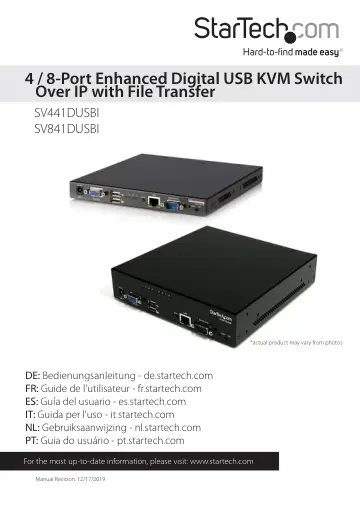
StarTech.com SV441DUSBI user manual
- Type
- User manual
- Language
- English
- Pages
- 52
- Category
- Docks & adapters
- Models
- SV441DUSBISV841DUSBI
Open PDFOpens the file on objects.icecat.biz.
Contents
- Introductionp. 6
Thank you for purchasing a StarTech.com IP KVM Switch with USB Console. The SV441DUSBI / SV841DUSBI revolutionizes remote server management by combining our…
- Front Viewp. 7
- Rear Viewp. 8
2 3 1 2 3 1. R-Port connector 2. USB Hub connectors 3. Computer Port connectors LED Color Description Green Connected to an active computer system Red…
- Installationp. 9
Device Connection 1. Connect the USB keyboard, mouse, and VGA monitor to the console connectors on the IP KVM Switch. 2. Connect a Cat5 Ethernet cable to the…
- Device Connectionp. 9
1. Connect the USB keyboard, mouse, and VGA monitor to the console connectors on the IP KVM Switch. 2. Connect a Cat5 Ethernet cable to the LAN port. 3. Power…
- Initial Power-Upp. 9
You must power up the IP KVM Switch with a keyboard, mouse, and monitor connected before turning on any other devices (i.e. Slave KVMs, computers). Ensure that…
- Operationp. 9
Initial IP-OSD Setting Power on the monitor and the IP KVM Switch. The IP-OSD menu will automatically appear. Follow the on-screen instructions to complete the…
- Initial IP-OSD Settingp. 9
Power on the monitor and the IP KVM Switch. The IP-OSD menu will automatically appear. Follow the on-screen instructions to complete the initial setup. Press…
- Mouse Setting (optional)p. 11
Many operating systems offer a feature called mouse acceleration that allows the user to adjust the responsiveness of the cursor on the screen to the physical…
- Using the Web Interfacep. 12
The Web interface is the most intuitive way to configure the IP KVM Switch, offering a Java-based VNC client that can be used to control the host computer from…
- The Login Screenp. 12
Before you can access the Web configuration interface, you must enter a username and password. The default username and password as shipped from the factory is…
- Web Interface Introductionp. 13
After the initial login screen, the screen is divided into several sections, a number of which will remain on the screen at all times while viewing the Web…
- Main Menu Selectionsp. 13
Please note: Some of the following items may not be present based on assigned user privileges (i.e. non-admin users will not see any items under the Admin…
- File Transferp. 14
The IP KVM is able to emulate a virtual USB disk drive on any connected host. Depending on configuration, it will appear to the host as a floppy drive…
- Network Configurationp. 16
DHCP: Automatic network configuration using DHCP is: Enabled/Disabled. This feature applies only to the LAN port on the rear panel, and is enabled by default.…
- User Accountsp. 17
This menu will allow you to add accounts other than admin to the system. These accounts will not have the authority to change settings, but can access the Web…
- System Identificationp. 18
Machine Name: This is the name that is used to uniquely identify this machine. You may wish to create a DNS entry that matches this name. The name is provided…
- Securityp. 18
This menu allows you to configure a number of settings, including the admin password. Be careful when making any changes remotely, as altering these features…
- Compatibilityp. 19
The Compatibility menu offers features that may provide enhanced functionality with certain KVM and power products, such as StarTech.com’s Remote Power Switch…
- SNMPp. 19
The SNMP menu allows you to configure the IP KVM so it can be recognized and managed using industry standard Simple Network Management Protocol software
- RADIUSp. 19
The RADIUS server requires the IP address, the UDP port number (1812 - default or 1645) and the shared secret. The shared secret is used to encrypt…
- Modemp. 20
Enable this to allow the modem to answer the phone and start a PPP connection. Enable modem connections (PPP) via serial port/ modem
- Serial Portsp. 20
The Serial Ports menu allows you to manage and connect to devices connected to the unit using the R-Port on the IP KVM
- Time / Datep. 20
Date and time are stored without consideration for time zone. If you are controlling multiple sites in different time zones, we recommend you use UTC…
- Firmwarep. 20
The firmware on the IP KVM is field upgradable. To upgrade to another version: 1. Login your IP KVM as “admin” 2. Click “Firmware” 3. Click “Get latest…
- Statusp. 22
The Status screen displays a system security log, various system settings, and the ability to generate a copy of the system configuration in plain text format
- Port Numbersp. 22
provides a table allowing you to change TCP port values for services available on the IP KVM. By default, they are factory-set to common Internet values. You…
- Help Menup. 22
Provides a FAQ (Frequently Asked Questions) listing to assist you with the features and operation of the IP KVM
- Site Map Menup. 22
This menu provides a directory of each setting available on the Web configurator
- Copyright Menup. 22
Provides the Terms of Use and other information related to the firmware and software on the IP KVM.