Loading manual…
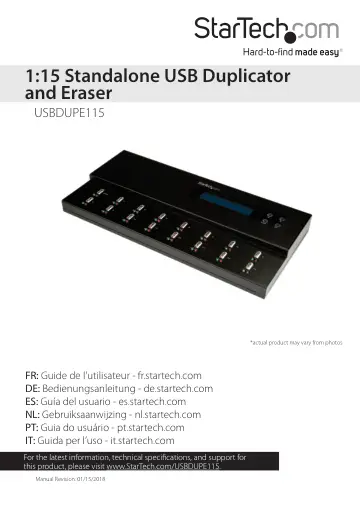
StarTech.com Standalone 1 to 15 USB Thumb Drive Duplicator and Eraser (USBDUPE115) user manual
- Type
- User manual
- Language
- English
- Pages
- 23
- Category
- Monitors
- Models
- USBDUPE115
Open PDFOpens the file on objects.icecat.biz.
Contents
- Product diagramp. 5
- Top viewp. 5
- Requirementsp. 6
source USB flash drive • 1 to 15 destination USB flash drives To connect an SD, an SDHC, a microSD, a miniSD, an MMC, or a CF card, you require a USB…
- About the LED indicatorsp. 6
Each of the 16 USB flash drive ports feature a detection/activity LED and an error LED. LED behavior Significance Green LED is blinking Command is being…
- Set up the duplicator and eraserp. 7
1. Connect the universal power adapter to the Power adapter port on the duplicator and eraser and to a power source. 2. Use the Power switch to turn on the…
- Changing the device settingsp. 7
In the Setup menu, you can change the settings of the duplicator and eraser, including the button sound, display language, and so on
- Change the startup functionp. 7
You can select the function that is displayed when you turn on the duplicator and eraser. By default, the copy function is displayed when you turn on the…
- Turn off the audio feedback featurep. 7
By default, the audio feedback feature is enabled. 1. Highlight Setup and press the OK button. 2. Highlight Button Sound and press the OK button. 3. Highlight…
- Change the LCD display languagep. 8
1. Highlight Setup and press the OK button. 2. Highlight Language and press the OK button. 3. Highlight English or Japanese and press the OK button. Restore…
- Copying USB flash drive datap. 8
Each USB flash drive port on the duplicator and eraser has an independent control processing unit and supports asynchronous and synchronous copying
- Change the copy areap. 8
You can set the duplicator and eraser to copy the system and files or all of the data on the USB flash drives. System and Files If you select System and Files…
- Check the flash drive capacityp. 9
If a USB flash drive passes the capacity check, the green LED indicator next to the USB flash drive port illuminates. If a USB flash drive fails the capacity…
- Set the target tolerancep. 9
You can set the capacity tolerance range between the source USB flash drive and the target USB flash drive, and if the capacity of the USB flash drive is…
- Change the copying speedp. 10
For most types of USB flash drives, you should set the copy speed to Normal. 1. Highlight Setup and press the OK button. 2. Highlight Working Mode and press…
- Set the device to automatically check the USB flash drivep. 11
By default, the duplicator and eraser doesn’t check the USB flash drive before it begins to copy it. 1. Highlight Setup and press the OK button. 2. Highlight…
- Complete a synchronous copyp. 11
When you complete a synchronous copy, all of the connected USB flash drives are copied or compared simultaneously. You can’t remove any of the connected USB…
- Complete an asynchronous copyp. 12
When you complete an asynchronous copy, the USB flash drives are copied or compared independently, one at a time. When the green LED indicator next to a USB…
- Disable the asynchronous featurep. 13
By default, the asynchronous feature is enabled. 1. Highlight Setup and press the OK button. 2. Highlight Asynchronous and press the OK button. 3. Highlight…
- Copy to an HDD or SSDp. 13
1. Connect a USB to SATA hard drive docking station or a USB to SATA drive enclosure to the duplicator and eraser. 2. Use the Power switch to turn on the…
- Compare USB flash drivesp. 13
After you copy USB flash drives, you can use the compare feature to make sure that the data was copied successfully. 1. When the copying process is complete…
- Copy and compare USB flash drivesp. 13
For increased efficiency, you can set the duplicator and eraser to automatically compare the USB flash drives after the copying process is complete. 1.…
- Formatting a USB flash drivep. 14
Warning! When you format a USB flash drive, all of the data on your USB flash drive will be deleted. If your USB flash drive has data on it that you require…
- Auto format a USB flash drivep. 14
When you auto format a USB flash drive, the system determines the capacity of the USB flash drive and formats it accordingly. Consult the table below for more…
- Format a USB flash drive to FAT32p. 15
1. Use the Power switch to turn on the duplicator and eraser. 2. Insert USB flash drives into the USB flash drive ports. 3. Highlight Utility and press the OK…
- Set the FAT16 cluster sizep. 15
- Set the FAT32 cluster sizep. 16
- Erasing USB flash drivesp. 16
The duplicator and eraser features three different types of erasing: quick erase, full erase, and DoD erase
- Perform a quick erasep. 16
When you perform a quick erase, the entire contents of the USB flash drive are erased and the USB flash drive is left unformatted. This type of erase process…
- Perform a full erasep. 17
When you perform a full erase, the system completes a single-pass overwrite and erases the entire contents and format of the USB flash drive. This type of…
- Perform a DoD erasep. 17
When you perform a DoD erase, the system completes a three-pass overwrite and erases the entire contents and format of the USB flash drive. This type of erase…