Loading manual…
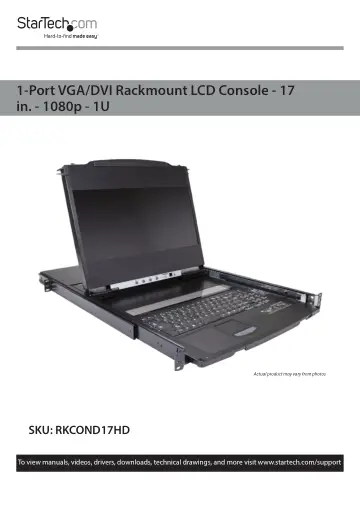
StarTech.com Dual Rail Rackmount KVM Console HD 1080p (RKCOND17HD) user manual
- Type
- User manual
- Language
- English
- Pages
- 34
- Category
- Monitors
- Models
- RKCOND17HD
Open PDFOpens the file on objects.icecat.biz.
Contents
- Product Diagramp. 9
Actual product may vary from photos
- Front View (Open)p. 9
LCD Screen LCD Controls LCD On / Off Button Keyboard Touchpad Reset Button Firmware Upgrade Port Keyboard Release Latches Firmware Upgrade Switch
- Front View (Closed)p. 10
USB HID Port Power LED Console Release Latches Upper Handle Rear Mounting Brackets Front Mounting Brackets
- Rear Viewp. 11
Power Socket Power Switch KVM USB-B Port Console DVI-D Port KVM DVI-D Port Console USB Mouse Port Console VGA Port Console Audio Port KVM VGA Port KVM Audio…
- Product Informationp. 12
Package Contents • LCD Console x 1 • Rear Mounting Bracket x 2 • KVM Cables x 1 • Firmware Upgrade Cable x 1 • Audio Cable x 1 • M5 Cage Nuts x 8 • M5 Screws x…
- Requirementsp. 12
For the latest requirements, please visit www.startech.com/RKCOND17HD. Installation: Note: Two people are required for hardware installation. • 1U of Rack…
- Hardware Installationp. 14
Standard Rack Mounting Note: Installation of this product requires at least two people. One person is required to hold the unit in place. A second person is…
- Standard Rack Mountingp. 14
Note: Installation of this product requires at least two people. One person is required to hold the unit in place. A second person is required to screw in all…
- KVM Connectionp. 17
USB-B Port and KVM VGA Port 1. (Optional) If you are connecting the LCD Console to a VGA KVM Switch or Computer/Server: Connect one Set of Console Cables…
- USB-B Port and KVM VGA Portp. 17
1. (Optional) If you are connecting the LCD Console to a VGA KVM Switch or Computer/Server: Connect one Set of Console Cables (USB-A/VGA) to the USB Type-A…
- KVM DVI-D Portp. 17
1. (Optional) If you are using a DVI KVM Switch or Computer/Server, connect the DVI-D cable to the KVM Switch or Computer/Server. 2. Connect the other end of…
- KVM Audio Portp. 17
Note: RKCOND17HD supports speaker audio only. 1. Connect the Audio Cable to the 3.5 mm Audio Port on your KVM Switch or Computer/Server. 2. Connect the other…
- Console Connectionp. 17
Console USB Keyboard and Mouse Ports 1. Connect the USB Cable from your Keyboard to the Console USB Keyboard Port. 2. Connect the USB Cable from your Mouse to…
- Console USB Keyboard and Mouse Portsp. 17
1. Connect the USB Cable from your Keyboard to the Console USB Keyboard Port. 2. Connect the USB Cable from your Mouse to the Console USB Mouse Port. Console…
- Console DVI-D Portp. 18
1. Connect the DVI-D Cable to the DVI-D Port on your Display. 2. Connect the other end of the DVI-D Cable to the Female Console DVI-D Port on the RKCOND17HD…
- Console Audio Portp. 18
- Powering the Consolep. 18
1. Connect the appropriate Power Cord from a wall plug to the Power Socket Port on RKCOND17HD. 2. Power on your KVM, Computer, and any USB Peripheral Devices…
- Hardware Operationp. 19
Warning: Do not place heavy objects on the Keyboard. The Keyboard Module has a weight capacity of 66 lb. (30 kg). Failure to heed this warning can result in…
- Opening the Consolep. 19
To access the LCD Screen, slide the RKCOND17HD Console out and raise the cover. To slide the Keyboard and the LCD Screen unit out of the closed position in…
- Closing the Consolep. 20
To independently slide the Keyboard Module back in: 1. Simultaneously slide both Console Release Latches on the Keyboard Module toward the center of the…
- LCD Buttonsp. 22
Button Function MENU If you have not entered the On Screen Display (OSD) Menu function: pressing this button brings up the Main Menu. If you have already…
- Adjustment Settingsp. 23
Setting Details Brightness Adjusts the background black level of the screen image. Contrast Adjusts the foreground white level of the screen image. Phase If…
- MAC Keyboard Emulationp. 26
The PC compatible (99-key) keyboard can emulate the functions of the MAC keyboard. The emulation mappings are listed in the table below: PC Keyboard MAC…
- Hotkeysp. 28
Hotkey Command Audio Beeps LEDs Note: Press the keys in sequence – one key at a time - first Ctrl, then Alt, then Shift, etc. Note: Console selections are not…
- Troubleshootingp. 30
Question: Why are there ghost images on my External Console DVI/VGA Display? Answer: The distance between the RKCOND17HD unit and your External Console DVI/VGA…
- Firmware Upgradep. 30
Note: Only attempt a firmware upgrade when prompted to do so by the StarTech.com support team
- Accessing the Firmware Upgrade Modep. 30
The RKCOND17HD firmware upgrade mode can be accessed one of two ways: by entering a hotkey sequence (see Hotkeys - Page 20), or by placing the RKCOND17HD in…
- Firmware Upgrade Switchp. 31
During normal operation and while performing a firmware upgrade, this switch should be in the NORMAL position. If a firmware upgrade operation does not…
- Performing the Firmware Upgrade Procedurep. 31
Navigate to StarTech.com/RKCOND17HD, select the Support Tab, and select the Firmware Upgrade package. Instructions will be included with the download
- Firmware Upgrade Recoveryp. 31
Performing the Firmware Upgrade Procedure Navigate to StarTech.com/RKCOND17HD, select the Support Tab, and select the Firmware Upgrade package. Instructions…