Loading manual…
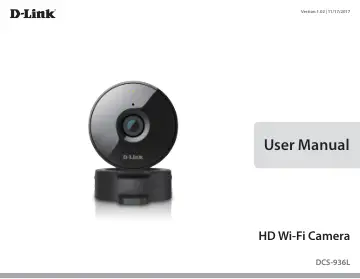
D-Link DCS-936L user manual
- Type
- User manual
- Language
- English
- Pages
- 74
- Models
- DCS-936L
Open PDFOpens the file on objects.icecat.biz.
Contents
- Product Overviewp. 4
DCS-936L HD Wi-Fi Camera • Power Adapter • Mounting Kit • Quick Installation Guide • Quick Install Card Note: Using a power supply with a different voltage…
- System Requirementsp. 4
802.11ac/n/g router (a D-Link Cloud Router is recommended) • A broadband Internet connection • iPhone, iPad, Android, or Windows smartphone or tablet (please…
- Introductionp. 5
The DCS-936L HD Wi-Fi Camera boasts a wide angle lens that easily captures a large area in high-quality 720p. Its rotatable head makes ceiling installations…
- Featuresp. 5
- Hardware Overviewp. 6
Camera Lens Microphone IR LEDs (behind cover) Light Sensor Camera Stand Wireless Signal Strength LED Front View Back View Micro USB Port (for power) WPS Button…
- Installationp. 7
There are two ways to set up your camera: mydlink Lite Mobile App: You can use the mydlink Lite mobile app to guide you through setup and initial configuration…
- Wireless Installation Considerationsp. 8
The DCS-936L lets you access your network using a wireless connection from anywhere within the operating range of your wireless network. However, the number…
- Mobile App Setupp. 9
You can configure your camera through the mydlink Lite mobile app. On your mobile device, download mydlink Lite by searching for mydlink Lite in the iTunes App…
- Zero Configuration Setupp. 10
If you have a mydlink-enabled Cloud Router, you can take advantage of Zero Configuration Setup. Zero Configuration automatically configures your camera’s…
- Placing Your Camerap. 13
When placing your camera, you can use the wireless signal strength LED on the front of your camera to see whether your camera has a strong wireless connection…
- Mounting the Camerap. 14
To mount your camera on a wall or ceiling, please follow the steps below. It is recommended that you configure the camera before mounting. Step 1 Hold the base…
- mydlinkp. 16
After registering your camera with a mydlink account, you will be able to remotely access your camera from the www.mydlink.com website. After signing in to…
- Using the DCS-936L with Google Homep. 17
You can use your voice to control your DCS-936L with your Google Home Smart Speaker and Google Assistant. Before proceeding, make sure you have: 1. Installed…
- Configurationp. 20
Accessing the Web Configuration Utility After completing setup through the mydlink Lite mobile app or Zero Configuration Setup, you are ready to use your…
- Accessing the Web Configuration Utilityp. 20
After completing setup through the mydlink Lite mobile app or Zero Configuration Setup, you are ready to use your camera. The camera’s built-in Web…
- Live Videop. 21
The Live Video page lets you view the live video stream from your camera. You can also switch between video streams, take snapshots, and record video to your…
- Setupp. 23
Wizard You may choose to configure your network by using the Internet Connection Setup Wizard that includes step-by-step instructions. Please refer to Internet…
- Maintenancep. 48
Admin This section allows you to change the administrator’s password and configure the server settings for your camera. You can also manage the user account(s)…
- Statusp. 51
Device Info This section displays information about your camera and its current network and wireless status.
- Troubleshootingp. 53
1. Why is the camera view hazy or bright when using night vision mode? The IR night vision lights on your camera may be reflecting off of a nearby surface or…
- Technical Specificationsp. 54
Camera Camera Hardware Profile • 1/4” Megapixel HD progressive CMOS sensor • 5 meter IR illumination distance • Minimum illumination: • Color (Day Mode), IR…
- Regulatory Statementsp. 56
Federal Communication Commission Interference Statement This equipment has been tested and found to comply with the limits for a Class B digital device…