Loading manual…
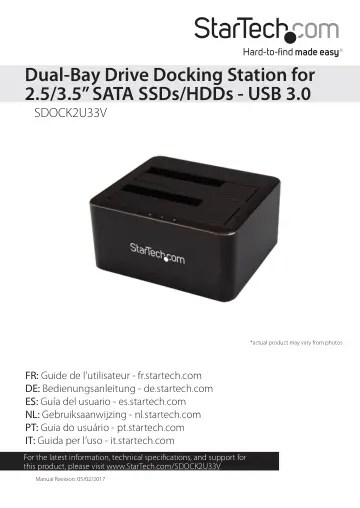
StarTech.com SDOCK2U33V user manual
- Type
- User manual
- Language
- English
- Pages
- 10
- Category
- Storage & drives
- Models
- SDOCK2U33V
Open PDFOpens the file on objects.icecat.biz.
Contents
- Product diagramp. 4
- Requirementsp. 5
Computer system with USB 3.1 Gen 1 port • Up to two 2.5” or 3.5” SATA HDDs or SSDs This drive docking station is OS independent and doesn’t require any…
- About USB 3.1 Gen 1p. 5
USB 3.0 is also known as USB 3.1 Gen 1. This connectivity standard supports speeds of up to 5Gbps
- Connect the drive docking stationp. 5
1. Connect the universal power adapter to the DC power port on the drive docking station and a power outlet. 2. Connect the USB 3.0 cable to the USB 3.0…
- Insert a drivep. 6
Warning! You should handle your drives carefully, especially when you’re transporting them. If you’re not careful with your drives, you may lose data as a…
- Prepare a drive for usep. 6
” section. Prepare a drive for use
- Windows® OSp. 6
If you install a drive that already has data on it, after you connect the drive docking station to your computer, the drive appears under My Computer or…
- macOSp. 7
If you install a brand-new drive that doesn’t contain any data, you must prepare the drive for use. Warning! When you complete the following steps, you create…
- About the LED indicatorsp. 8
LED Behavior Significance Power Illuminated green Docking station is receiving power Drive A activity Blinking yellow The drive is being accessed Drive B…
- Disconnect a drivep. 8
Caution! When you remove a drive from the drive docking station, it resets. If you’re accessing a drive in the docking station, wait for the drive activity LED…
- Windows OSp. 8
1. Click the Safely remove Hardware and Eject Media icon in the task bar. 2. Select the drive in the list of storage devices. 3. When a message appears saying…
- Technical supportp. 9
StarTech.com’s lifetime technical support is an integral part of our commitment to provide industry-leading solutions. If you ever need help with your product…
- Warranty informationp. 9
This product is backed by a two-year warranty. StarTech.com warrants its products against defects in materials and workmanship for the periods noted, following…