Loading manual…
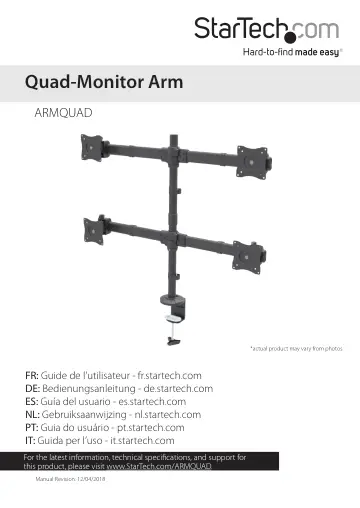
StarTech.com Desk Mount Quad Monitor Arm (ARMQUAD) user manual
- Type
- User manual
- Language
- English
- Pages
- 30
- Category
- Monitors
- Models
- ARMQUAD
Open PDFOpens the file on objects.icecat.biz.
Contents
- Introductionp. 4
Use the ARMQUAD to mount four monitors, and use the cable-management clips to keep your cables organized. Adjust the position of the monitors to set up your…
- Product diagramp. 4
Monitor arm Monitor arm Monitor arm Monitor arm VESA monitor mount VESA monitor mount VESA monitor mount VESA monitor mount Upper pole Lower pole Pole…
- Product dimensionsp. 5
- Technical specificationsp. 6
Type of measurement Measurement VESA mounting hole pattern 75x75 100x100 Weight capacity Up to 17.6 lb. (8 kg) per monitor mount Tilt +300 to -300 Screen size…
- Requirementsp. 9
Four monitors or displays that are compatible with a VESA mount • A Phillips screwdriver Requirements are subject to change. For the latest requirements…
- Assemblyp. 10
Attach the ARMQUAD to your mounting surface There are two ways that you can attach the ARMQUAD to your mounting surface: a desk clamp or a grommet mount. The…
- Attach the ARMQUAD to your mounting surfacep. 10
There are two ways that you can attach the ARMQUAD to your mounting surface: a desk clamp or a grommet mount. The desk clamp ships preassembled. Use the desk…
- Attach monitor arms to the lower polep. 15
1. Use the 3 mm hex key (10) to loosen the screw in the collar on the lower pole (3). 2. Slide the collar to the height that you want the two lower monitors to…
- Attach monitors to the monitor arms on the lower polep. 17
Warning! Attaching the monitors is a two-person job. Do not attempt to complete this task by yourself. To accommodate different monitor designs, the ARMQUAD…
- Attach monitor arms to the upper polep. 19
1. Screw the pole connector (5) onto the end of the lower pole (3). (figure 21) figure 21 Pole connector Lower pole
- Attach monitors to the monitor arms on the upper polep. 22
- Adjust the position of the monitorsp. 25
You can adjust the position and angle of your monitors in the following ways: 00 to 300 00 to 300 -300 +300 -300 +300 +300 to -300 +300 to -300 3600 3600 -300…
- Attach the cable-management clipsp. 28
1. Snap one of the cable-management clips (6) over each of the four monitor arms (1). (figure 34) figure 34 Cable-management clip Monitor arm 2. Route the…
- Technical supportp. 29
StarTech.com’s lifetime technical support is an integral part of our commitment to provide industry-leading solutions. If you ever need help with your product…
- Warranty informationp. 29
This product is backed by a five-year warranty. StarTech.com warrants its products against defects in materials and workmanship for the periods noted…