Loading manual…
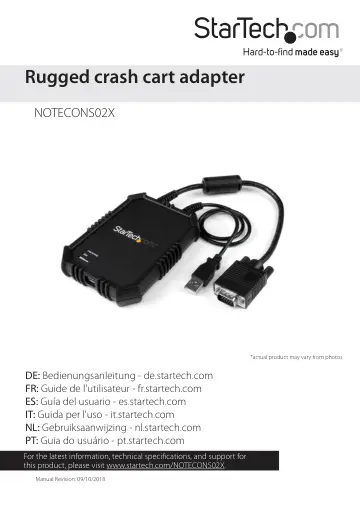
StarTech.com Laptop-to-Server KVM Console (NOTECONS02X) user manual
- Type
- User manual
- Language
- English
- Pages
- 20
- Category
- Docks & adapters
- Models
- NOTECONS02X
Open PDFOpens the file on objects.icecat.biz.
Contents
- Product diagramp. 5
Link and activity LED VGA LED Keyboard and mouse LED USB connector 15-pin VGA connector
- Introductionp. 6
About the rugged crash cart adapter You must install the provided software on the laptop to be able to use the crash cart adapter. You don’t need to make any…
- About the rugged crash cart adapterp. 6
You must install the provided software on the laptop to be able to use the crash cart adapter. You don’t need to make any changes to the server(s) being…
- System requirementsp. 6
Laptop requirements • USB 2.0-enabled laptop computer • 20 MB of available hard drive space • 24-bit capable display • One of the following operating systems…
- Installationp. 7
Install the software on a laptop running Windows 1. Disconnect the crash cart adapter and cancel any Add New Hardware dialog windows. 2. Insert the provided…
- Install the software on a laptop running Windowsp. 7
1. Disconnect the crash cart adapter and cancel any Add New Hardware dialog windows. 2. Insert the provided USB software key and run the setup.exe installation…
- Install the software on a computer running Mac OSp. 7
1. Disconnect the crash cart adapter. 2. Insert the provided USB software key. 3. Double-click the MacOSX-install.dmg file. 4. After a short delay to verify…
- Connect the crash cart adapterp. 8
After you install the drivers and software for the crash cart adapter onto the laptop, you can plug the adapter into the server. • Connect the attached VGA…
- About the LED indicatorsp. 8
If none of the LED indicators are illuminated, it means that the USB crash cart adapter isn’t receiving power from either of the USB connections. When the USB…
- Server keyboard and mouse LEDp. 8
LED behavior Scenario Solid light The emulated USB keyboard and mouse are working as expected.
- Server VGA LEDp. 9
LED behavior Scenario Solid light A valid VGA video signal is being received. No light Nothing is connected or the system has entered power-saving mode.…
- User console link and activity LEDp. 9
LED behavior Scenario Solid light A good connection to the laptop is established. Blinking constantly The USB connection to the laptop is lost or ignored, or…
- Using the crash cart adapterp. 9
When the crash cart adapter is connected, the real-time video from the attached host computer is displayed and centered in the main window
- About the toolbarp. 9
There is a toolbar displayed along the top edge of the window. You can hide, detach, or drag the toolbar onto the other three edges of the window. This toolbar…
- Move or detach the toolbarp. 10
Do one of the following: • To detach the toolbar, drag the handle on the top-left edge of the screen. When the toolbar is detached, click the red X or circle…
- About the toolbar status informationp. 10
When the system is running, the system statistics are displayed on the far-right side of the toolbar. The first number that is displayed is the USB bandwidth…
- Toolbar optionsp. 10
- About the Zoom menup. 11
The Zoom menu includes a number of options that you can use to set the zoom percentage and resize the window accordingly. For example, if the attached server…
- About the Video menup. 12
The following options are available in the Video menu: • Auto fine-tune picture. Select this option to automatically adjust the sampling phase of the video.…
- About the File Transfer menup. 14
File transfer works like a removable USB drive, but instead of a real drive, it creates a disk image on the host computer that stores the files. Only one…
- About the Keyboard menup. 15
Most of the keystrokes are forwarded directly to the connected host computer, however, some special key combinations, such as Ctrl+Alt+Del, are blocked by the…
- About the Mouse menup. 15
The options available in the Mouse menu effect the emulated USB mouse. The following options are available in the Mouse menu: • Disable mouse entirely.…
- About the Toolbar menup. 16
The options in this menu provide a more direct way to control the toolbar. Options include docking, floating, hiding, or showing the toolbar. A check mark next…
- Troubleshootingp. 17
None of the NOTECONS02X lights are illuminated One of the possible causes of this issue is that the adapter isn’t receiving power from either of the USB…
- Technical supportp. 19
StarTech.com’s lifetime technical support is an integral part of our commitment to provide industry-leading solutions. If you ever need help with your product…
- Warranty informationp. 19
This product is backed by a two-year warranty. StarTech.com warrants its products against defects in materials and workmanship for the periods noted, following…