Loading manual…
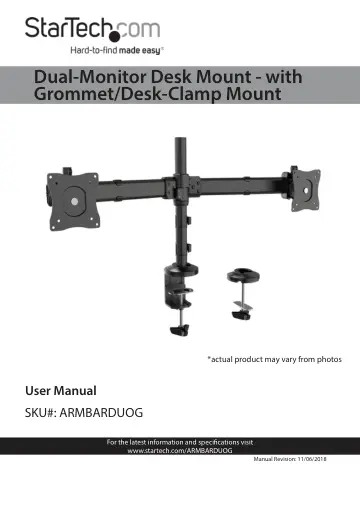
StarTech.com Desk-mount Dual-Monitor Arm (ARMBARDUOG) user manual
- Type
- User manual
- Language
- English
- Pages
- 26
- Category
- Monitors
- Models
- ARMBARDUOG
Open PDFOpens the file on objects.icecat.biz.
Contents
- Product Informationp. 5
Package Contents Column x 1 VESA Adapter x 2 Cable- Management Clips (Column) x 2 Monitor Arms x 2 End Caps x 2 Cable- Management Clips (Monitor Arm) x 2…
- Product Dimensionsp. 6
Front View 1. Monitor Arms 2. Cable-Management Clips (Column) 3. Column 4. Desk-Mount Clamp
- Front Viewp. 6
1. Monitor Arms 2. Cable-Management Clips (Column) 3. Column 4. Desk-Mount Clamp
- Side Viewp. 6
- Top Viewp. 7
1. Cable-Management Clips (Monitor Arm)
- Angled View (Includes Tilt Angles)p. 7
- Grommet Mountp. 8
1. Mounting Cover 2. Grommet-Mounting Adapter 3. Grommet-Mounting Plate
- VESA Mountp. 8
- Technical Specificationsp. 9
Type of Measurement Measurement VESA mounting hole pattern 75x75 100x100 Weight capacity Up to 17.6 lb. (8 kg) per monitor mount Tilt +300 to -300 Screen size…
- Requirementsp. 10
Two People for Installation • Mounting Surface • Desk-Mount Clamp (on Desk Edge) or Grommet Mount (in Desktop Grommet) • Two Monitors Note: Both Monitors must…
- Installationp. 11
Attach the ARMBARDUOG to Your Mounting Surface There are two ways that you can attach the ARMBARDUOG to a mounting surface: a Desk-Mount Clamp or a Grommet…
- Attach the ARMBARDUOG to Your Mounting Surfacep. 11
There are two ways that you can attach the ARMBARDUOG to a mounting surface: a Desk-Mount Clamp or a Grommet Mount. The Desk-Mount Clamp ships preassembled.…
- Attach Monitor Arms to the Columnp. 16
1. Use the Hex Key Screwdriver to loosen the two screws in the Collar. 2. Slide the Collar to the height that you want the two Monitors to sit at, and use the…
- Attach Monitorsp. 18
Warning! Attaching the Monitors is a two-person job. Do not attempt to complete this task by yourself. To accommodate different Monitor designs, the ARMBARDUOG…
- Attach the Cable-Management Clipsp. 21
1. Snap one of the Cable-Management Clips (Monitor Arm) over each of the two Monitor Arms. (Figure 21) 2. Snap the two Cable-Management Clips (Column) over the…
- Operationp. 22
Adjust the Position of the Monitors You can configure the Monitors in many ways: (Figure 23 & 24): -300 +300 -300 +300 +300 to -300 +300 to -300 3600 3600 -300…
- Adjust the Position of the Monitorsp. 22
- Warranty informationp. 25
This product is backed by a three-year warranty. StarTech.com warrants its products against defects in materials and workmanship for the periods noted…