Loading manual…
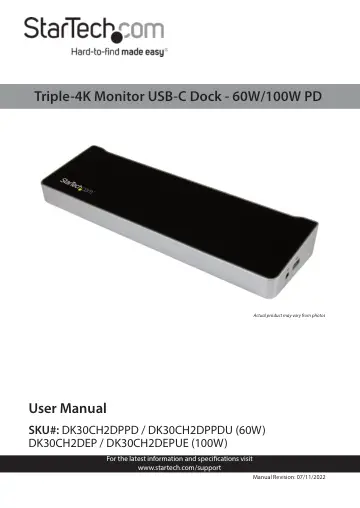
StarTech.com Actual product may vary from photos (DK30CH2DPPD) user manual
- Type
- User manual
- Language
- English
- Pages
- 17
- Category
- Monitors
- Models
- DK30CH2DEPDK30CH2DEPUEDK30CH2DPPDDK30CH2DPPDU
Open PDFOpens the file on objects.icecat.biz.
Contents
- Product Diagramp. 7
- Rear Viewp. 7
Side View On/Off Switch USB-A Ports USB-C Host Port HDMI Port Mic Port DC 20V Port USB-C Port RJ45 Port DisplayPort Ports Speaker Port Lock Slot Headset Port…
- Side Viewp. 7
On/Off Switch USB-A Ports USB-C Host Port HDMI Port Mic Port DC 20V Port USB-C Port RJ45 Port DisplayPort Ports Speaker Port Lock Slot Headset Port USB-A Port
- Product Informationp. 8
- Requirementsp. 8
Operating System: Operating system requirements are subject to change. For the latest requirements, please visit www.StarTech.com/Support Host Computer: • An…
- Installing the Docking Stationp. 10
Installing the Drivers Depending on your operating system, the Docking Station will automatically install some of the required drivers once connected to your…
- Installing the Driversp. 10
Depending on your operating system, the Docking Station will automatically install some of the required drivers once connected to your host laptop. To complete…
- Powering the Docking Stationp. 10
When the Docking Station is plugged in and powered, you can use USB-C Power Delivery to power and charge the Host Computer through the USB-C Port. The Docking…
- Connecting Devices to the Docking Stationp. 11
USB-A Port The USB-A Ports can be used as charging ports (e.g. Cell Phone, Tablet, etc.), to connect a USB storage device (e.g. Flash Drive) to display…
- USB-A Portp. 11
The USB-A Ports can be used as charging ports (e.g. Cell Phone, Tablet, etc.), to connect a USB storage device (e.g. Flash Drive) to display data/files on the…
- USB-C Host Portp. 12
- USB-C Portp. 12
will allow the Host Computer to connect to any device that is connected to the Docking Station while charging the Host Computer. Connecting a Host Using the…
- RJ45 Port (Network Device)p. 12
1. Connect a Network Cable to the RJ45 Port on the Docking Station. 2. Connect the other RJ45 Connector to an RJ45 Port on your compatible Network Device.
- HDMI Portp. 13
The HDMI Port is used to connect an HDMI Device (e.g. Display, etc.) to the Docking Station. 1. Connect an HDMI Cable to the HDMI Port on the Docking Station.…
- DisplayPort Portp. 13
The DisplayPort Ports are used to connect Displays to the Docking Station. 1. Connect a DisplayPort Cable to the DisplayPort Port on the Docking Station. 2.…
- Audio Optionsp. 13
Mic Port: The Mic Port is used to connect a Microphone to the Docking Station for use with a Host Computer. 1. Connect an Audio Cable to the Mic Port on the…
- Lock Slotp. 14
The Lock Slot is used in combination with a Laptop Lock (sold separately) to secure the Docking Station.
- Fast Charging a Devicep. 15
To fast-charge a device, connect it to the USB-A Port on the side of the Docking Station. Notes: This USB-A Port can only fast-charge connected devices that…
- Installing the Anti-Slip Padsp. 15
1. Remove the adhesive backing from the pads. 2. Align each of the pads on the bottom of the Docking Station. 3. While applying pressure, affix the pad to the…