Loading manual…
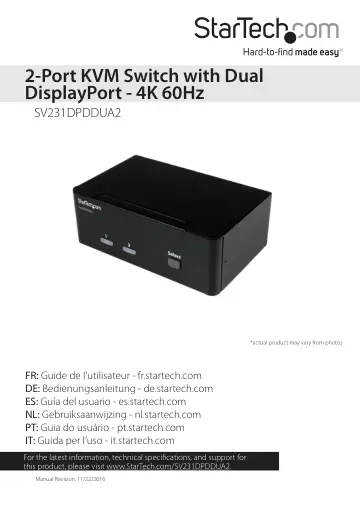
StarTech.com SV231DPDDUA2 user manual
- Type
- User manual
- Language
- English
- Pages
- 13
- Category
- Monitors
- Models
- SV231DPDDUA2
Open PDFOpens the file on objects.icecat.biz.
Contents
- Introductionp. 5
You can use the SV231DPDDUA2 to control two computers enabled with DisplayPort™ 1.2, and share USB 2.0 peripherals among the connected computers. If you…
- Product diagramp. 5
Front view Computer 1 LED Computer 2 LED Select button Back view 1 - Power input port 2 - Console audio port 3 - Console microphone port 4 - Console…
- System requirementsp. 6
Display device (for example, monitor, TV, and so on) equipped with DisplayPort 1.2 • Computer system and video card enabled with DisplayPort 1.2 • Computer…
- KVM switch setupp. 7
Connect a console to the KVM switch 1. Turn off your computer and any devices or peripherals that are connected to it (for example, printers, external hard…
- Connect a console to the KVM switchp. 7
1. Turn off your computer and any devices or peripherals that are connected to it (for example, printers, external hard drives, and so on). 2. Connect a…
- Connect computers to the KVM switchp. 7
You can connect one or two computers to the KVM switch. 1. Turn off the computers that you want to connect to the KVM switch and any devices or peripherals…
- About driversp. 8
You don’t need to install any drivers for this KVM switch, as the keyboard and mouse use generic USB drivers that are already installed on any operating system…
- Operating the KVM switchp. 8
About the LED indicators There are three LED indicators located on the front of the KVM switch. For more information about what the LED behavior indicates, see…
- About the LED indicatorsp. 8
There are three LED indicators located on the front of the KVM switch. For more information about what the LED behavior indicates, see the table below. LED…
- Select a portp. 8
To switch between connected computers, press the Select button on the front of the KVM switch. The LED of the selected computer illuminates red. Using hotkey…
- Select a computerp. 9
To select a computer, press the Left Ctrl key twice and the number of the PC port that you want to select. For example, if you wanted to select computer 2, you…
- Enable or disable Independent Audio Switchingp. 9
By default, Independent Audio Switching is disabled on the KVM switch, which means that the audio selection is determined by the computer that you select. For…
- Troubleshootingp. 10
If you experience issues using this KVM switch and you’re using a PC, you may want to make the following changes to the BIOS settings on your computer: 1. Set…
- I can’t get my wireless mouse and keyboard to workp. 10
Some wireless mice and keyboards do work with KVM switches, but in general most wireless mice and keyboards don’t support KVM switches. If you’re using a…
- keyboard to workp. 10
- into the switchp. 11
To resolve this issue, try the following: • If your keyboard is plugged into one of the USB keyboard ports on the KVM switch, unplug it and plug it into one of…
- My mouse doesn’t move properly between my monitorsp. 11
If you’re running a version of the Windows OS, in order for your mouse to move properly between your monitors you must rearrange your monitors in Windows to…
- Technical supportp. 12
StarTech.com’s lifetime technical support is an integral part of our commitment to provide industry-leading solutions. If you ever need help with your product…
- Warranty informationp. 12
This product is backed by a two-year warranty. StarTech.com warrants its products against defects in materials and workmanship for the periods noted, following…