Loading manual…
StarTech.com SV431HDU3A2 user manual
- Type
- User manual
- Language
- English
- Pages
- 14
- Category
- Docks & adapters
- Models
- SV431HDU3A2
Open PDFOpens the file on objects.icecat.biz.
Contents
- Introductionp. 5
You can use the SV431HDU3A2 to control four HDMI® computers with a single monitor, keyboard, mouse, and audio peripheral set. The KVM switch features a…
- Product diagramp. 5
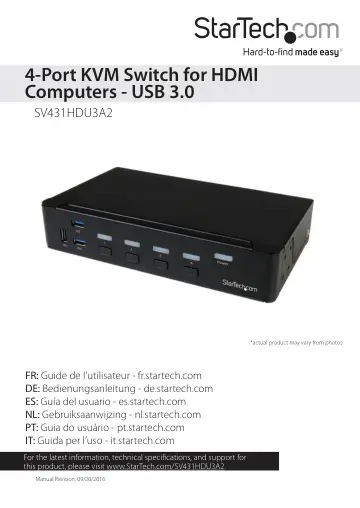
Console USB keyboard and mouse port USB 3.0 ports Port selection buttons Port selection/link LEDs Power LED Front view Back view Power input port Console USB…
- System requirementsp. 6
Host computer with a USB 2.0 or USB 3.0 port • Computer equipped with an HDMI port • Display device (for example, monitor, TV, and so on) equipped with an HDMI…
- About USB 3.0 and USB 3.1 Gen 1p. 6
USB 3.0 is also known as USB 3.1 Gen 1. This connectivity standard offers speeds up to 5Gbps.
- KVM switch setupp. 7
Attach the rubber feet To affix the rubber feet to the bottom of the KVM switch, peel off the backing on each of the four rubber feet and stick them to the…
- Attach the rubber feetp. 7
To affix the rubber feet to the bottom of the KVM switch, peel off the backing on each of the four rubber feet and stick them to the bottom of the switch in…
- Connect a console to the KVM switchp. 7
1. Turn off your computer and any devices or peripherals that are connected to it (for example, printers, external hard drives, and so on). 2. Connect a…
- Connect computers to the KVM switchp. 7
You can connect up to four computers to the KVM switch. 1. Turn off the computers that you want to connect to the KVM switch and any devices or peripherals…
- About video adaptersp. 8
If you use a video adapter with this KVM switch, you must use an active video adapter. If you use a passive video adapter, you might encounter performance…
- About driversp. 8
You don’t need to install any drivers for this KVM switch, as the keyboard and mouse use generic USB drivers that are already installed on any operating system…
- Troubleshootingp. 8
” topic. About drivers You don’t need to install any drivers for this KVM switch, as the keyboard and mouse use generic USB drivers that are already installed…
- Operating the KVM switchp. 9
About the LED indicators The KVM switch features five LED indicators: One LED indicator for each of the four port connections and one power LED. LED Behavior…
- About the LED indicatorsp. 9
The KVM switch features five LED indicators: One LED indicator for each of the four port connections and one power LED. LED Behavior Significance Port…
- Change the AutoScan interval timep. 10
You can set the AutoScan interval time to one of four options: 3, 8, 15, or 30 seconds. By default, the AutoScan interval time is set to 3 seconds after a…
- About the virtual USB HID functionp. 10
The virtual USB HID function can simulate the USB Human Input Device (for example, keyboard or mouse) on all of the computers connected to the KVM switch. This…
- Using hotkey commandsp. 11
You can use hotkey commands to operate the KVM switch. All hotkey commands begin by pressing the left Ctrl key twice and then pressing one or two additional…
- Enable hotkey commandsp. 11
1. To enable the use of hotkey commands with the KVM switch, press and hold the left Shift key and press Num Lock twice. 2. Release the left Shift key. 3.…
- Select a portp. 11
To select a port, press the left Ctrl key twice and the number of the port that you want to select. For example, if you wanted to select port 3, you would…
- Start AutoScanp. 11
When you start the AutoScan feature, the system automatically scans through the computers that are turned on and connected to the KVM switch in sequence for a…
- Start a manual scanp. 12
You can use the manual scan feature to manually switch between computers that are turned on and connected to the KVM switch. 1. To start a manual scan, press…
- Turn on audio lockp. 12
When you turn on the audio lock feature, the audio selection corresponds to the computer selection. When you turn off audio lock, the audio selection stops…
- Technical supportp. 13
StarTech.com’s lifetime technical support is an integral part of our commitment to provide industry-leading solutions. If you ever need help with your product…
- Warranty informationp. 13
This product is backed by a two-year warranty. StarTech.com warrants its products against defects in materials and workmanship for the periods noted, following…