Loading manual…
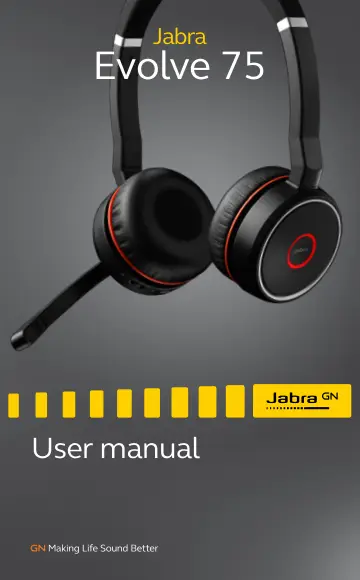
Jabra EVOLVE 75 MS (7599-832-109) user manual
- Type
- User manual
- Language
- English
- Pages
- 28
- Category
- Headphones & headsets
- Models
- 7599-832-1097599-838-1097599-838-199HSC040W
Open PDFOpens the file on objects.icecat.biz.
Contents
- 1. Welcomep. 5
Thank you for using the Jabra Evolve 75. We hope you will enjoy it! JABRA EVOLVE 75 FEATURES • Superior Active Noise Cancellation (ANC) • Integrated busylight…
- 2. Overviewp. 6
USB charging Battery LED On/Off/Pairing Busylight Bluetooth LED ANC Listen-in Volume down Previous track (hold) Answer/end call Open Microsoft Teams…
- 2.1 Included accessoriesp. 7
Charging stand (not supplied in all variants) Pouch Replacement accessories are available online at jabra.com/accessories
- 2.2 Optional accessoriesp. 7
Replacement ear cushions are available online at jabra.com/accessories. USB charging cable jabra Jabra Link 370 Ear cushions
- 3. How to wearp. 8
Position the microphone close to your mouth (2 cm or 3/4 inch). The microphone is bendable for personal preference. 3/4" 2 cm Rotate the microphone up to mute…
- 3.1 Replacing the ear cushionsp. 9
Rotate the ear cushions counter-clockwise and gently pry them off to completely remove them from the headset. To attach the new ear cushions, place them in the…
- 3.2 Fold-flat storagep. 10
The earcups can be folded-flat for easy storage.
- 4. How to chargep. 11
4.1 Using the charging stand Plug the charging stand into a powered USB port on your PC, docking station, or wall charger, and then dock the headset. It takes…
- 4.1 Using the charging standp. 11
Plug the charging stand into a powered USB port on your PC, docking station, or wall charger, and then dock the headset. It takes approx. 3 hours to fully…
- 4.2 Using the USB charging cablep. 12
Plug the supplied USB charging cable into a USB port on your PC, docking station, or wall charger. It takes approx. 3 hours to fully charge the headset.
- 4.3 Battery statusp. 13
To hear the current headset battery status, wear the headset and press the Volume up or Volume down button when not on a call or listening to music. BATTERY…
- 5. How to connectp. 14
5.1 PC (using Jabra Link 370) Plug the supplied Jabra Link 370 into a USB port on your PC. The Jabra Evolve 75 and the Jabra Link 370 are pre-paired and ready…
- 5.1 PC (using Jabra Link 370)p. 14
Plug the supplied Jabra Link 370 into a USB port on your PC. The Jabra Evolve 75 and the Jabra Link 370 are pre-paired and ready for use out of the box. The…
- 5.2 PC (using USB cable)p. 15
Ensure the headset is switched on, and then plug the headset into a USB port on your PC using the supplied USB cable
- 5.3 Smartphonep. 15
Slide and hold the On/Off/Bluetooth switch in the Bluetooth position for 3 seconds and follow the voice-guided instructions to begin pairing the headset to…
- 6. How to usep. 16
- 6.1 What the buttons dop. 16
RIGHT EARCUP Turn headset on/off Slide the On/Off/ Bluetooth switch to On or Off
- 6.2 Multiple call handlingp. 19
The headset can accept and handle multiple calls at the same time. RIGHT EARCUP Put current call on hold, and answer incoming call Press the Answer/ End call…
- 6.3 Voice guidancep. 20
The voice guidance can be switched on/off by holding the Mute button for 5 seconds, or by using Jabra Direct software on your PC (jabra.com/direct). 5 sec.
- 6.4 Busylightsp. 21
The Busylights on the headset automatically light up red when you are on a call to indicate to colleagues that you are busy. To manually switch the Busylights…
- 6.5 Active Noice Cancellation (ANC)p. 22
Active Noise Cancellation (ANC) reduces outside disturbance to a minimum, allowing you to fully focus on your work or call. Press the ANC button to switch…
- 6.6 Listen-inp. 23
Listen-in enables you to hear your surroundings without having to take off the headset. Your music and calls will be muted (but not paused) when Listen-in is…
- 6.7 Factory resetp. 24
Resetting the Jabra Evolve 75 clears the list of paired Bluetooth devices and all personalized settings. To perform a factory reset, hold the Answer/ End call…
- 7. Softwarep. 25
7.1 Jabra Direct Jabra Direct is PC software designed to support, manage and enable optimal functionality for Jabra devices. Download via jabra.com/direct
- 7.1 Jabra Directp. 25
Jabra Direct is PC software designed to support, manage and enable optimal functionality for Jabra devices. Download via jabra.com/direct
- 7.2 Suite for Macp. 25
Suite for Mac is software designed to support, manage and enable optimal functionality for Jabra devices on Apple computers. Download via…
- 7.3 Firmware updatep. 26
Firmware updates improve performance, or add new functionality to Jabra devices. 1. Connect the Jabra Evolve 75 to a PC using the USB cable, charging stand, or…
- 8. Supportp. 27
Find support for the Jabra Evolve 75 or read the FAQ. at jabra.com/evolve75.