Loading manual…
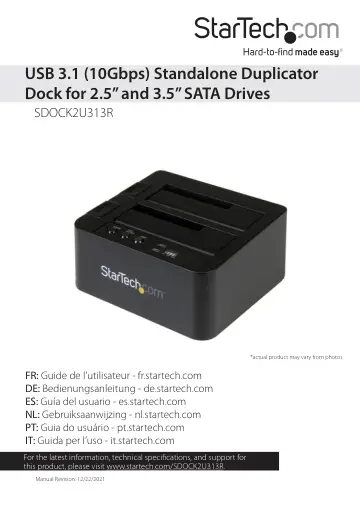
StarTech.com SDOCK2U313R user manual
- Type
- User manual
- Language
- English
- Pages
- 12
- Category
- Storage & drives
- Models
- SDOCK2U313R
Open PDFOpens the file on objects.icecat.biz.
Contents
- Introductionp. 4
- System requirementsp. 4
Computer system with a USB port • Up to two 2.5 in. or 3.5 in. SATA hard drives (HDD) or solid-state drives (SSD) The SDOCK2U313R is OS independent and doesn’t…
- Product diagramp. 5
Front view Drive eject buttons POWER button and LED PC/COPY mode button and LED START duplication button Drive LEDs Duplication progress LED Drive #1 slot…
- Front viewp. 5
Drive eject buttons POWER button and LED PC/COPY mode button and LED START duplication button Drive LEDs Duplication progress LED Drive #1 slot (destination…
- Rear viewp. 6
USB 3.1 Gen 2 port Power adapter port
- Installationp. 7
Connect the duplicator dock Warning! Drives and storage enclosures should be handled carefully, especially when they’re transported. If you’re not careful with…
- Connect the duplicator dockp. 7
Warning! Drives and storage enclosures should be handled carefully, especially when they’re transported. If you’re not careful with your drives, you may lose…
- Install a drivep. 7
1. Carefully align a 2.5 in. or 3.5 in. SATA drive with a drive slot on the duplicator dock, so that the SATA power and data connectors on the drive are…
- Using the duplicator dockp. 9
Duplicate a drive 1. Install the source and destination drives as per the instructions in the Install a drive topic. Note: If you’re connecting drives for…
- Duplicate a drivep. 9
1. Install the source and destination drives as per the instructions in the Install a drive topic. Note: If you’re connecting drives for duplication, place the…
- Remove a drive from your computerp. 9
Note: Make sure that the drive that you want to remove isn’t being accessed by the computer before you proceed. 1. To remove the drive from your operating…
- About the LED indicatorsp. 10
The SDOCK2U313R includes five LED indicators: a power LED, a PC/COPY mode LED, two drive activity LEDs, and a duplication progress LED. For more information…
- Technical supportp. 11
StarTech.com’s lifetime technical support is an integral part of our commitment to provide industry-leading solutions. If you ever need help with your product…
- Warranty informationp. 11
This product is backed by a two-year warranty. StarTech.com warrants its products against defects in materials and workmanship for the periods noted, following…